These symbols that you may find yourself needing to type again and again on your Mac, may be hidden from view, or not where you expect them to be, on your keyboard. Don’t worry though, we’ll let you know what you need to do to type them.
The first problem is that different keyboards position certain keys in different locations, so any guide about where those keys can be found may be wrong, if your particular keyboard isn’t allowed for.
Because we have an international readership we include details of where each of the special characters can be found wherever you are in the world and whether you have a Mac or PC keyboard.
The location of the special characters may depend on where you are based in the world because keyboard layout differs by country, with certain characters getting more prominence on the keyboards of the people who use them more. You’ll find QWERTY keyboards for English speakers, while French speakers get a AZERTY keyboard, and Germans get QWERTZ, for example. Keyboards have completely different key layouts depending on the country, so we’ve included the location of these special keys for a variety of keyboards.
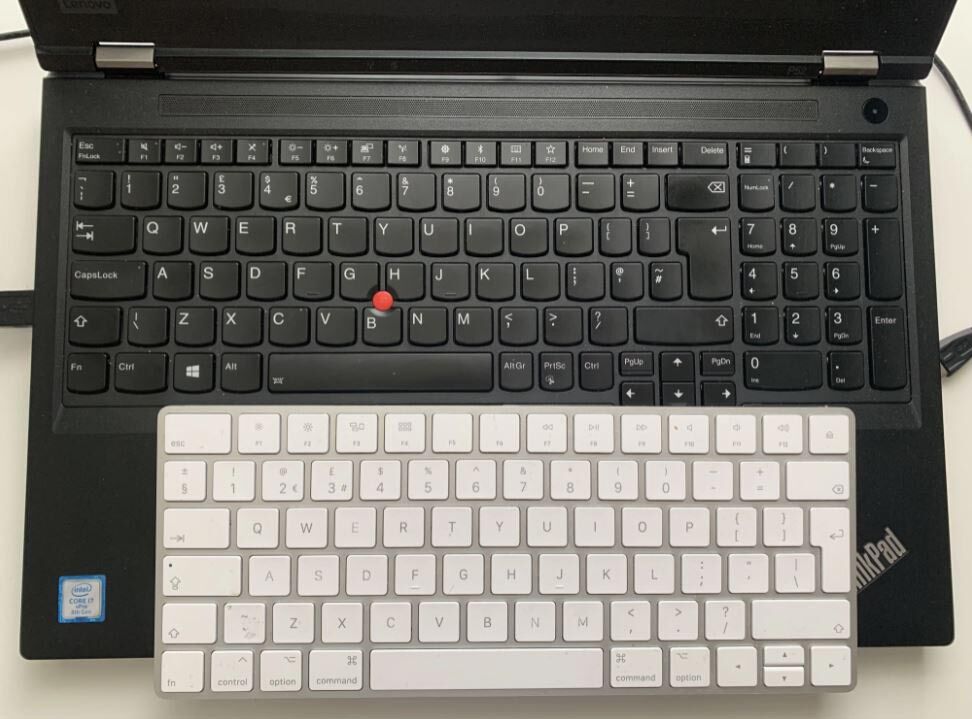
Even U.S. and U.K. keyboards have a number of surprising differences in terms of key placement. Australians tend to use the American keyboard layout.
Alt and Option confusion
Another source of confusion is the fact that some Mac keyboards label the Alt key Option while others call the Option key Alt (depending on your viewpoint). On a Mac keyboard the key has a symbol that looks like this: ⌥
This means that some guides you will read will talk about an Option or Alt key you can’t see on your Mac. The key is one and the same. See: Where is the Option key.
And if you are using a PC keyboard with your Mac the Alt key will do the job of the Option key, while the Windows key will do the job of Command, and you will no doubt be very confused.
The alternative name for Option is Alt and everyone is confused.
Foundry
Where are the hidden characters on my keyboard?
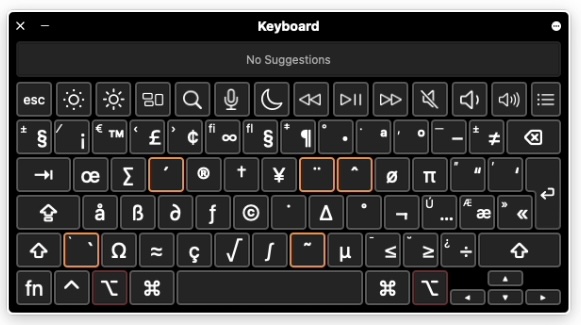
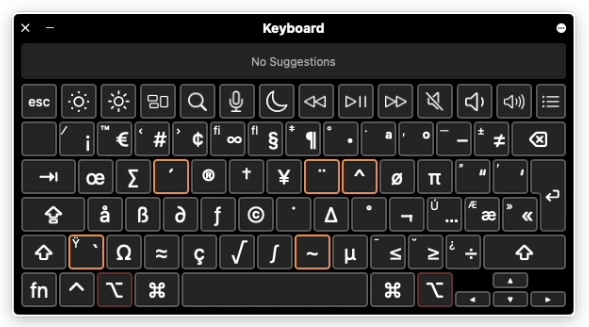
To type many of the special characters you are looking for you may need to press the alt or option key. So, before we begin, here is a handy overview of the hidden characters that you can type using Option/Alt. The first example is the U.S. keyboard, the second is a U.K. keyboard. If you want to see an overview of a different keyboard on your screen we’ll include the steps to see it below.
The ‘hidden’ keys on a U.S. Apple keyboard.
Foundry
The ‘hidden’ keys on a U.K. Apple keyboard
Foundry
FAQ
1.
How to type Euro symbol on a Mac keyboard – €
On a U.S. keyboard to type euro you need to press: Alt/Option-Shift-2 = €
On a U.K. keyboard to type euro you should press: Alt/Option-2 = €
European keyboards give more prominence to the Euro sign, but the location of the euro key, and the combination of keys required, depends on the country.
On French Apple Magic Keyboards you’ll find the Euro sign (and dollar sign) next to the return key.
On German, Italian, Swiss and Spanish keyboards the euro sign is typed by pressing option/alt and the E key.
Portuguese keyboards have the Euro sign on the number 3: press option/Alt and that key.
For Norwegians and the Danish the euro is typed by pressing option/Alt and the number 4.
And Dutch keyboards have the euro on the number 2.
2.
How to type the pound sign (£) on a Mac keyboard
Not only is typing a pound sign tricky because the location of the key will differ depending on the keyboard, but also the word itself has a different meaning depending on where you are.
For U.K. residents the word pound represents the currency: £. However, some countries call the hashtag or hash key a pound.
If you are in the U.K. the hashtag sign shares the 3 key with the pound sign (£) but on other country’s keyboards the U.K. £ sign is found elsewhere
On a U.K. keyboard you need to type £ you need to press shift+3 = £
On a U.S. keyboard you need to type £ you need to press Alt/Option-3 = £
The £ key may not even be illustrated on the U.S. keyboard!
On French and Swiss keyboards, the £ is found above the right-hand shift key, beside the enter/return key.
Italian keyboards have the £ on the number 3, like U.K. keyboards.
3.
How to type a # (hash)
On a U.S. keyboard to type # you need only press Shift-3 = #
On a U.K. keyboard to type # you should press Alt/Option-3 = #
The hash sign on French keyboards is found to the left of the number 1.
German keyboards have the hash key beside the return key.
Norwegian, Spanish, Swedish and Portuguese keyboards have the hash key on number 3.
Italian keyboards have the hash key (cancelletto) just above the lower right shift key.
If you want to take your inspiration for children’s names from Elon Musk, who has a child called X Æ A-12, later renamed the equally odd X Æ A-Xii, you will need the illusive Æ key.
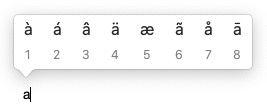
If you want to type Æ just press and hold the A key. You’ll see a range of options appear in a box – just select the one you want or press 5.
8.
How to type degrees
If it’s getting really hot or really cold where you are you might want to tell someone. In which case a degree sign could be handy. Here’s how to type a °
Shift-Alt/Option–8 = °
9.
How to type the Apple logo
You might wonder what circumstances would cause you to need to type an Apple logo, but with Apple naming a few products with the Apple symbol if might be that you need to type TV or Watch. If you do, the key combination is as follows:
This is a handy one – the V almost looks like a tick or check mark, add an Option/Alt and that’s what you get.
Option/Alt-V = √
11.
How to type tilde and more
There are a few keys that are hidden in plain sight. We’ll mention them here just in case you are struggling to find them:
~ (aka the Tilde sign) – It’s on the left by the Shift key / – on the right by the Shift key – on the right above the Shift key | – press shift and \ (beside enter/return)
12.
How to type accents on a Mac keyboard
If you are trying to type accents on an English keyboard if can be a bit daunting – if you are using a keyboard that’s designed for that language it will be considerably easier to type accents, for obvious reasons. To type an accented letter all you need to do is press and hold the relevant key. When you do so a menu will appear with the various accented characters to choose from. For example, if you press and hold the E key then you will eventually see this menu pop up. You can choose the version with your pointer, or by pressing the corresponding number. You’ll find accents associated with the following keys: e, y, u, i, o, a, s, l, z, c, n.
13.
How to type emoji on a Mac
You might think that emoji are restricted to iPhones and iPads, but they aren’t. It’s possible to access emoji on your Mac. When you are using a word processor or similar program you can press Control-Command-Space to bring up the Emoji pallet.
You may recall the Character Viewer – a tool which you could expand to find various characters to be added to text documents. It predated Emoji and since Emoji arrived it seems to have been hidden away, but it’s still there.
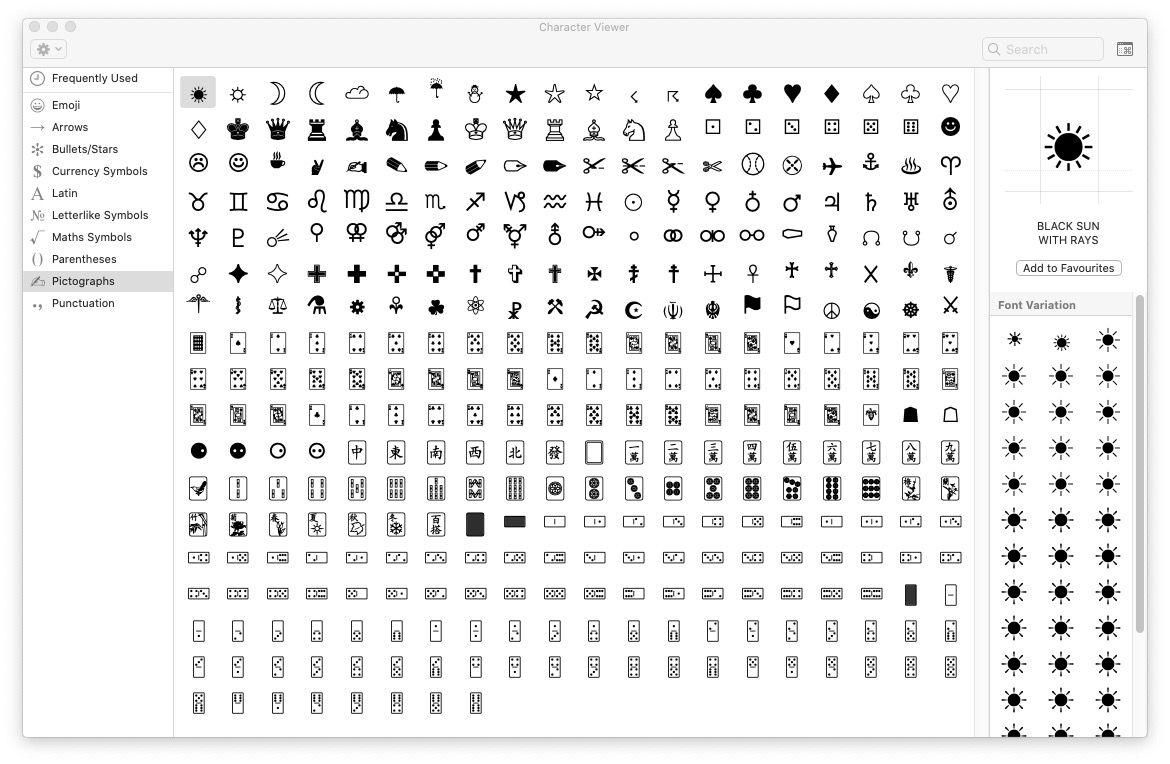
As above, press Control-Command-Space to bring up the Emoji pallet then click on the icon in the top right of the Emoji box to bring up the Character Viewer. Here you’ll find more than Emoji: there are also Arrows, other currency symbols, Maths Symbols, and more.
This is where you will find currency symbols such as ¥ ¢ ₽ ₩ ₱ ₹ ﷼
Maths symbols such as xxx ∄ ℇ ℏ ≥ ≯ ∑ √ ∱≉
There are also some pictographs that predate emoji including all of these
How to see the Keyboard overview on your screen
To see the keyboard overview for any language follow these steps:
If you have a symbol indicating US/UK or another language in the menu at the top of your screen (next to the spotlight icon) click on that.
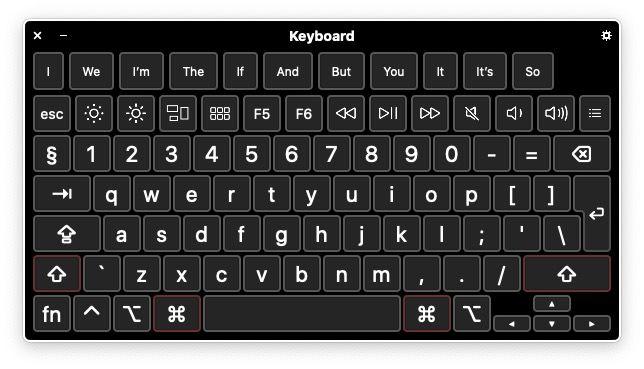
You will see options to Show Emoji & Symbols and Show Keyboard Viewer. Click on Show Keyboard Viewer.
You can click on the Option key (the ⌥ key next to the Command key) on that overlaid keyboard to see what characters will appear when you press that in conjunction with another key.
If you press the shift and option keys you will other options available to you.
If you don’t see the symbol in your menu go to System Setting > Keyboards and make sure Show Input menu in menu bar is selected.
A bonus is the fact that when you type with this keyboard viewer on view you will see various suggested autocomplete words that you might want to use.
If you find yourself using different characters often you might like to try an app like PopChar X from Ergonis. The app makes it really easy to access the various characters that are available in the different fonts on your Mac. You can purchase it here for $29.99/£30.85.
These symbols that you may find yourself needing to type again and again on your Mac, may be hidden from view, or not where you expect them to be, on your keyboard. Don’t worry though, we’ll let you know what you need to do to type them.
The first problem is that different keyboards position certain keys in different locations, so any guide about where those keys can be found may be wrong, if your particular keyboard isn’t allowed for.
Because we have an international readership we include details of where each of the special characters can be found wherever you are in the world and whether you have a Mac or PC keyboard.
The location of the special characters may depend on where you are based in the world because keyboard layout differs by country, with certain characters getting more prominence on the keyboards of the people who use them more. You’ll find QWERTY keyboards for English speakers, while French speakers get a AZERTY keyboard, and Germans get QWERTZ, for example. Keyboards have completely different key layouts depending on the country, so we’ve included the location of these special keys for a variety of keyboards.
Even U.S. and U.K. keyboards have a number of surprising differences in terms of key placement. Australians tend to use the American keyboard layout.
Alt and Option confusion
Another source of confusion is the fact that some Mac keyboards label the Alt key Option while others call the Option key Alt (depending on your viewpoint). On a Mac keyboard the key has a symbol that looks like this: ⌥
This means that some guides you will read will talk about an Option or Alt key you can’t see on your Mac. The key is one and the same. See: Where is the Option key.
And if you are using a PC keyboard with your Mac the Alt key will do the job of the Option key, while the Windows key will do the job of Command, and you will no doubt be very confused.
The alternative name for Option is Alt and everyone is confused.
Foundry
Where are the hidden characters on my keyboard?
To type many of the special characters you are looking for you may need to press the alt or option key. So, before we begin, here is a handy overview of the hidden characters that you can type using Option/Alt. The first example is the U.S. keyboard, the second is a U.K. keyboard. If you want to see an overview of a different keyboard on your screen we’ll include the steps to see it below.
The ‘hidden’ keys on a U.S. Apple keyboard.
Foundry
The ‘hidden’ keys on a U.K. Apple keyboard
Foundry
FAQ
1.
How to type Euro symbol on a Mac keyboard – €
On a U.S. keyboard to type euro you need to press: Alt/Option-Shift-2 = €
On a U.K. keyboard to type euro you should press: Alt/Option-2 = €
European keyboards give more prominence to the Euro sign, but the location of the euro key, and the combination of keys required, depends on the country.
On French Apple Magic Keyboards you’ll find the Euro sign (and dollar sign) next to the return key.
On German, Italian, Swiss and Spanish keyboards the euro sign is typed by pressing option/alt and the E key.
Portuguese keyboards have the Euro sign on the number 3: press option/Alt and that key.
For Norwegians and the Danish the euro is typed by pressing option/Alt and the number 4.
And Dutch keyboards have the euro on the number 2.
2.
How to type the pound sign (£) on a Mac keyboard
Not only is typing a pound sign tricky because the location of the key will differ depending on the keyboard, but also the word itself has a different meaning depending on where you are.
For U.K. residents the word pound represents the currency: £. However, some countries call the hashtag or hash key a pound.
If you are in the U.K. the hashtag sign shares the 3 key with the pound sign (£) but on other country’s keyboards the U.K. £ sign is found elsewhere
On a U.K. keyboard you need to type £ you need to press shift+3 = £
On a U.S. keyboard you need to type £ you need to press Alt/Option-3 = £
The £ key may not even be illustrated on the U.S. keyboard!
On French and Swiss keyboards, the £ is found above the right-hand shift key, beside the enter/return key.
Italian keyboards have the £ on the number 3, like U.K. keyboards.
3.
How to type a # (hash)
On a U.S. keyboard to type # you need only press Shift-3 = #
On a U.K. keyboard to type # you should press Alt/Option-3 = #
The hash sign on French keyboards is found to the left of the number 1.
German keyboards have the hash key beside the return key.
Norwegian, Spanish, Swedish and Portuguese keyboards have the hash key on number 3.
Italian keyboards have the hash key (cancelletto) just above the lower right shift key.
If you want to take your inspiration for children’s names from Elon Musk, who has a child called X Æ A-12, later renamed the equally odd X Æ A-Xii, you will need the illusive Æ key.
If you want to type Æ just press and hold the A key. You’ll see a range of options appear in a box – just select the one you want or press 5.
8.
How to type degrees
If it’s getting really hot or really cold where you are you might want to tell someone. In which case a degree sign could be handy. Here’s how to type a °
Shift-Alt/Option–8 = °
9.
How to type the Apple logo
You might wonder what circumstances would cause you to need to type an Apple logo, but with Apple naming a few products with the Apple symbol if might be that you need to type TV or Watch. If you do, the key combination is as follows:
This is a handy one – the V almost looks like a tick or check mark, add an Option/Alt and that’s what you get.
Option/Alt-V = √
11.
How to type tilde and more
There are a few keys that are hidden in plain sight. We’ll mention them here just in case you are struggling to find them:
~ (aka the Tilde sign) – It’s on the left by the Shift key / – on the right by the Shift key – on the right above the Shift key | – press shift and \ (beside enter/return)
12.
How to type accents on a Mac keyboard
If you are trying to type accents on an English keyboard if can be a bit daunting – if you are using a keyboard that’s designed for that language it will be considerably easier to type accents, for obvious reasons. To type an accented letter all you need to do is press and hold the relevant key. When you do so a menu will appear with the various accented characters to choose from. For example, if you press and hold the E key then you will eventually see this menu pop up. You can choose the version with your pointer, or by pressing the corresponding number. You’ll find accents associated with the following keys: e, y, u, i, o, a, s, l, z, c, n.
13.
How to type emoji on a Mac
You might think that emoji are restricted to iPhones and iPads, but they aren’t. It’s possible to access emoji on your Mac. When you are using a word processor or similar program you can press Control-Command-Space to bring up the Emoji pallet.
You may recall the Character Viewer – a tool which you could expand to find various characters to be added to text documents. It predated Emoji and since Emoji arrived it seems to have been hidden away, but it’s still there.
As above, press Control-Command-Space to bring up the Emoji pallet then click on the icon in the top right of the Emoji box to bring up the Character Viewer. Here you’ll find more than Emoji: there are also Arrows, other currency symbols, Maths Symbols, and more.
This is where you will find currency symbols such as ¥ ¢ ₽ ₩ ₱ ₹ ﷼
Maths symbols such as xxx ∄ ℇ ℏ ≥ ≯ ∑ √ ∱≉
There are also some pictographs that predate emoji including all of these
How to see the Keyboard overview on your screen
To see the keyboard overview for any language follow these steps:
If you have a symbol indicating US/UK or another language in the menu at the top of your screen (next to the spotlight icon) click on that.
You will see options to Show Emoji & Symbols and Show Keyboard Viewer. Click on Show Keyboard Viewer.
You can click on the Option key (the ⌥ key next to the Command key) on that overlaid keyboard to see what characters will appear when you press that in conjunction with another key.
If you press the shift and option keys you will other options available to you.
If you don’t see the symbol in your menu go to System Setting > Keyboards and make sure Show Input menu in menu bar is selected.
A bonus is the fact that when you type with this keyboard viewer on view you will see various suggested autocomplete words that you might want to use.
If you find yourself using different characters often you might like to try an app like PopChar X from Ergonis. The app makes it really easy to access the various characters that are available in the different fonts on your Mac. You can purchase it here for $29.99/£30.85.
These symbols that you may find yourself needing to type again and again on your Mac, may be hidden from view, or not where you expect them to be, on your keyboard. Don’t worry though, we’ll let you know what you need to do to type them.
The first problem is that different keyboards position certain keys in different locations, so any guide about where those keys can be found may be wrong, if your particular keyboard isn’t allowed for.
Because we have an international readership we include details of where each of the special characters can be found wherever you are in the world and whether you have a Mac or PC keyboard.
The location of the special characters may depend on where you are based in the world because keyboard layout differs by country, with certain characters getting more prominence on the keyboards of the people who use them more. You’ll find QWERTY keyboards for English speakers, while French speakers get a AZERTY keyboard, and Germans get QWERTZ, for example. Keyboards have completely different key layouts depending on the country, so we’ve included the location of these special keys for a variety of keyboards.
Even U.S. and U.K. keyboards have a number of surprising differences in terms of key placement. Australians tend to use the American keyboard layout.
Alt and Option confusion
Another source of confusion is the fact that some Mac keyboards label the Alt key Option while others call the Option key Alt (depending on your viewpoint). On a Mac keyboard the key has a symbol that looks like this: ⌥
This means that some guides you will read will talk about an Option or Alt key you can’t see on your Mac. The key is one and the same. See: Where is the Option key.
And if you are using a PC keyboard with your Mac the Alt key will do the job of the Option key, while the Windows key will do the job of Command, and you will no doubt be very confused.
The alternative name for Option is Alt and everyone is confused.
Foundry
Where are the hidden characters on my keyboard?
To type many of the special characters you are looking for you may need to press the alt or option key. So, before we begin, here is a handy overview of the hidden characters that you can type using Option/Alt. The first example is the U.S. keyboard, the second is a U.K. keyboard. If you want to see an overview of a different keyboard on your screen we’ll include the steps to see it below.
The ‘hidden’ keys on a U.S. Apple keyboard.
Foundry
The ‘hidden’ keys on a U.K. Apple keyboard
Foundry
FAQ
1.
How to type Euro symbol on a Mac keyboard – €
On a U.S. keyboard to type euro you need to press: Alt/Option-Shift-2 = €
On a U.K. keyboard to type euro you should press: Alt/Option-2 = €
European keyboards give more prominence to the Euro sign, but the location of the euro key, and the combination of keys required, depends on the country.
On French Apple Magic Keyboards you’ll find the Euro sign (and dollar sign) next to the return key.
On German, Italian, Swiss and Spanish keyboards the euro sign is typed by pressing option/alt and the E key.
Portuguese keyboards have the Euro sign on the number 3: press option/Alt and that key.
For Norwegians and the Danish the euro is typed by pressing option/Alt and the number 4.
And Dutch keyboards have the euro on the number 2.
2.
How to type the pound sign (£) on a Mac keyboard
Not only is typing a pound sign tricky because the location of the key will differ depending on the keyboard, but also the word itself has a different meaning depending on where you are.
For U.K. residents the word pound represents the currency: £. However, some countries call the hashtag or hash key a pound.
If you are in the U.K. the hashtag sign shares the 3 key with the pound sign (£) but on other country’s keyboards the U.K. £ sign is found elsewhere
On a U.K. keyboard you need to type £ you need to press shift+3 = £
On a U.S. keyboard you need to type £ you need to press Alt/Option-3 = £
The £ key may not even be illustrated on the U.S. keyboard!
On French and Swiss keyboards, the £ is found above the right-hand shift key, beside the enter/return key.
Italian keyboards have the £ on the number 3, like U.K. keyboards.
3.
How to type a # (hash)
On a U.S. keyboard to type # you need only press Shift-3 = #
On a U.K. keyboard to type # you should press Alt/Option-3 = #
The hash sign on French keyboards is found to the left of the number 1.
German keyboards have the hash key beside the return key.
Norwegian, Spanish, Swedish and Portuguese keyboards have the hash key on number 3.
Italian keyboards have the hash key (cancelletto) just above the lower right shift key.
If you want to take your inspiration for children’s names from Elon Musk, who has a child called X Æ A-12, later renamed the equally odd X Æ A-Xii, you will need the illusive Æ key.
If you want to type Æ just press and hold the A key. You’ll see a range of options appear in a box – just select the one you want or press 5.
8.
How to type degrees
If it’s getting really hot or really cold where you are you might want to tell someone. In which case a degree sign could be handy. Here’s how to type a °
Shift-Alt/Option–8 = °
9.
How to type the Apple logo
You might wonder what circumstances would cause you to need to type an Apple logo, but with Apple naming a few products with the Apple symbol if might be that you need to type TV or Watch. If you do, the key combination is as follows:
This is a handy one – the V almost looks like a tick or check mark, add an Option/Alt and that’s what you get.
Option/Alt-V = √
11.
How to type tilde and more
There are a few keys that are hidden in plain sight. We’ll mention them here just in case you are struggling to find them:
~ (aka the Tilde sign) – It’s on the left by the Shift key / – on the right by the Shift key – on the right above the Shift key | – press shift and \ (beside enter/return)
12.
How to type accents on a Mac keyboard
If you are trying to type accents on an English keyboard if can be a bit daunting – if you are using a keyboard that’s designed for that language it will be considerably easier to type accents, for obvious reasons. To type an accented letter all you need to do is press and hold the relevant key. When you do so a menu will appear with the various accented characters to choose from. For example, if you press and hold the E key then you will eventually see this menu pop up. You can choose the version with your pointer, or by pressing the corresponding number. You’ll find accents associated with the following keys: e, y, u, i, o, a, s, l, z, c, n.
13.
How to type emoji on a Mac
You might think that emoji are restricted to iPhones and iPads, but they aren’t. It’s possible to access emoji on your Mac. When you are using a word processor or similar program you can press Control-Command-Space to bring up the Emoji pallet.
You may recall the Character Viewer – a tool which you could expand to find various characters to be added to text documents. It predated Emoji and since Emoji arrived it seems to have been hidden away, but it’s still there.
As above, press Control-Command-Space to bring up the Emoji pallet then click on the icon in the top right of the Emoji box to bring up the Character Viewer. Here you’ll find more than Emoji: there are also Arrows, other currency symbols, Maths Symbols, and more.
This is where you will find currency symbols such as ¥ ¢ ₽ ₩ ₱ ₹ ﷼
Maths symbols such as xxx ∄ ℇ ℏ ≥ ≯ ∑ √ ∱≉
There are also some pictographs that predate emoji including all of these
How to see the Keyboard overview on your screen
To see the keyboard overview for any language follow these steps:
If you have a symbol indicating US/UK or another language in the menu at the top of your screen (next to the spotlight icon) click on that.
You will see options to Show Emoji & Symbols and Show Keyboard Viewer. Click on Show Keyboard Viewer.
You can click on the Option key (the ⌥ key next to the Command key) on that overlaid keyboard to see what characters will appear when you press that in conjunction with another key.
If you press the shift and option keys you will other options available to you.
If you don’t see the symbol in your menu go to System Setting > Keyboards and make sure Show Input menu in menu bar is selected.
A bonus is the fact that when you type with this keyboard viewer on view you will see various suggested autocomplete words that you might want to use.
If you find yourself using different characters often you might like to try an app like PopChar X from Ergonis. The app makes it really easy to access the various characters that are available in the different fonts on your Mac. You can purchase it here for $29.99/£30.85.
These symbols that you may find yourself needing to type again and again on your Mac, may be hidden from view, or not where you expect them to be, on your keyboard. Don’t worry though, we’ll let you know what you need to do to type them.
The first problem is that different keyboards position certain keys in different locations, so any guide about where those keys can be found may be wrong, if your particular keyboard isn’t allowed for.
Because we have an international readership we include details of where each of the special characters can be found wherever you are in the world and whether you have a Mac or PC keyboard.
The location of the special characters may depend on where you are based in the world because keyboard layout differs by country, with certain characters getting more prominence on the keyboards of the people who use them more. You’ll find QWERTY keyboards for English speakers, while French speakers get a AZERTY keyboard, and Germans get QWERTZ, for example. Keyboards have completely different key layouts depending on the country, so we’ve included the location of these special keys for a variety of keyboards.
Even U.S. and U.K. keyboards have a number of surprising differences in terms of key placement. Australians tend to use the American keyboard layout.
Alt and Option confusion
Another source of confusion is the fact that some Mac keyboards label the Alt key Option while others call the Option key Alt (depending on your viewpoint). On a Mac keyboard the key has a symbol that looks like this: ⌥
This means that some guides you will read will talk about an Option or Alt key you can’t see on your Mac. The key is one and the same. See: Where is the Option key.
And if you are using a PC keyboard with your Mac the Alt key will do the job of the Option key, while the Windows key will do the job of Command, and you will no doubt be very confused.
The alternative name for Option is Alt and everyone is confused.
Foundry
Where are the hidden characters on my keyboard?
To type many of the special characters you are looking for you may need to press the alt or option key. So, before we begin, here is a handy overview of the hidden characters that you can type using Option/Alt. The first example is the U.S. keyboard, the second is a U.K. keyboard. If you want to see an overview of a different keyboard on your screen we’ll include the steps to see it below.
The ‘hidden’ keys on a U.S. Apple keyboard.
Foundry
The ‘hidden’ keys on a U.K. Apple keyboard
Foundry
FAQ
1.
How to type Euro symbol on a Mac keyboard – €
On a U.S. keyboard to type euro you need to press: Alt/Option-Shift-2 = €
On a U.K. keyboard to type euro you should press: Alt/Option-2 = €
European keyboards give more prominence to the Euro sign, but the location of the euro key, and the combination of keys required, depends on the country.
On French Apple Magic Keyboards you’ll find the Euro sign (and dollar sign) next to the return key.
On German, Italian, Swiss and Spanish keyboards the euro sign is typed by pressing option/alt and the E key.
Portuguese keyboards have the Euro sign on the number 3: press option/Alt and that key.
For Norwegians and the Danish the euro is typed by pressing option/Alt and the number 4.
And Dutch keyboards have the euro on the number 2.
2.
How to type the pound sign (£) on a Mac keyboard
Not only is typing a pound sign tricky because the location of the key will differ depending on the keyboard, but also the word itself has a different meaning depending on where you are.
For U.K. residents the word pound represents the currency: £. However, some countries call the hashtag or hash key a pound.
If you are in the U.K. the hashtag sign shares the 3 key with the pound sign (£) but on other country’s keyboards the U.K. £ sign is found elsewhere
On a U.K. keyboard you need to type £ you need to press shift+3 = £
On a U.S. keyboard you need to type £ you need to press Alt/Option-3 = £
The £ key may not even be illustrated on the U.S. keyboard!
On French and Swiss keyboards, the £ is found above the right-hand shift key, beside the enter/return key.
Italian keyboards have the £ on the number 3, like U.K. keyboards.
3.
How to type a # (hash)
On a U.S. keyboard to type # you need only press Shift-3 = #
On a U.K. keyboard to type # you should press Alt/Option-3 = #
The hash sign on French keyboards is found to the left of the number 1.
German keyboards have the hash key beside the return key.
Norwegian, Spanish, Swedish and Portuguese keyboards have the hash key on number 3.
Italian keyboards have the hash key (cancelletto) just above the lower right shift key.
If you want to take your inspiration for children’s names from Elon Musk, who has a child called X Æ A-12, later renamed the equally odd X Æ A-Xii, you will need the illusive Æ key.
If you want to type Æ just press and hold the A key. You’ll see a range of options appear in a box – just select the one you want or press 5.
8.
How to type degrees
If it’s getting really hot or really cold where you are you might want to tell someone. In which case a degree sign could be handy. Here’s how to type a °
Shift-Alt/Option–8 = °
9.
How to type the Apple logo
You might wonder what circumstances would cause you to need to type an Apple logo, but with Apple naming a few products with the Apple symbol if might be that you need to type TV or Watch. If you do, the key combination is as follows:
This is a handy one – the V almost looks like a tick or check mark, add an Option/Alt and that’s what you get.
Option/Alt-V = √
11.
How to type tilde and more
There are a few keys that are hidden in plain sight. We’ll mention them here just in case you are struggling to find them:
~ (aka the Tilde sign) – It’s on the left by the Shift key / – on the right by the Shift key – on the right above the Shift key | – press shift and \ (beside enter/return)
12.
How to type accents on a Mac keyboard
If you are trying to type accents on an English keyboard if can be a bit daunting – if you are using a keyboard that’s designed for that language it will be considerably easier to type accents, for obvious reasons. To type an accented letter all you need to do is press and hold the relevant key. When you do so a menu will appear with the various accented characters to choose from. For example, if you press and hold the E key then you will eventually see this menu pop up. You can choose the version with your pointer, or by pressing the corresponding number. You’ll find accents associated with the following keys: e, y, u, i, o, a, s, l, z, c, n.
13.
How to type emoji on a Mac
You might think that emoji are restricted to iPhones and iPads, but they aren’t. It’s possible to access emoji on your Mac. When you are using a word processor or similar program you can press Control-Command-Space to bring up the Emoji pallet.
You may recall the Character Viewer – a tool which you could expand to find various characters to be added to text documents. It predated Emoji and since Emoji arrived it seems to have been hidden away, but it’s still there.
As above, press Control-Command-Space to bring up the Emoji pallet then click on the icon in the top right of the Emoji box to bring up the Character Viewer. Here you’ll find more than Emoji: there are also Arrows, other currency symbols, Maths Symbols, and more.
This is where you will find currency symbols such as ¥ ¢ ₽ ₩ ₱ ₹ ﷼
Maths symbols such as xxx ∄ ℇ ℏ ≥ ≯ ∑ √ ∱≉
There are also some pictographs that predate emoji including all of these
How to see the Keyboard overview on your screen
To see the keyboard overview for any language follow these steps:
If you have a symbol indicating US/UK or another language in the menu at the top of your screen (next to the spotlight icon) click on that.
You will see options to Show Emoji & Symbols and Show Keyboard Viewer. Click on Show Keyboard Viewer.
You can click on the Option key (the ⌥ key next to the Command key) on that overlaid keyboard to see what characters will appear when you press that in conjunction with another key.
If you press the shift and option keys you will other options available to you.
If you don’t see the symbol in your menu go to System Setting > Keyboards and make sure Show Input menu in menu bar is selected.
A bonus is the fact that when you type with this keyboard viewer on view you will see various suggested autocomplete words that you might want to use.
If you find yourself using different characters often you might like to try an app like PopChar X from Ergonis. The app makes it really easy to access the various characters that are available in the different fonts on your Mac. You can purchase it here for $29.99/£30.85.
Macworld Whether you have just switched from a PC to a Mac and have discovered that the ” and @ keys aren’t where you were expecting, can’t find the euro
These symbols that you may find yourself needing to type again and again on your Mac, may be hidden from view, or not where you expect them to be, on your keyboard. Don’t worry though, we’ll let you know what you need to do to type them.
The first problem is that different keyboards position certain keys in different locations, so any guide about where those keys can be found may be wrong, if your particular keyboard isn’t allowed for.
Because we have an international readership we include details of where each of the special characters can be found wherever you are in the world and whether you have a Mac or PC keyboard.
The location of the special characters may depend on where you are based in the world because keyboard layout differs by country, with certain characters getting more prominence on the keyboards of the people who use them more. You’ll find QWERTY keyboards for English speakers, while French speakers get a AZERTY keyboard, and Germans get QWERTZ, for example. Keyboards have completely different key layouts depending on the country, so we’ve included the location of these special keys for a variety of keyboards.
Even U.S. and U.K. keyboards have a number of surprising differences in terms of key placement. Australians tend to use the American keyboard layout.
Alt and Option confusion
Another source of confusion is the fact that some Mac keyboards label the Alt key Option while others call the Option key Alt (depending on your viewpoint). On a Mac keyboard the key has a symbol that looks like this: ⌥
This means that some guides you will read will talk about an Option or Alt key you can’t see on your Mac. The key is one and the same. See: Where is the Option key.
And if you are using a PC keyboard with your Mac the Alt key will do the job of the Option key, while the Windows key will do the job of Command, and you will no doubt be very confused.
The alternative name for Option is Alt and everyone is confused.
Foundry
Where are the hidden characters on my keyboard?
To type many of the special characters you are looking for you may need to press the alt or option key. So, before we begin, here is a handy overview of the hidden characters that you can type using Option/Alt. The first example is the U.S. keyboard, the second is a U.K. keyboard. If you want to see an overview of a different keyboard on your screen we’ll include the steps to see it below.
The ‘hidden’ keys on a U.S. Apple keyboard.
Foundry
The ‘hidden’ keys on a U.K. Apple keyboard
Foundry
FAQ
1.
How to type Euro symbol on a Mac keyboard – €
On a U.S. keyboard to type euro you need to press: Alt/Option-Shift-2 = €
On a U.K. keyboard to type euro you should press: Alt/Option-2 = €
European keyboards give more prominence to the Euro sign, but the location of the euro key, and the combination of keys required, depends on the country.
On French Apple Magic Keyboards you’ll find the Euro sign (and dollar sign) next to the return key.
On German, Italian, Swiss and Spanish keyboards the euro sign is typed by pressing option/alt and the E key.
Portuguese keyboards have the Euro sign on the number 3: press option/Alt and that key.
For Norwegians and the Danish the euro is typed by pressing option/Alt and the number 4.
And Dutch keyboards have the euro on the number 2.
2.
How to type the pound sign (£) on a Mac keyboard
Not only is typing a pound sign tricky because the location of the key will differ depending on the keyboard, but also the word itself has a different meaning depending on where you are.
For U.K. residents the word pound represents the currency: £. However, some countries call the hashtag or hash key a pound.
If you are in the U.K. the hashtag sign shares the 3 key with the pound sign (£) but on other country’s keyboards the U.K. £ sign is found elsewhere
On a U.K. keyboard you need to type £ you need to press shift+3 = £
On a U.S. keyboard you need to type £ you need to press Alt/Option-3 = £
The £ key may not even be illustrated on the U.S. keyboard!
On French and Swiss keyboards, the £ is found above the right-hand shift key, beside the enter/return key.
Italian keyboards have the £ on the number 3, like U.K. keyboards.
3.
How to type a # (hash)
On a U.S. keyboard to type # you need only press Shift-3 = #
On a U.K. keyboard to type # you should press Alt/Option-3 = #
The hash sign on French keyboards is found to the left of the number 1.
German keyboards have the hash key beside the return key.
Norwegian, Spanish, Swedish and Portuguese keyboards have the hash key on number 3.
Italian keyboards have the hash key (cancelletto) just above the lower right shift key.
If you want to take your inspiration for children’s names from Elon Musk, who has a child called X Æ A-12, later renamed the equally odd X Æ A-Xii, you will need the illusive Æ key.
If you want to type Æ just press and hold the A key. You’ll see a range of options appear in a box – just select the one you want or press 5.
8.
How to type degrees
If it’s getting really hot or really cold where you are you might want to tell someone. In which case a degree sign could be handy. Here’s how to type a °
Shift-Alt/Option–8 = °
9.
How to type the Apple logo
You might wonder what circumstances would cause you to need to type an Apple logo, but with Apple naming a few products with the Apple symbol if might be that you need to type TV or Watch. If you do, the key combination is as follows:
This is a handy one – the V almost looks like a tick or check mark, add an Option/Alt and that’s what you get.
Option/Alt-V = √
11.
How to type tilde and more
There are a few keys that are hidden in plain sight. We’ll mention them here just in case you are struggling to find them:
~ (aka the Tilde sign) – It’s on the left by the Shift key / – on the right by the Shift key – on the right above the Shift key | – press shift and \ (beside enter/return)
12.
How to type accents on a Mac keyboard
If you are trying to type accents on an English keyboard if can be a bit daunting – if you are using a keyboard that’s designed for that language it will be considerably easier to type accents, for obvious reasons. To type an accented letter all you need to do is press and hold the relevant key. When you do so a menu will appear with the various accented characters to choose from. For example, if you press and hold the E key then you will eventually see this menu pop up. You can choose the version with your pointer, or by pressing the corresponding number. You’ll find accents associated with the following keys: e, y, u, i, o, a, s, l, z, c, n.
13.
How to type emoji on a Mac
You might think that emoji are restricted to iPhones and iPads, but they aren’t. It’s possible to access emoji on your Mac. When you are using a word processor or similar program you can press Control-Command-Space to bring up the Emoji pallet.
You may recall the Character Viewer – a tool which you could expand to find various characters to be added to text documents. It predated Emoji and since Emoji arrived it seems to have been hidden away, but it’s still there.
As above, press Control-Command-Space to bring up the Emoji pallet then click on the icon in the top right of the Emoji box to bring up the Character Viewer. Here you’ll find more than Emoji: there are also Arrows, other currency symbols, Maths Symbols, and more.
This is where you will find currency symbols such as ¥ ¢ ₽ ₩ ₱ ₹ ﷼
Maths symbols such as xxx ∄ ℇ ℏ ≥ ≯ ∑ √ ∱≉
There are also some pictographs that predate emoji including all of these
How to see the Keyboard overview on your screen
To see the keyboard overview for any language follow these steps:
If you have a symbol indicating US/UK or another language in the menu at the top of your screen (next to the spotlight icon) click on that.
You will see options to Show Emoji & Symbols and Show Keyboard Viewer. Click on Show Keyboard Viewer.
You can click on the Option key (the ⌥ key next to the Command key) on that overlaid keyboard to see what characters will appear when you press that in conjunction with another key.
If you press the shift and option keys you will other options available to you.
If you don’t see the symbol in your menu go to System Setting > Keyboards and make sure Show Input menu in menu bar is selected.
A bonus is the fact that when you type with this keyboard viewer on view you will see various suggested autocomplete words that you might want to use.
If you find yourself using different characters often you might like to try an app like PopChar X from Ergonis. The app makes it really easy to access the various characters that are available in the different fonts on your Mac. You can purchase it here for $29.99/£30.85.
The third beta of iOS 18.1 that Apple provided to developers today includes a new Apple Intelligence feature for the Photos app. Clean Up can be used to remove distracting
What’s New in iOS 2…
10.20.2025
Even though we're at the fourth beta of iOS 26.1, Apple is continuing to add new features. In fact, the fourth beta has some of the biggest changes that we'll
Android Phones Exposed to…
08.16.2024
Some Android smartphones have been found to contain a hidden security vulnerability that could allow remote access to user data, alarming cybersecurity experts and leading to a halt in the
Tinder owner Match claims…
10.24.2025
Match Group, owner of Tinder, claims in its submission to India’s antitrust body that Apple’s fee of up to 30% will gradually choke its revenues, urging steep fines to safeguard
Jumpstart your new year w…
01.04.2024
If you've been glued to the couch since New Year's day, Apple Fitness+ has a slew of new ways to get you moving. (via Cult of Mac - Apple news,
Would you recommend AirPo…
03.24.2025
Best USB-C and Thunderbol…
07.20.2023
USB-C/Thunderbolt display options have really expanded over the last couple of years. While Apple’s Pro Display XDR isn’t the best fit for most Mac users at $5,000+, it also offers
Stop us if you’ve h…
05.10.2023
AMD announced a new chip for thin-and-light notebooks that it specifically claims beats Apple's year-old M2. Did the company cherry-pick results and hide the compromises, or is this a genuine
A whimsical homage to the days in black and white, celebrating the magic of Mac OS. Dress up your blog with retro, chunky-grade pixellated graphics to evoke some serious computer nostalgia. Supports a custom menu, custom header image, custom background, two footer widget areas, and a full-width page template. I updated Stuart Brown's 2011 masterpiece to meet the needs of the times, made it responsive , got dark mode, custom search widget and more.You can download it from tigaman.com, where you can also find more useful code snippets and plugins to get even more out of wordpress.
This website makes use of cookies to enhance browsing experience and provide additional functionality.