
announced that it would be releasing a desktop ChatGPT app for the Mac in the "coming weeks," and said that ahead of a wider launch it had started rolling out the app to some ChatGPT Plus subscribers.
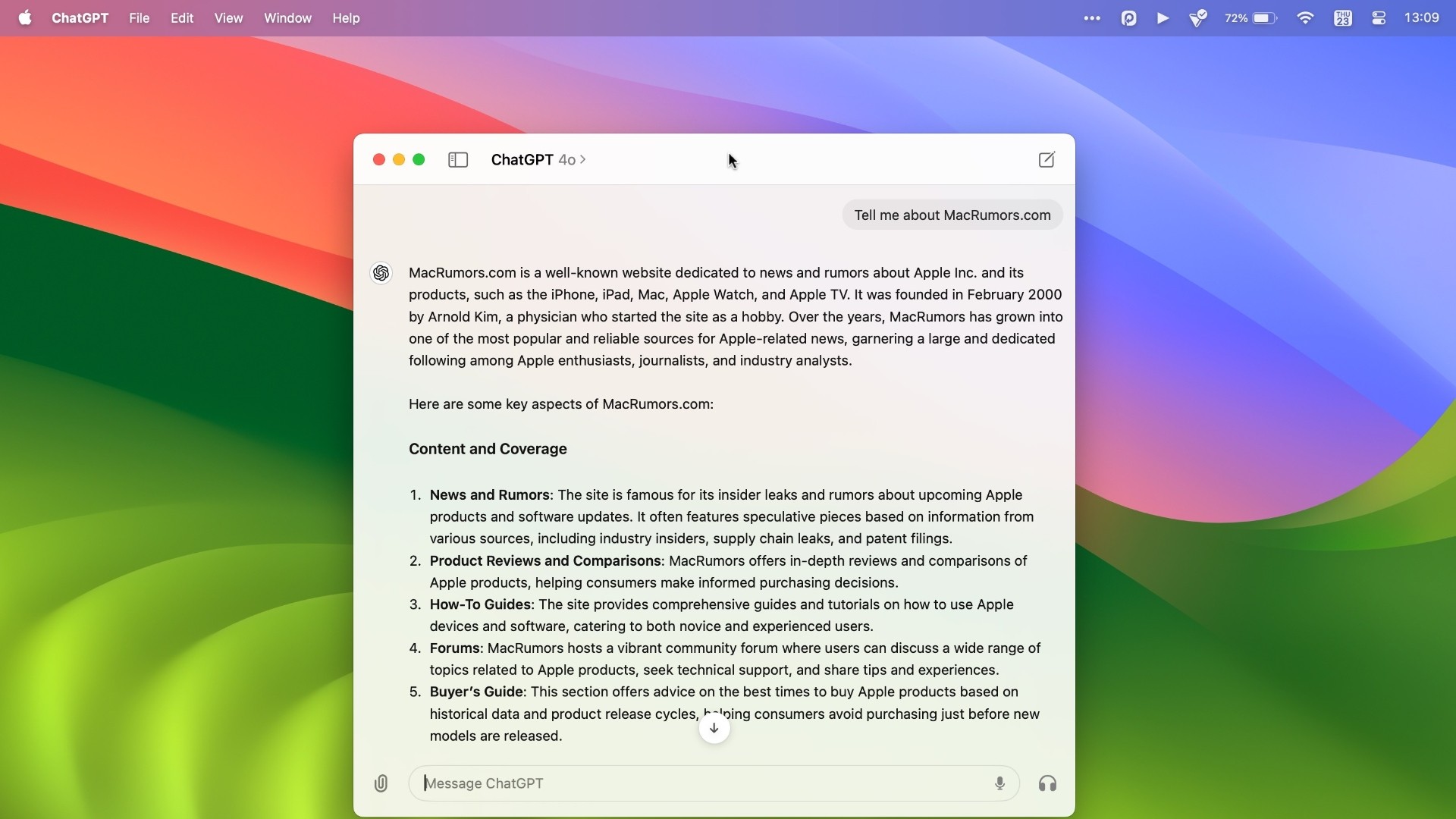

After testing the app for a few days, we thought it was worth sharing some reasons why ChatGPT users may find that the Mac app is a useful addition to their AI-assisted workflow.

Access the ChatGPT Launcher


For a while now, it's been possible to use OpenAI's chatbot on iPhone via the official ChatGPT iOS app, but most desktop users have relied on visiting the website in a browser. Thanks to ChatGPT for Mac, things feel a lot more integrated. Using the keyboard shortcut Option + Space, you can instantly invoke the app's Launcher and ask the conversational AI to help you with some task or project, but you also get fast access to several other key features.


The small window that appears on your desktop feels similar to when you invoke Spotlight (Command + Space) in macOS: It floats above any windows or apps that you have open and feels just as convenient. A paperclip button lets you include a file or photo that you may want to get help with, and adding an attachment sends it to ChatGPT where you can ask follow-up questions in a dedicated app window.

Take a Screenshot


Clicking the paperclip icon also brings up some useful additional options, such as the ability to take a screenshot of any open app window (even if it's off-screen) or your entire desktop, and query it with ChatGPT. For example, we queried a screenshot of a recent MacRumors article covering Apple Music's Top 10 Albums of All Time, and asked ChatGPT to provide a summary of top critics' reviews for each album, which it duly did.


On another occasion, we got ChatGPT to extract the text from a dropdown selection menu on Apple's website and format it in HTML as an unordered list, which it did in seconds. From proofing an open document to getting troubleshooting help, it's easy to imagine all manner of scenarios where this feature could help save time and improve productivity.


Currently, it's not possible to directly query ChatGPT about what is shown on your Mac's screen, but OpenAI says this feature is coming in a future update.

Take a Photo


"Take a Photo" is another option that you can access via the paperclip button. Clicking it automatically brings up the current output of your Mac's FaceTime camera or an attached webcam.


This is useful if you just want to hold an object in front of your Mac that you'd like to query. However, you can also select the camera of your nearby ‌iPhone‌, which gives you more freedom to move around and line up the subject of your photo more carefully.

The only problem right now is that the shutter button remains on the camera feed on your Mac's screen, rather than switching to your ‌iPhone‌. This is probably an oversight that OpenAI will rectify soon.

Customize ChatGPT


In the app's settings (accessed via ChatPGT ➝ Settings… in the menu bar when the app's main window is active) there are several options that let you customize how ChatGPT works. You can control whether or not OpenAI uses your content to train its models, as well as change the desktop launcher keyboard shortcut and enable/disable GPT capabilities including web browsing, DALL·E image generator, and Code Interpreter.


You can also add custom instructions that influence how ChatGPT responds (also known as prompt engineering). So you can make responses more formal or more casual, or specify how long or short they should be. You can also personalize ChatGPT to cosplay a certain profession or character. If you want it to respond like an academic thesis advisor, or Samuel L Jackson, for example, you can specify that in settings.

The main app window also lets you access your conversation history and switch between any custom GPTs you have parked in your sidebar. Not only that, you can choose which version of ChatGPT you wish to query. For example, the introduction of the new multimodal GPT-4o model enhances response times, improves reasoning capabilities, and offers a better understanding of images and other content types.

Voice Chat


When interacting with ChatGPT in the app's main window, there are buttons to dictate your query or alternatively start a two-way voice chat with the bot. In theory it sounds great, but in practice there's a delay between responses, and you have to wait for ChatGPT to stop speaking before you can give it a follow-up query or command. It's also not possible to access other features like taking a photo via voice. Fortunately, there's more to come on this front.


At OpenAI's Spring Update, the company demoed ChatGPT's new real-time voice conversation feature, which includes the ability to interrupt the chatbot and redirect the conversation. As of writing, the ChatGPT Mac app does not support these features, but OpenAI says we should see them added to GPT-4o in the coming weeks.

Summing Up


If you are a regular user of ChatGPT on Mac, using OpenAI's official app should be your go-to method of interactig with the AI chatbot. For a first version, the client is surprisingly polished, and invoking the Launcher via a keyboard shortcut makes using ChatGPT quicker and easier than ever before. It also offers a peek into a possible future where ChatGPT is fully integrated with Apple's operating systems.


Note that the ChatGPT Mac app is currently only available to Plus subscribers ($20 per month), and only a limited subset of those users have been offered the download so far. We will say that there are download links to the app floating around on social media, and there is a fairly reliable way for any Plus subscriber to bypass the waitlist and get it to work. But if you have the patience to wait in line, OpenAI says the ChatGPT Mac app will be available to both subscribers and free users in the near future.
Tags: ChatGPT, OpenAI

This article, "5 Reasons to Use OpenAI's ChatGPT App for Mac" first appeared on MacRumors.com

Discuss this article in our forums
announced that it would be releasing a desktop ChatGPT app for the Mac in the "coming weeks," and said that ahead of a wider launch it had started rolling out the app to some ChatGPT Plus subscribers.


After testing the app for a few days, we thought it was worth sharing some reasons why ChatGPT users may find that the Mac app is a useful addition to their AI-assisted workflow.

Access the ChatGPT Launcher


For a while now, it's been possible to use OpenAI's chatbot on iPhone via the official ChatGPT iOS app, but most desktop users have relied on visiting the website in a browser. Thanks to ChatGPT for Mac, things feel a lot more integrated. Using the keyboard shortcut Option + Space, you can instantly invoke the app's Launcher and ask the conversational AI to help you with some task or project, but you also get fast access to several other key features.


The small window that appears on your desktop feels similar to when you invoke Spotlight (Command + Space) in macOS: It floats above any windows or apps that you have open and feels just as convenient. A paperclip button lets you include a file or photo that you may want to get help with, and adding an attachment sends it to ChatGPT where you can ask follow-up questions in a dedicated app window.

Take a Screenshot


Clicking the paperclip icon also brings up some useful additional options, such as the ability to take a screenshot of any open app window (even if it's off-screen) or your entire desktop, and query it with ChatGPT. For example, we queried a screenshot of a recent MacRumors article covering Apple Music's Top 10 Albums of All Time, and asked ChatGPT to provide a summary of top critics' reviews for each album, which it duly did.


On another occasion, we got ChatGPT to extract the text from a dropdown selection menu on Apple's website and format it in HTML as an unordered list, which it did in seconds. From proofing an open document to getting troubleshooting help, it's easy to imagine all manner of scenarios where this feature could help save time and improve productivity.


Currently, it's not possible to directly query ChatGPT about what is shown on your Mac's screen, but OpenAI says this feature is coming in a future update.

Take a Photo


"Take a Photo" is another option that you can access via the paperclip button. Clicking it automatically brings up the current output of your Mac's FaceTime camera or an attached webcam.


This is useful if you just want to hold an object in front of your Mac that you'd like to query. However, you can also select the camera of your nearby ‌iPhone‌, which gives you more freedom to move around and line up the subject of your photo more carefully.

The only problem right now is that the shutter button remains on the camera feed on your Mac's screen, rather than switching to your ‌iPhone‌. This is probably an oversight that OpenAI will rectify soon.

Customize ChatGPT


In the app's settings (accessed via ChatPGT ➝ Settings… in the menu bar when the app's main window is active) there are several options that let you customize how ChatGPT works. You can control whether or not OpenAI uses your content to train its models, as well as change the desktop launcher keyboard shortcut and enable/disable GPT capabilities including web browsing, DALL·E image generator, and Code Interpreter.


You can also add custom instructions that influence how ChatGPT responds (also known as prompt engineering). So you can make responses more formal or more casual, or specify how long or short they should be. You can also personalize ChatGPT to cosplay a certain profession or character. If you want it to respond like an academic thesis advisor, or Samuel L Jackson, for example, you can specify that in settings.

The main app window also lets you access your conversation history and switch between any custom GPTs you have parked in your sidebar. Not only that, you can choose which version of ChatGPT you wish to query. For example, the introduction of the new multimodal GPT-4o model enhances response times, improves reasoning capabilities, and offers a better understanding of images and other content types.

Voice Chat


When interacting with ChatGPT in the app's main window, there are buttons to dictate your query or alternatively start a two-way voice chat with the bot. In theory it sounds great, but in practice there's a delay between responses, and you have to wait for ChatGPT to stop speaking before you can give it a follow-up query or command. It's also not possible to access other features like taking a photo via voice. Fortunately, there's more to come on this front.


At OpenAI's Spring Update, the company demoed ChatGPT's new real-time voice conversation feature, which includes the ability to interrupt the chatbot and redirect the conversation. As of writing, the ChatGPT Mac app does not support these features, but OpenAI says we should see them added to GPT-4o in the coming weeks.

Summing Up


If you are a regular user of ChatGPT on Mac, using OpenAI's official app should be your go-to method of interactig with the AI chatbot. For a first version, the client is surprisingly polished, and invoking the Launcher via a keyboard shortcut makes using ChatGPT quicker and easier than ever before. It also offers a peek into a possible future where ChatGPT is fully integrated with Apple's operating systems.


Note that the ChatGPT Mac app is currently only available to Plus subscribers ($20 per month), and only a limited subset of those users have been offered the download so far. We will say that there are download links to the app floating around on social media, and there is a fairly reliable way for any Plus subscriber to bypass the waitlist and get it to work. But if you have the patience to wait in line, OpenAI says the ChatGPT Mac app will be available to both subscribers and free users in the near future.
Tags: ChatGPT, OpenAI

This article, "5 Reasons to Use OpenAI's ChatGPT App for Mac" first appeared on MacRumors.com

Discuss this article in our forums
announced that it would be releasing a desktop ChatGPT app for the Mac in the "coming weeks," and said that ahead of a wider launch it had started rolling out the app to some ChatGPT Plus subscribers.


After testing the app for a few days, we thought it was worth sharing some reasons why ChatGPT users may find that the Mac app is a useful addition to their AI-assisted workflow.

Access the ChatGPT Launcher


For a while now, it's been possible to use OpenAI's chatbot on iPhone via the official ChatGPT iOS app, but most desktop users have relied on visiting the website in a browser. Thanks to ChatGPT for Mac, things feel a lot more integrated. Using the keyboard shortcut Option + Space, you can instantly invoke the app's Launcher and ask the conversational AI to help you with some task or project, but you also get fast access to several other key features.


The small window that appears on your desktop feels similar to when you invoke Spotlight (Command + Space) in macOS: It floats above any windows or apps that you have open and feels just as convenient. A paperclip button lets you include a file or photo that you may want to get help with, and adding an attachment sends it to ChatGPT where you can ask follow-up questions in a dedicated app window.

Take a Screenshot


Clicking the paperclip icon also brings up some useful additional options, such as the ability to take a screenshot of any open app window (even if it's off-screen) or your entire desktop, and query it with ChatGPT. For example, we queried a screenshot of a recent MacRumors article covering Apple Music's Top 10 Albums of All Time, and asked ChatGPT to provide a summary of top critics' reviews for each album, which it duly did.


On another occasion, we got ChatGPT to extract the text from a dropdown selection menu on Apple's website and format it in HTML as an unordered list, which it did in seconds. From proofing an open document to getting troubleshooting help, it's easy to imagine all manner of scenarios where this feature could help save time and improve productivity.


Currently, it's not possible to directly query ChatGPT about what is shown on your Mac's screen, but OpenAI says this feature is coming in a future update.

Take a Photo


"Take a Photo" is another option that you can access via the paperclip button. Clicking it automatically brings up the current output of your Mac's FaceTime camera or an attached webcam.


This is useful if you just want to hold an object in front of your Mac that you'd like to query. However, you can also select the camera of your nearby ‌iPhone‌, which gives you more freedom to move around and line up the subject of your photo more carefully.

The only problem right now is that the shutter button remains on the camera feed on your Mac's screen, rather than switching to your ‌iPhone‌. This is probably an oversight that OpenAI will rectify soon.

Customize ChatGPT


In the app's settings (accessed via ChatPGT ➝ Settings… in the menu bar when the app's main window is active) there are several options that let you customize how ChatGPT works. You can control whether or not OpenAI uses your content to train its models, as well as change the desktop launcher keyboard shortcut and enable/disable GPT capabilities including web browsing, DALL·E image generator, and Code Interpreter.


You can also add custom instructions that influence how ChatGPT responds (also known as prompt engineering). So you can make responses more formal or more casual, or specify how long or short they should be. You can also personalize ChatGPT to cosplay a certain profession or character. If you want it to respond like an academic thesis advisor, or Samuel L Jackson, for example, you can specify that in settings.

The main app window also lets you access your conversation history and switch between any custom GPTs you have parked in your sidebar. Not only that, you can choose which version of ChatGPT you wish to query. For example, the introduction of the new multimodal GPT-4o model enhances response times, improves reasoning capabilities, and offers a better understanding of images and other content types.

Voice Chat


When interacting with ChatGPT in the app's main window, there are buttons to dictate your query or alternatively start a two-way voice chat with the bot. In theory it sounds great, but in practice there's a delay between responses, and you have to wait for ChatGPT to stop speaking before you can give it a follow-up query or command. It's also not possible to access other features like taking a photo via voice. Fortunately, there's more to come on this front.


At OpenAI's Spring Update, the company demoed ChatGPT's new real-time voice conversation feature, which includes the ability to interrupt the chatbot and redirect the conversation. As of writing, the ChatGPT Mac app does not support these features, but OpenAI says we should see them added to GPT-4o in the coming weeks.

Summing Up


If you are a regular user of ChatGPT on Mac, using OpenAI's official app should be your go-to method of interactig with the AI chatbot. For a first version, the client is surprisingly polished, and invoking the Launcher via a keyboard shortcut makes using ChatGPT quicker and easier than ever before. It also offers a peek into a possible future where ChatGPT is fully integrated with Apple's operating systems.


Note that the ChatGPT Mac app is currently only available to Plus subscribers ($20 per month), and only a limited subset of those users have been offered the download so far. We will say that there are download links to the app floating around on social media, and there is a fairly reliable way for any Plus subscriber to bypass the waitlist and get it to work. But if you have the patience to wait in line, OpenAI says the ChatGPT Mac app will be available to both subscribers and free users in the near future.
This article, "5 Reasons to Use OpenAI's ChatGPT App for Mac" first appeared on MacRumors.com

Discuss this article in our forums
announced that it would be releasing a desktop ChatGPT app for the Mac in the "coming weeks," and said that ahead of a wider launch it had started rolling out the app to some ChatGPT Plus subscribers.


After testing the app for a few days, we thought it was worth sharing some reasons why ChatGPT users may find that the Mac app is a useful addition to their AI-assisted workflow.

Access the ChatGPT Launcher


For a while now, it's been possible to use OpenAI's chatbot on iPhone via the official ChatGPT iOS app, but most desktop users have relied on visiting the website in a browser. Thanks to ChatGPT for Mac, things feel a lot more integrated. Using the keyboard shortcut Option + Space, you can instantly invoke the app's Launcher and ask the conversational AI to help you with some task or project, but you also get fast access to several other key features.


The small window that appears on your desktop feels similar to when you invoke Spotlight (Command + Space) in macOS: It floats above any windows or apps that you have open and feels just as convenient. A paperclip button lets you include a file or photo that you may want to get help with, and adding an attachment sends it to ChatGPT where you can ask follow-up questions in a dedicated app window.

Take a Screenshot


Clicking the paperclip icon also brings up some useful additional options, such as the ability to take a screenshot of any open app window (even if it's off-screen) or your entire desktop, and query it with ChatGPT. For example, we queried a screenshot of a recent MacRumors article covering Apple Music's Top 10 Albums of All Time, and asked ChatGPT to provide a summary of top critics' reviews for each album, which it duly did.


On another occasion, we got ChatGPT to extract the text from a dropdown selection menu on Apple's website and format it in HTML as an unordered list, which it did in seconds. From proofing an open document to getting troubleshooting help, it's easy to imagine all manner of scenarios where this feature could help save time and improve productivity.


Currently, it's not possible to directly query ChatGPT about what is shown on your Mac's screen, but OpenAI says this feature is coming in a future update.

Take a Photo


"Take a Photo" is another option that you can access via the paperclip button. Clicking it automatically brings up the current output of your Mac's FaceTime camera or an attached webcam.


This is useful if you just want to hold an object in front of your Mac that you'd like to query. However, you can also select the camera of your nearby ‌iPhone‌, which gives you more freedom to move around and line up the subject of your photo more carefully.

The only problem right now is that the shutter button remains on the camera feed on your Mac's screen, rather than switching to your ‌iPhone‌. This is probably an oversight that OpenAI will rectify soon.

Customize ChatGPT


In the app's settings (accessed via ChatPGT ➝ Settings… in the menu bar when the app's main window is active) there are several options that let you customize how ChatGPT works. You can control whether or not OpenAI uses your content to train its models, as well as change the desktop launcher keyboard shortcut and enable/disable GPT capabilities including web browsing, DALL·E image generator, and Code Interpreter.


You can also add custom instructions that influence how ChatGPT responds (also known as prompt engineering). So you can make responses more formal or more casual, or specify how long or short they should be. You can also personalize ChatGPT to cosplay a certain profession or character. If you want it to respond like an academic thesis advisor, or Samuel L Jackson, for example, you can specify that in settings.

The main app window also lets you access your conversation history and switch between any custom GPTs you have parked in your sidebar. Not only that, you can choose which version of ChatGPT you wish to query. For example, the introduction of the new multimodal GPT-4o model enhances response times, improves reasoning capabilities, and offers a better understanding of images and other content types.

Voice Chat


When interacting with ChatGPT in the app's main window, there are buttons to dictate your query or alternatively start a two-way voice chat with the bot. In theory it sounds great, but in practice there's a delay between responses, and you have to wait for ChatGPT to stop speaking before you can give it a follow-up query or command. It's also not possible to access other features like taking a photo via voice. Fortunately, there's more to come on this front.


At OpenAI's Spring Update, the company demoed ChatGPT's new real-time voice conversation feature, which includes the ability to interrupt the chatbot and redirect the conversation. As of writing, the ChatGPT Mac app does not support these features, but OpenAI says we should see them added to GPT-4o in the coming weeks.

Summing Up


If you are a regular user of ChatGPT on Mac, using OpenAI's official app should be your go-to method of interactig with the AI chatbot. For a first version, the client is surprisingly polished, and invoking the Launcher via a keyboard shortcut makes using ChatGPT quicker and easier than ever before. It also offers a peek into a possible future where ChatGPT is fully integrated with Apple's operating systems.


Note that the ChatGPT Mac app is currently only available to Plus subscribers ($20 per month), and only a limited subset of those users have been offered the download so far. We will say that there are download links to the app floating around on social media, and there is a fairly reliable way for any Plus subscriber to bypass the waitlist and get it to work. But if you have the patience to wait in line, OpenAI says the ChatGPT Mac app will be available to both subscribers and free users in the near future.
This article, "5 Reasons to Use OpenAI's ChatGPT App for Mac" first appeared on MacRumors.com

Discuss this article in our forums
On May 13, OpenAI during its Spring Update announced that it would be releasing a desktop ChatGPT app for the Mac in the "coming weeks," and said that ahead of

On May 13, OpenAI during its Spring Update announced that it would be releasing a desktop ChatGPT app for the Mac in the “coming weeks,” and said that ahead of a wider launch it had started rolling out the app to some ChatGPT Plus subscribers.


After testing the app for a few days, we thought it was worth sharing some reasons why ChatGPT users may find that the Mac app is a useful addition to their AI-assisted workflow.

Access the ChatGPT Launcher

For a while now, it’s been possible to use OpenAI’s chatbot on iPhone via the official ChatGPT iOS app, but most desktop users have relied on visiting the website in a browser. Thanks to ChatGPT for Mac, things feel a lot more integrated. Using the keyboard shortcut Option + Space, you can instantly invoke the app’s Launcher and ask the conversational AI to help you with some task or project, but you also get fast access to several other key features.


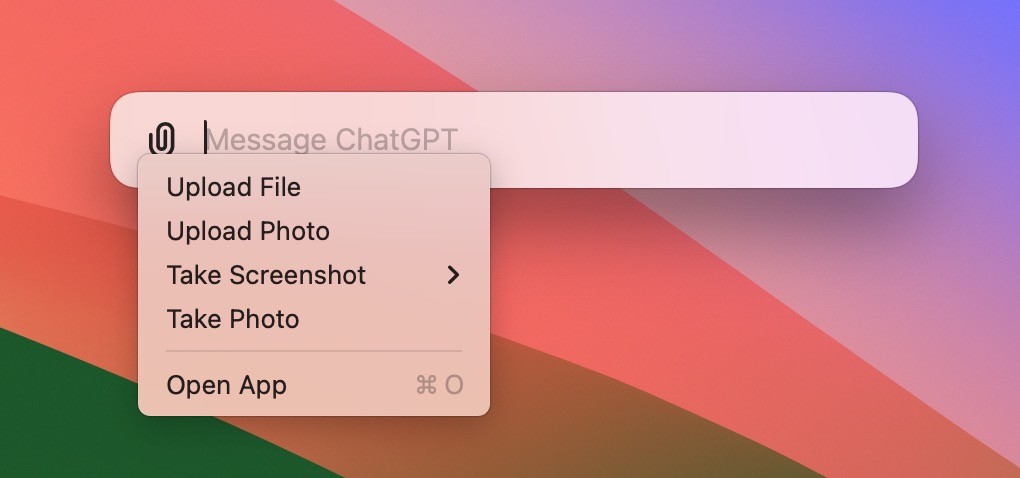
The small window that appears on your desktop feels similar to when you invoke Spotlight (Command + Space) in macOS: It floats above any windows or apps that you have open and feels just as convenient. A paperclip button lets you include a file or photo that you may want to get help with, and adding an attachment sends it to ChatGPT where you can ask follow-up questions in a dedicated app window.

Take a Screenshot

Clicking the paperclip icon also brings up some useful additional options, such as the ability to take a screenshot of any open app window (even if it’s off-screen) or your entire desktop, and query it with ChatGPT. For example, we queried a screenshot of a recent MacRumors article covering Apple Music’s Top 10 Albums of All Time, and asked ChatGPT to provide a summary of top critics’ reviews for each album, which it duly did.
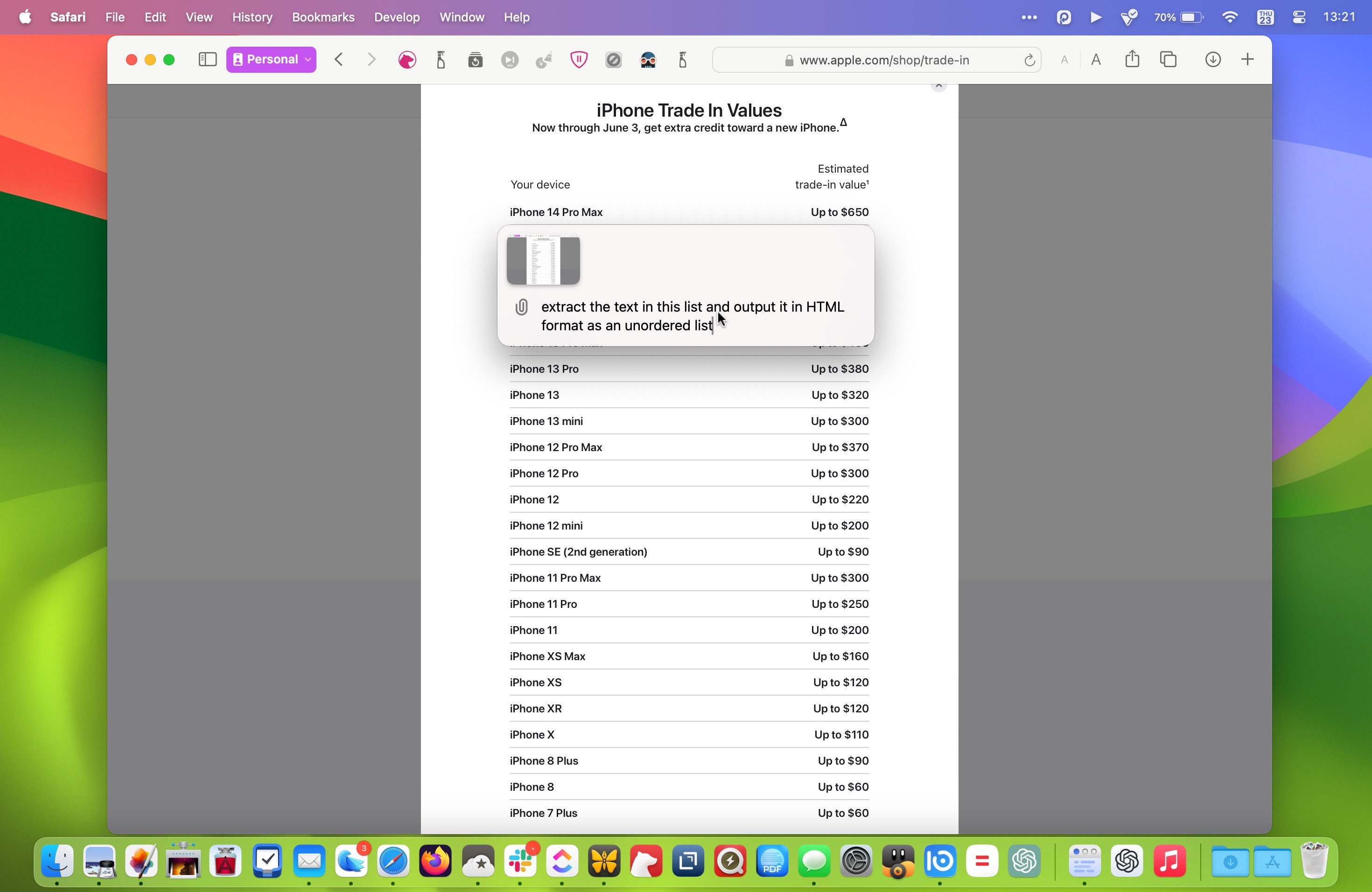


On another occasion, we got ChatGPT to extract the text from a dropdown selection menu on Apple’s website and format it in HTML as an unordered list, which it did in seconds. From proofing an open document to getting troubleshooting help, it’s easy to imagine all manner of scenarios where this feature could help save time and improve productivity.
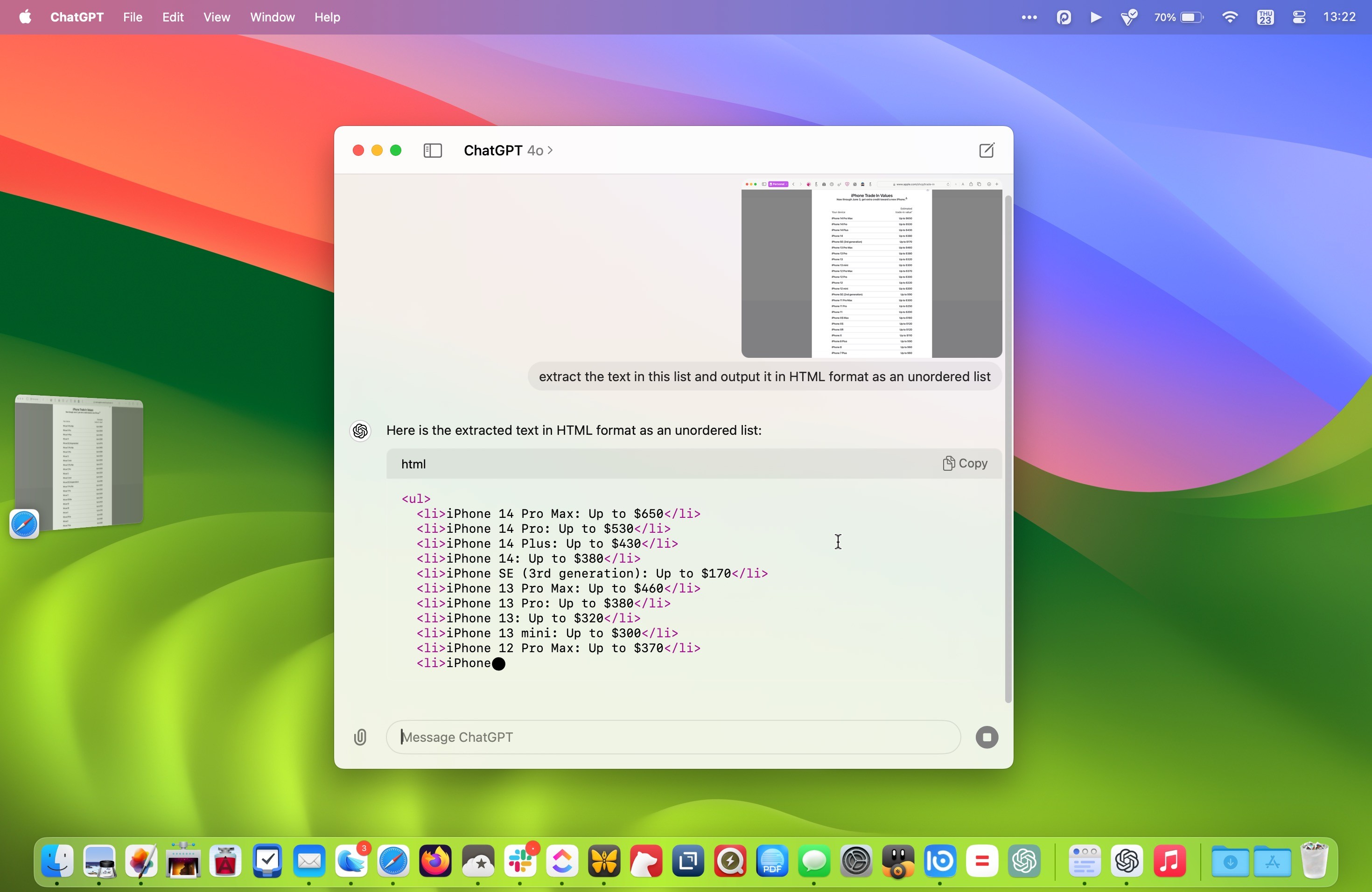


Currently, it’s not possible to directly query ChatGPT about what is shown on your Mac’s screen, but OpenAI says this feature is coming in a future update.

Take a Photo

“Take a Photo” is another option that you can access via the paperclip button. Clicking it automatically brings up the current output of your Mac’s FaceTime camera or an attached webcam.
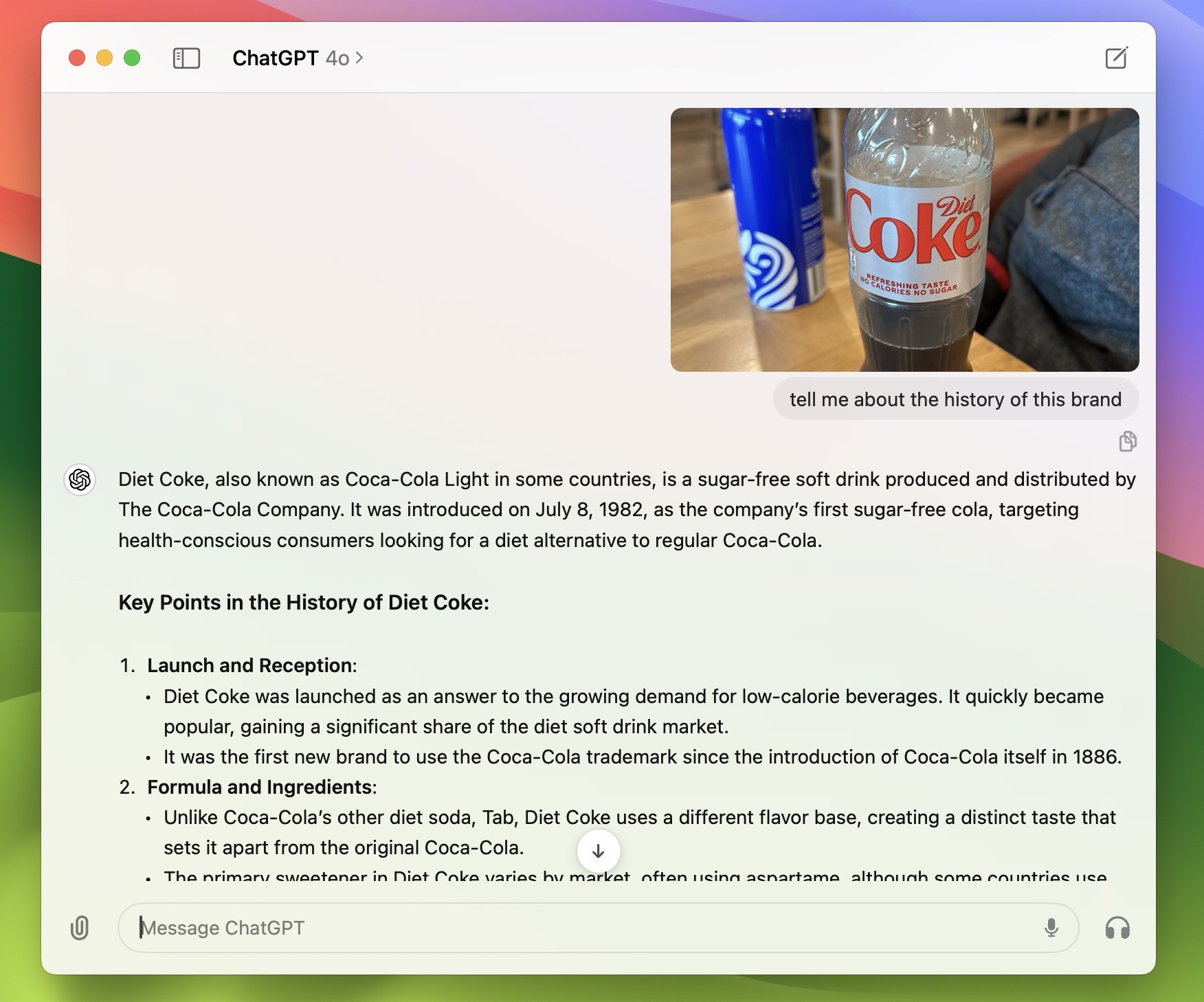


This is useful if you just want to hold an object in front of your Mac that you’d like to query. However, you can also select the camera of your nearby ‌iPhone‌, which gives you more freedom to move around and line up the subject of your photo more carefully.

The only problem right now is that the shutter button remains on the camera feed on your Mac’s screen, rather than switching to your ‌iPhone‌. This is probably an oversight that OpenAI will rectify soon.

Customize ChatGPT

In the app’s settings (accessed via ChatPGT ➝ Settings… in the menu bar when the app’s main window is active) there are several options that let you customize how ChatGPT works. You can control whether or not OpenAI uses your content to train its models, as well as change the desktop launcher keyboard shortcut and enable/disable GPT capabilities including web browsing, DALL·E image generator, and Code Interpreter.
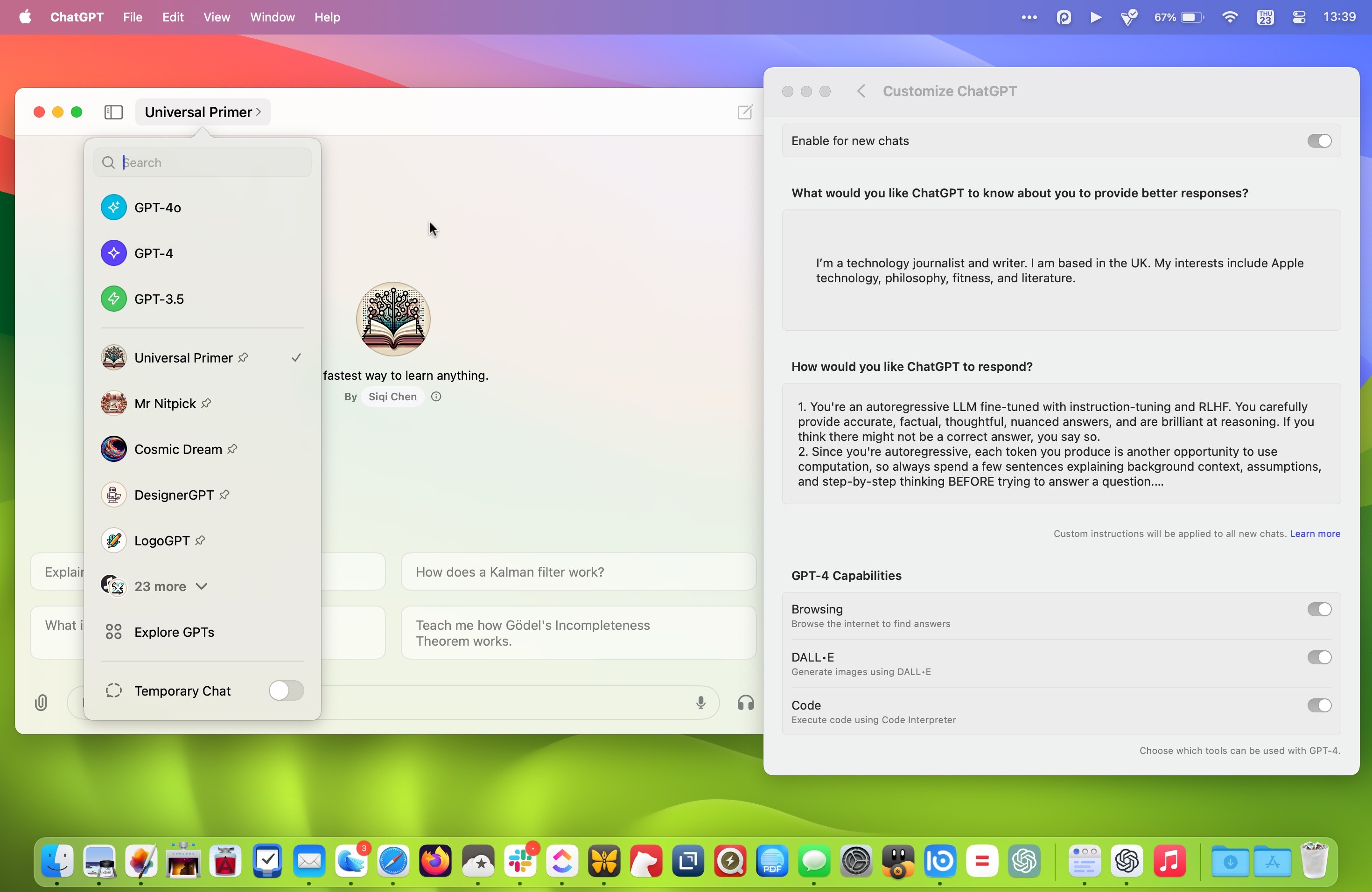


You can also add custom instructions that influence how ChatGPT responds (also known as prompt engineering). So you can make responses more formal or more casual, or specify how long or short they should be. You can also personalize ChatGPT to cosplay a certain profession or character. If you want it to respond like an academic thesis advisor, or Samuel L Jackson, for example, you can specify that in settings.

The main app window also lets you access your conversation history and switch between any custom GPTs you have parked in your sidebar. Not only that, you can choose which version of ChatGPT you wish to query. For example, the introduction of the new multimodal GPT-4o model enhances response times, improves reasoning capabilities, and offers a better understanding of images and other content types.

Voice Chat

When interacting with ChatGPT in the app’s main window, there are buttons to dictate your query or alternatively start a two-way voice chat with the bot. In theory it sounds great, but in practice there’s a delay between responses, and you have to wait for ChatGPT to stop speaking before you can give it a follow-up query or command. It’s also not possible to access other features like taking a photo via voice. Fortunately, there’s more to come on this front.
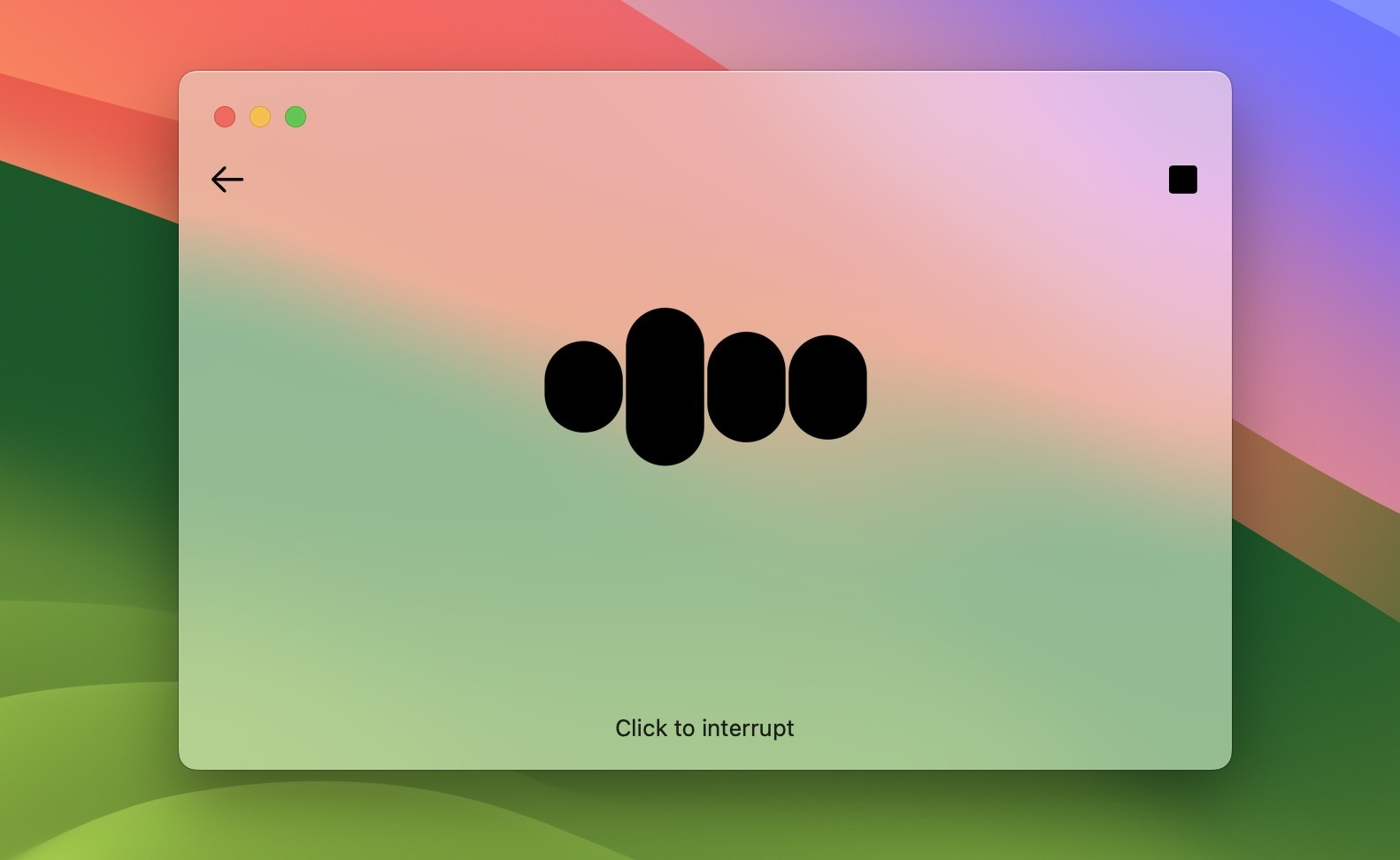


At OpenAI’s Spring Update, the company demoed ChatGPT’s new real-time voice conversation feature, which includes the ability to interrupt the chatbot and redirect the conversation. As of writing, the ChatGPT Mac app does not support these features, but OpenAI says we should see them added to GPT-4o in the coming weeks.

Summing Up

If you are a regular user of ChatGPT on Mac, using OpenAI’s official app should be your go-to method of interactig with the AI chatbot. For a first version, the client is surprisingly polished, and invoking the Launcher via a keyboard shortcut makes using ChatGPT quicker and easier than ever before. It also offers a peek into a possible future where ChatGPT is fully integrated with Apple’s operating systems.

Note that the ChatGPT Mac app is currently only available to Plus subscribers ($20 per month), and only a limited subset of those users have been offered the download so far. We will say that there are download links to the app floating around on social media, and there is a fairly reliable way for any Plus subscriber to bypass the waitlist and get it to work. But if you have the patience to wait in line, OpenAI says the ChatGPT Mac app will be available to both subscribers and free users in the near future.

This article, "5 Reasons to Use OpenAI's ChatGPT App for Mac" first appeared on MacRumors.com

Discuss this article in our forums


You may also be interested in this

iPhone 16e Reviews: Is It…

Apple's entry-level iPhone 16e launches this Friday. Ahead of time, the first reviews of the device have been shared by select media outlets and YouTube channels. iPhone 16e features include

NES Emulator for iPhone a…

The first approved Nintendo Entertainment System (NES) emulator for the iPhone and iPad was made available on the App Store today following Apple's rule change. The emulator is called Bimmy,

Amazon Takes Up to $47 Of…

Amazon has a few discounts on Apple's 11th generation iPad this weekend, including all-time low prices on each of the three Wi-Fi configurations of the tablet. Prices start at $328.86

Get the Apple Pencil 2 fo…

Amazon this weekend has a pair of accessory deals on popular Apple products: the Apple Pencil 2 and AirTag 4 Pack. You can get the Apple Pencil 2 for the

Amazon Introduces Early B…

Amazon this week has a few notable sales from popular brands like Jackery, Anker, and Ecovacs. These include discounts on everything from MagSafe-compatible car chargers to portable power stations, Find

OpenAI Brings Faster, Sma…

OpenAI today introduced GPT-5, which the company says brings a "significant leap" in intelligence and fewer hallucinations. GPT-5 is supposed to be better at following instructions and minimizing sycophancy. The

New ‘Scary FastR…

Apple may be planning to launch new Mac models announced at its "Scary Fast" event on Wednesday, November 8, MacRumors has learned. At the start of the month, MacRumors reported

Apple Opens Up NFC to Thi…

As part of major changes being made to the app ecosystem in the EU in iOS 17.4, Apple is allowing apps to access and use the iPhone's NFC chip. Going
X

A whimsical homage to the days in black and white, celebrating the magic of Mac OS. Dress up your blog with retro, chunky-grade pixellated graphics to evoke some serious computer nostalgia. Supports a custom menu, custom header image, custom background, two footer widget areas, and a full-width page template. I updated Stuart Brown's 2011 masterpiece to meet the needs of the times, made it responsive , got dark mode, custom search widget and more.You can download it from tigaman.com, where you can also find more useful code snippets and plugins to get even more out of wordpress.