Tired of toggling your iPhone's Orientation Lock for certain apps? Keep reading to learn how you can make iOS do it for you automatically. In iOS, many apps display a

Tired of toggling your iPhone’s Orientation Lock for certain apps? Keep reading to learn how you can make iOS do it for you automatically.
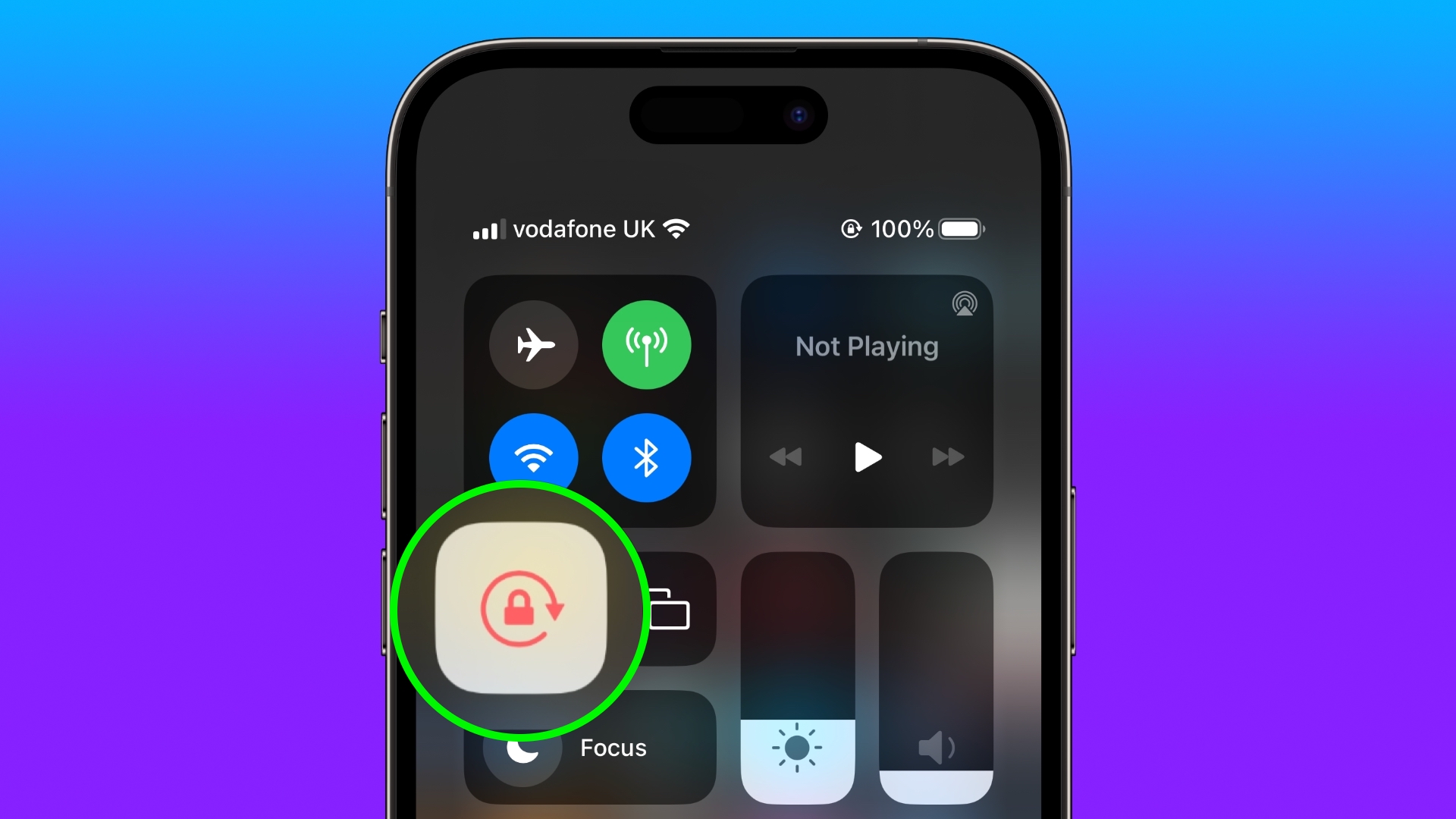


In iOS, many apps display a different view when you rotate your iPhone from portrait to landscape orientation. Depending on the app and the way you use it, this behavior isn’t always desirable, which is why Apple includes the Orientation Lock option in Control Center.

However, certain apps work more usefully with Orientation Lock disabled – think YouTube or the Photos app, where rotating your device to landscape orientation makes for a better fullscreen viewing experience.

If you tend to keep the lock on, you have to disable it in Control Center each time you open these kinds of apps to get the fullscreen experience. Then when you close the app, you have to remember to turn Orientation Lock back on, which isn’t ideal. Fortunately, there is a simple personal automation you can create that will take over this process for you for specific apps, so you don’t have to keep going in and out of Control Center any more.

The following steps show you how it’s done.

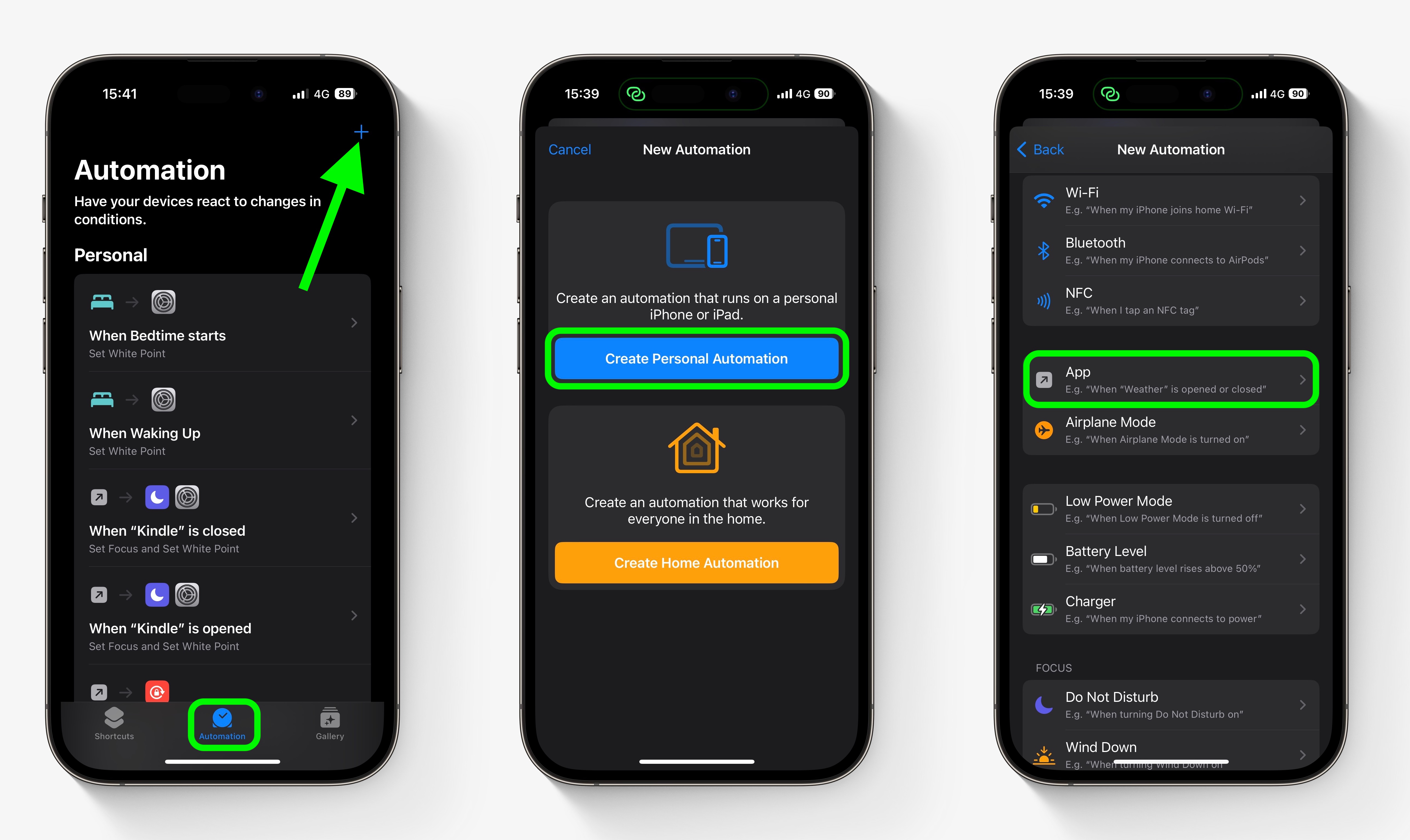
  1. Open the Shortcuts app on your iPhone and select the Automation tab.
  2. Tap the plus symbol in the top-right corner of the screen.

  3. Tap Create Personal Automation.
  4. Scroll down and select App.

    shortcuts

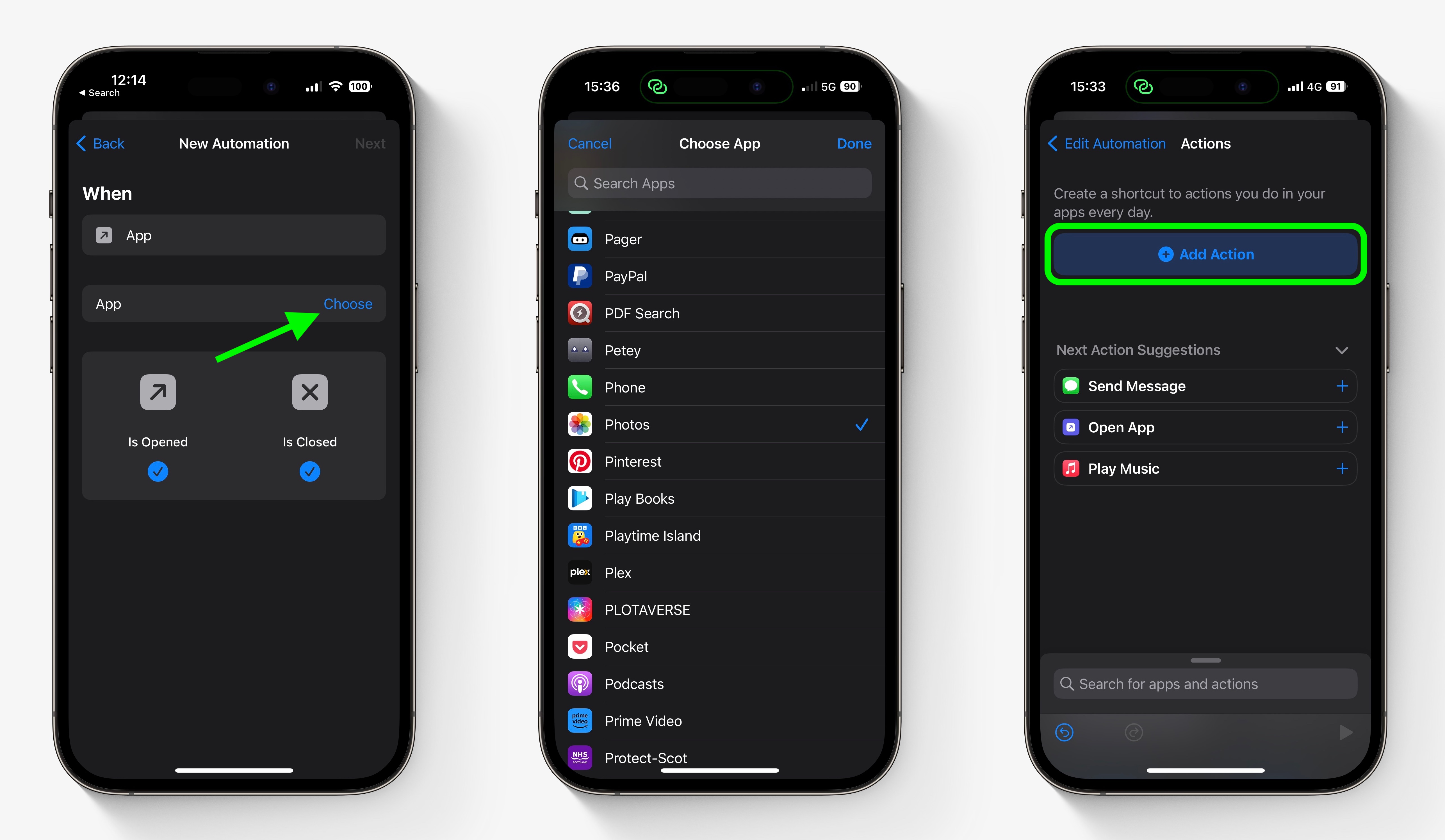
  5. Make sure Is Opened and Is Closed are both checked, then tap the blue Choose option.
  6. Select the apps that you want the automation to work with (we’re selecting YouTube and Photos), then tap Done.
  7. Tap Next.
  8. Tap Add Action.

    shortcuts

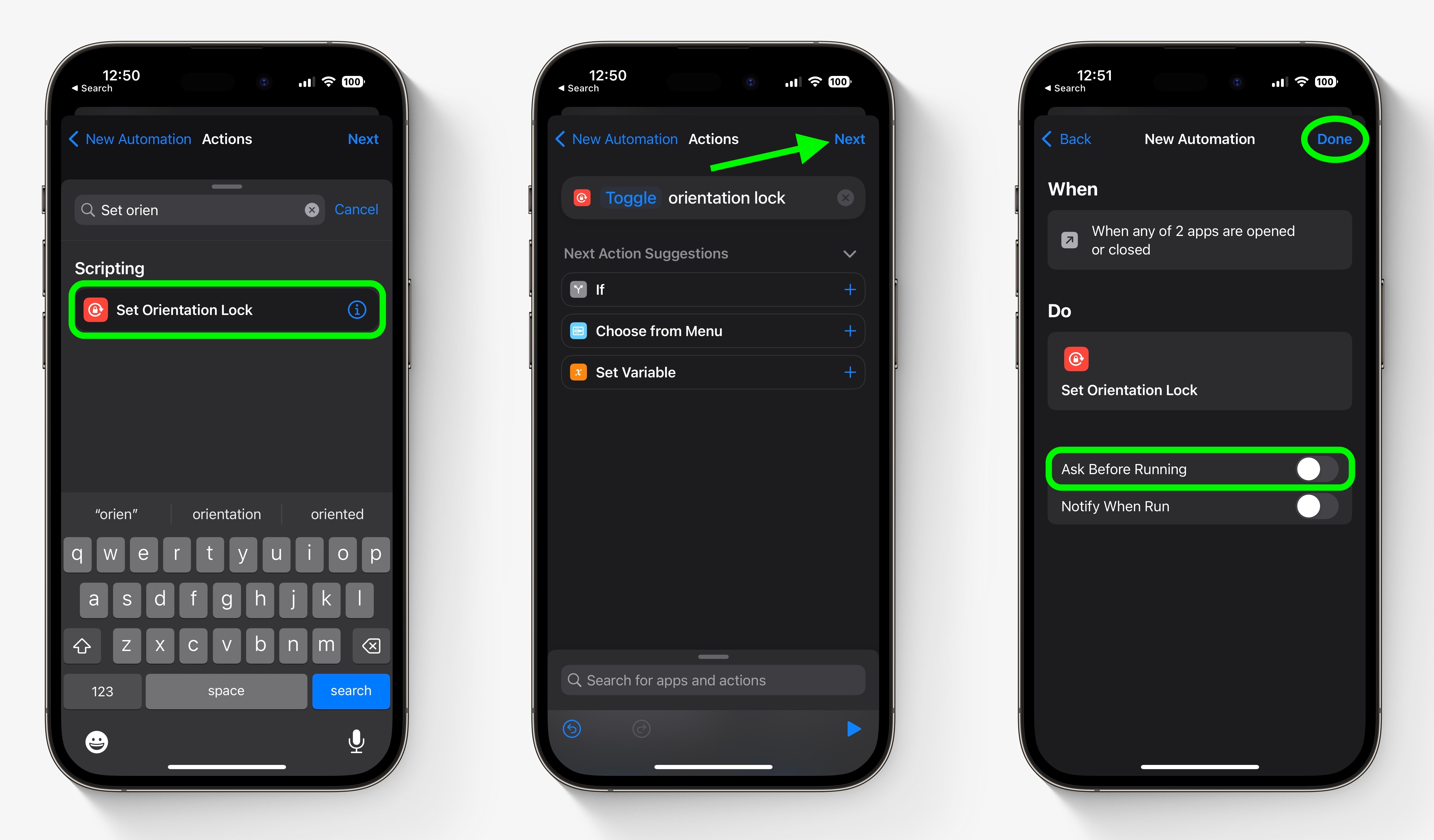
  9. Start typing “Set Orientation Lock” into the search field, then select the script in the search results when it appears.
  10. Tap Next in the top-right of the Actions screen.
  11. Toggle off the switch next to Ask Before Running, then tap Don’t Ask in the confirmation prompt.
  12. Tap Done to finish.

    shortcuts

Your automation will now be saved in the Shortcuts app, and will be activated the next time you open or close any of the apps you selected for it to work with. Bear in mind that if Orientation Lock is already disabled and you open one of the selected apps, the lock will be turned back on, which is likely the reverse effect that you intended.

This article, "How to Automatically Toggle iPhone Orientation Lock for Specific Apps" first appeared on MacRumors.com

Discuss this article in our forums


You may also be interested in this

The best Memorial Day dea…

You can now brighten up your home for a little less thanks to Nanoleaf’s ongoing Memorial Day sale. | Photo by Jennifer Pattison Tuohy / The Verge Memorial Day isn’t

Boost iPhone Audio Featur…

In iOS and iPadOS, Apple includes an option for users to specify the Bluetooth accessories they connect using pre-defined individual labels. Labeling your Bluetooth accessories helps to identify connected devices

Best iPhone Prime Day Dea…

Macworld If you’re in the market for a new iPhone, Amazon’s Prime Day sales might be a good time to find a deal—with a few caveats. U.K. shoppers can save

Apple Arcade FAQ: ‘Millio…

Macworld Gaming subscription services are all the rage now, but Apple Arcade isn’t quite like Google Stadia or Xbox Game Pass. So if you’ve got questions about it, we’ve got

iOS 17 Promises to Dramat…

Apple today previewed iOS 17 for the iPhone, and one of the key new features coming with the update is improved autocorrect functionality. Apple says iOS 17 includes a state-of-the-art

Get the best price online…

Macworld We can fight for free internet all we want, but it won’t really be true as long as mobile data plans remain unaffordable. Luckily, Instabridge eSIM is doing something

Keep track of your weight…

Macworld According to NBC News, smart scales provide a terrific means of tracking your overall health. But who wants to pay upwards of $100 for a name-brand model? No one,

Vimeo Brings Apple TV App…

Video hosting and sharing platform Vimeo today announced the launch of an updated Apple TV app, bringing Vimeo back to the Apple TV App Store for the first time in
X

A whimsical homage to the days in black and white, celebrating the magic of Mac OS. Dress up your blog with retro, chunky-grade pixellated graphics to evoke some serious computer nostalgia. Supports a custom menu, custom header image, custom background, two footer widget areas, and a full-width page template. I updated Stuart Brown's 2011 masterpiece to meet the needs of the times, made it responsive , got dark mode, custom search widget and more.You can download it from tigaman.com, where you can also find more useful code snippets and plugins to get even more out of wordpress.