
The biggest change is a slick new design for the Now Playing screen, which allows the dominant color of the podcast art – or any episode chapter images – to take over the entire screen, sometimes with additional patterning.

The playback controls on the bottom half of the screen have also been rejigged. The play speed button has been moved from the bottom left corner of the screen and now sits next to the rewind button.

Podcasts app in iOS 16 (left) versus iOS 17

The sleep timer button has also been moved from the bottom right corner and is now located next to the fast-forward button, so the main bank of controls is more compact with five buttons in the row instead of just rewind, play, and fast-forward. Some buttons also now take on a neat new glow when activated.

The queue interface has changed, too. Whereas previously you swiped up to see if anything was in the Playing Next list, now there's a dedicated queue button at the bottom next to the AirPlay icon.

Podcasts app in iOS 16 (left) versus iOS 17

Pressing it brings up a whole new screen showing any queued episodes as a list. You can swipe to remove an episode from the queue or clear the list, and if there are no episodes up next it will tell you that nothing is queued.

The Up Next carousel at the top of the Listen Now screen features redesigned cards that add a color shade to go with the podcast's art, and they feature a new three-dot options menu icon, a new compact playback indicator that shows if you have started a podcast but not finished it, as well as the episode's length.

Podcasts app in iOS 16 (left) versus iOS 17

The same indicator can also be found in the Up Next screen, where the "Play Next" and "Play Last" options have been replaced with "Add to Queue."

Podcasts app in iOS 16 (left) versus iOS 17

In iOS 16, if you've completed an episode in a podcast's episodes list, it just says Played below the episode summary. In iOS 17, that's been replaced by a replay icon and the episode length. A checkmark now also sits next to the date above the episode title, indicating that you've listened to it.
Related Roundup: iOS 17
Tag: Apple Podcasts

This article, "Here's What's New in the iOS 17 Podcasts App" first appeared on MacRumors.com

Discuss this article in our forums

The biggest change is a slick new design for the Now Playing screen, which allows the dominant color of the podcast art – or any episode chapter images – to take over the entire screen, sometimes with additional patterning.

The playback controls on the bottom half of the screen have also been rejigged. The play speed button has been moved from the bottom left corner of the screen and now sits next to the rewind button.

Podcasts app in iOS 16 (left) versus iOS 17

The sleep timer button has also been moved from the bottom right corner and is now located next to the fast-forward button, so the main bank of controls is more compact with five buttons in the row instead of just rewind, play, and fast-forward. Some buttons also now take on a neat new glow when activated.

The queue interface has changed, too. Whereas previously you swiped up to see if anything was in the Playing Next list, now there's a dedicated queue button at the bottom next to the AirPlay icon.

Podcasts app in iOS 16 (left) versus iOS 17

Pressing it brings up a whole new screen showing any queued episodes as a list. You can swipe to remove an episode from the queue or clear the list, and if there are no episodes up next it will tell you that nothing is queued.

The Up Next carousel at the top of the Listen Now screen features redesigned cards that add a color shade to go with the podcast's art, and they feature a new three-dot options menu icon, a new compact playback indicator that shows if you have started a podcast but not finished it, as well as the episode's length.

Podcasts app in iOS 16 (left) versus iOS 17

The same indicator can also be found in the Up Next screen, where the "Play Next" and "Play Last" options have been replaced with "Add to Queue."

Podcasts app in iOS 16 (left) versus iOS 17

In iOS 16, if you've completed an episode in a podcast's episodes list, it just says Played below the episode summary. In iOS 17, that's been replaced by a replay icon and the episode length. A checkmark now also sits next to the date above the episode title, indicating that you've listened to it.
Related Roundup: iOS 17
Tag: Apple Podcasts

This article, "Here's What's New in the iOS 17 Podcasts App" first appeared on MacRumors.com

Discuss this article in our forums

The biggest change is a slick new design for the Now Playing screen, which allows the dominant color of the podcast art – or any episode chapter images – to take over the entire screen, sometimes with additional patterning.

The playback controls on the bottom half of the screen have also been rejigged. The play speed button has been moved from the bottom left corner of the screen and now sits next to the rewind button.

Podcasts app in iOS 16 (left) versus iOS 17

The sleep timer button has also been moved from the bottom right corner and is now located next to the fast-forward button, so the main bank of controls is more compact with five buttons in the row instead of just rewind, play, and fast-forward. Some buttons also now take on a neat new glow when activated.

The queue interface has changed, too. Whereas previously you swiped up to see if anything was in the Playing Next list, now there's a dedicated queue button at the bottom next to the AirPlay icon.

Podcasts app in iOS 16 (left) versus iOS 17

Pressing it brings up a whole new screen showing any queued episodes as a list. You can swipe to remove an episode from the queue or clear the list, and if there are no episodes up next it will tell you that nothing is queued.

The Up Next carousel at the top of the Listen Now screen features redesigned cards that add a color shade to go with the podcast's art, and they feature a new three-dot options menu icon, a new compact playback indicator that shows if you have started a podcast but not finished it, as well as the episode's length.

Podcasts app in iOS 16 (left) versus iOS 17

The same indicator can also be found in the Up Next screen, where the "Play Next" and "Play Last" options have been replaced with "Add to Queue."

Podcasts app in iOS 16 (left) versus iOS 17

In iOS 16, if you've completed an episode in a podcast's episodes list, it just says Played below the episode summary. In iOS 17, that's been replaced by a replay icon and the episode length. A checkmark now also sits next to the date above the episode title, indicating that you've listened to it.
Related Roundup: iOS 17

This article, "Here's What's New in the iOS 17 Podcasts App" first appeared on MacRumors.com

Discuss this article in our forums

The biggest change is a slick new design for the Now Playing screen, which allows the dominant color of the podcast art – or any episode chapter images – to take over the entire screen, sometimes with additional patterning.

The playback controls on the bottom half of the screen have also been rejigged. The play speed button has been moved from the bottom left corner of the screen and now sits next to the rewind button.

Podcasts app in iOS 16 (left) versus iOS 17

The sleep timer button has also been moved from the bottom right corner and is now located next to the fast-forward button, so the main bank of controls is more compact with five buttons in the row instead of just rewind, play, and fast-forward. Some buttons also now take on a neat new glow when activated.

The queue interface has changed, too. Whereas previously you swiped up to see if anything was in the Playing Next list, now there's a dedicated queue button at the bottom next to the AirPlay icon.

Podcasts app in iOS 16 (left) versus iOS 17

Pressing it brings up a whole new screen showing any queued episodes as a list. You can swipe to remove an episode from the queue or clear the list, and if there are no episodes up next it will tell you that nothing is queued.

The Up Next carousel at the top of the Listen Now screen features redesigned cards that add a color shade to go with the podcast's art, and they feature a new three-dot options menu icon, a new compact playback indicator that shows if you have started a podcast but not finished it, as well as the episode's length.

Podcasts app in iOS 16 (left) versus iOS 17

The same indicator can also be found in the Up Next screen, where the "Play Next" and "Play Last" options have been replaced with "Add to Queue."

Podcasts app in iOS 16 (left) versus iOS 17

In iOS 16, if you've completed an episode in a podcast's episodes list, it just says Played below the episode summary. In iOS 17, that's been replaced by a replay icon and the episode length. A checkmark now also sits next to the date above the episode title, indicating that you've listened to it.
Related Roundup: iOS 17

This article, "Here's What's New in the iOS 17 Podcasts App" first appeared on MacRumors.com

Discuss this article in our forums
Apple in iOS 17 has revised several elements of its stock apps, including the Podcasts app. There are a few noteworthy changes to the functionality and design of the app

Apple in iOS 17 has revised several elements of its stock apps, including the Podcasts app. There are a few noteworthy changes to the functionality and design of the app with the update, as detailed below.
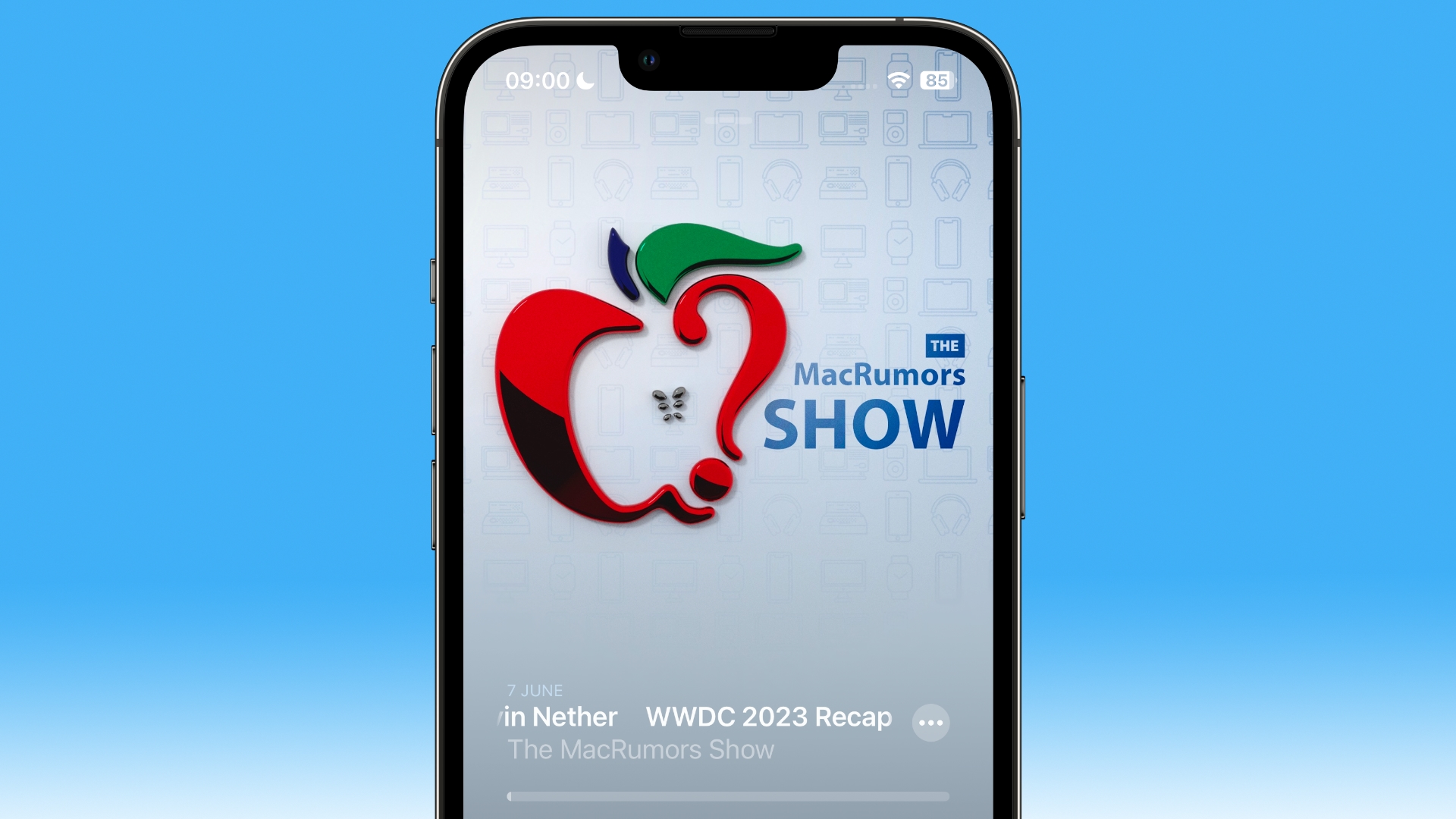


The biggest change is a slick new design for the Now Playing screen, which allows the dominant color of the podcast art – or any episode chapter images – to take over the entire screen, sometimes with additional patterning.

The playback controls on the bottom half of the screen have also been rejigged. The play speed button has been moved from the bottom left corner of the screen and now sits next to the rewind button.
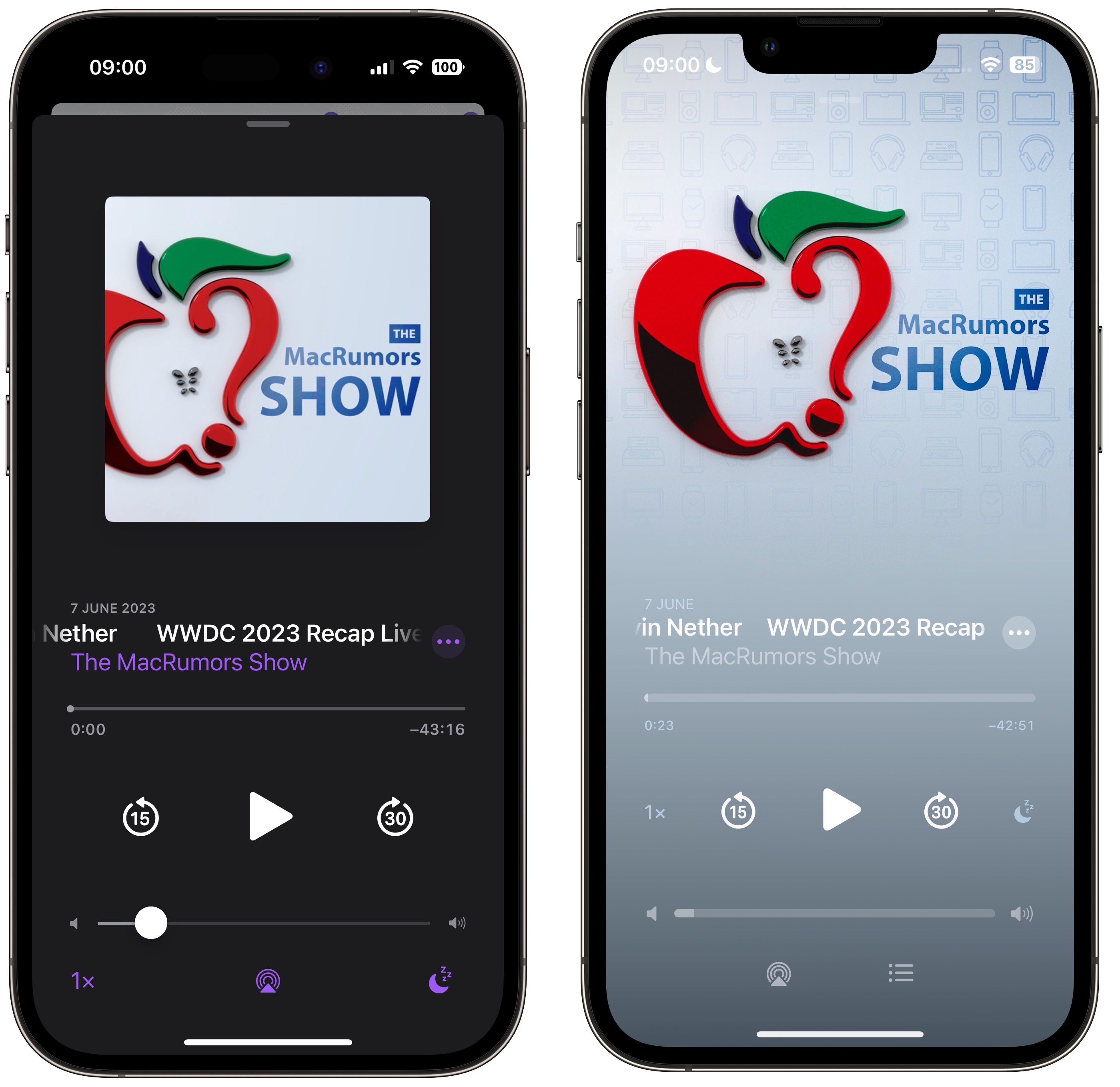
Podcasts app in iOS 16 (left) versus iOS 17

The sleep timer button has also been moved from the bottom right corner and is now located next to the fast-forward button, so the main bank of controls is more compact with five buttons in the row instead of just rewind, play, and fast-forward. Some buttons also now take on a neat new glow when activated.

The queue interface has changed, too. Whereas previously you swiped up to see if anything was in the Playing Next list, now there’s a dedicated queue button at the bottom next to the AirPlay icon.
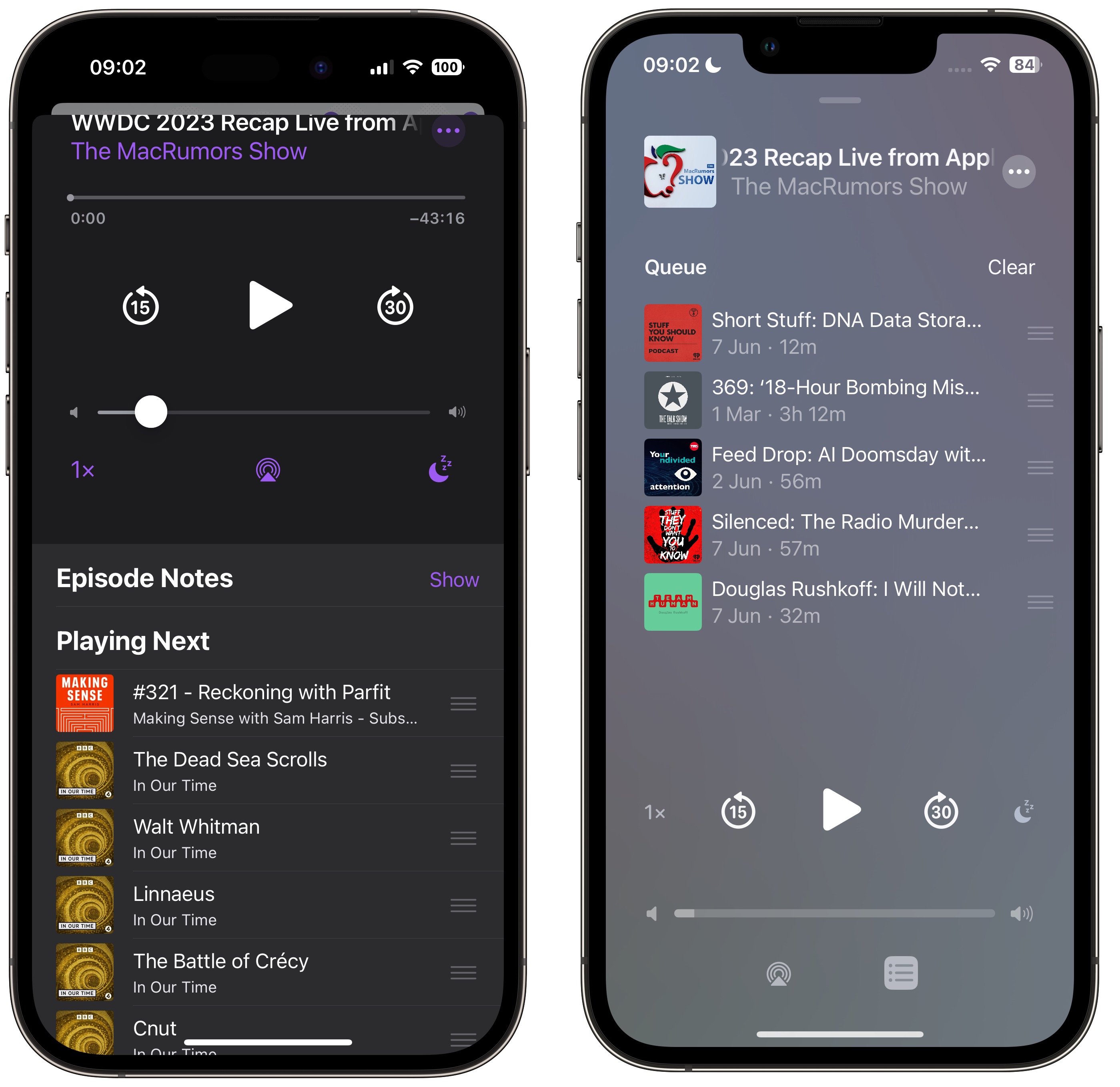
Podcasts app in iOS 16 (left) versus iOS 17

Pressing it brings up a whole new screen showing any queued episodes as a list. You can swipe to remove an episode from the queue or clear the list, and if there are no episodes up next it will tell you that nothing is queued.

The Up Next carousel at the top of the Listen Now screen features redesigned cards that add a color shade to go with the podcast’s art, and they feature a new three-dot options menu icon, a new compact playback indicator that shows if you have started a podcast but not finished it, as well as the episode’s length.
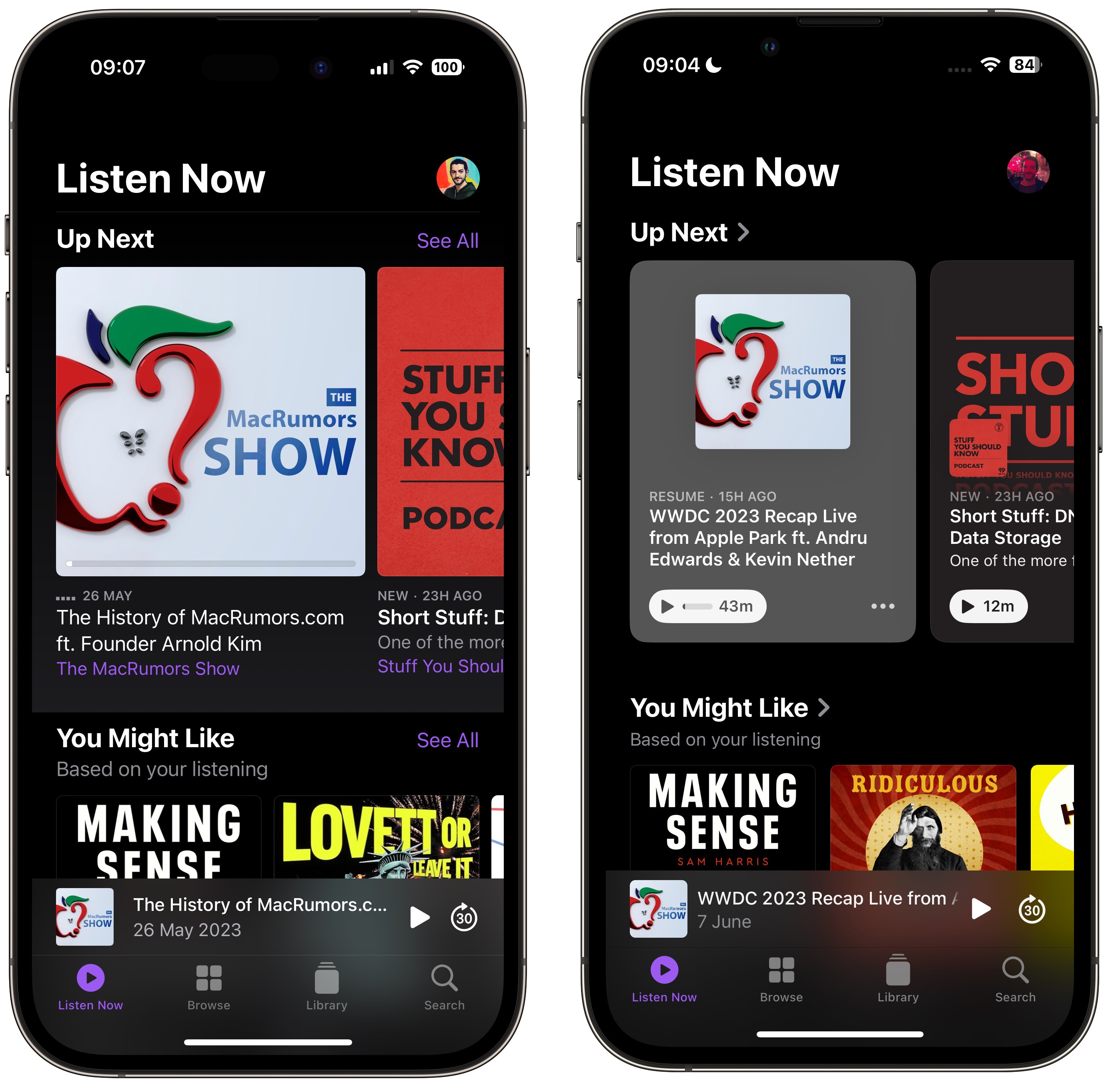
Podcasts app in iOS 16 (left) versus iOS 17

The same indicator can also be found in the Up Next screen, where the “Play Next” and “Play Last” options have been replaced with “Add to Queue.”

Podcasts app in iOS 16 (left) versus iOS 17

In iOS 16, if you’ve completed an episode in a podcast’s episodes list, it just says Played below the episode summary. In iOS 17, that’s been replaced by a replay icon and the episode length. A checkmark now also sits next to the date above the episode title, indicating that you’ve listened to it.

Related Roundup: iOS 17

This article, "Here's What's New in the iOS 17 Podcasts App" first appeared on MacRumors.com

Discuss this article in our forums


You may also be interested in this

Apple’s Services Bu…

In the ever-evolving landscape of technology, Apple Inc. has not only been a pioneer in hardware innovation but has also made significant strides in the realm of services. Over the

Apple adds ‘reality…

More trademark filings related to Apple's mixed-reality headset have surfaced, with realityproOS' joining a growing list of terms for the inbound VR-AR ecosystem.A render of a potential Apple headset [AppleInsider]Early

M2 Mac mini Now Available…

Announced back in January 2023, the same time as the updated 14-inch and 16-inch MacBook Pros, the updated… The post M2 Mac mini Now Available at Apple Certified Refurbished appeared

iOS 17 and macOS Sonoma a…

You can now forgo entering your password on icloud.com and apple.com domains thanks to newly added passkey support. When running iOS 17 on an iPhone, any Apple site on the

Canon’s new PowerSh…

Canon introduces its first compact camera designed exclusively for vlogging, catering to the unique needs of content creators who produce videos for social media.Canon's first compact cameraThe PowerShot V10 weighs

Apple’s diversity g…

Despite Apple's push for more diversity and inclusion in its workspace, a new report from the Communications Workers of America indicates the company may still be falling short.Apple Towson Town

Apple Arcade adds a whopp…

Apple today announced 20 new titles launching on Apple Arcade, Apple’s game subscription service that offers unlimited access to over 200 incredibly fun games. The new titles include WHAT THE

Infiray P2 Pro thermal ca…

Although our iPhone cameras are at the cutting edge of clarity and quality, they can only capture light from the visible range of the spectrum. InfiRay attempts to unlock more
X

A whimsical homage to the days in black and white, celebrating the magic of Mac OS. Dress up your blog with retro, chunky-grade pixellated graphics to evoke some serious computer nostalgia. Supports a custom menu, custom header image, custom background, two footer widget areas, and a full-width page template. I updated Stuart Brown's 2011 masterpiece to meet the needs of the times, made it responsive , got dark mode, custom search widget and more.You can download it from tigaman.com, where you can also find more useful code snippets and plugins to get even more out of wordpress.