
What's Up With Widgets?


Widgets offer a new way to quickly bring up app-related information from any watch face on your Apple Watch, without having to open the corresponding app or rely exclusively on complications. In other words, if you choose simple faces without complications, you can still access the information you want, and if you like complication-rich faces, now you can get even more info at a glance.

In watchOS 10, an upward turn of the Digital Crown or a swipe up from the bottom of the watch face using your finger (Control Center is now accessed via the Side button) reveals a dynamic Smart Stack of widgets below the time and date that takes up half of the screen. You can scroll through these widgets with the Digital Crown or your finger, and tap a widget to open its corresponding app.


By using machine learning, the order of widgets can change based on your needs at any given time of day.

For example, if you have upcoming events in your calendar, a boarding pass for an upcoming flight, or tasks you need to complete, these will be displayed in order of priority. Or if you start a timer, it will appear at the top of the widget stack so you can easily see how long is left.

In addition to relevance-based ordering, Smart Stack also includes the ability to manually organize widgets, so the Smart Stack can be as dynamic or as fixed as you want.

There are actually two types of widget in watchOS 10: Dedicated app widgets that provide information from a single app, and a user-configurable complications widget that shows up to three watch face-style complications.


At the very bottom of the widget stack is a button that takes you to the traditional app menu to access all your Apple Watch apps.

Choosing the Widgets You Want to See


Like iPhone Home Screen widgets in iOS 16, Apple Watch widgets in watchOS 10 can work as a Smart Stack that changes based on the context or time of day, or you can manually choose the ones you want to include and also pin widgets to the top of the stack. The following steps show you how to edit widgets from any watch face.
  1. On an Apple Watch running watchOS 10, scroll up using the Digital Crown, or swipe up from the bottom of the screen using your finger.

  2. Long press any widget to enter the stack's jiggle mode. (Note that you can't edit the date and time display at the top of the stack.)

  3. Tap the red minus button on a widget to remove it from the stack, or tap the large plus button above the stack to add one.

  4. To pin a widget so that it remains at the top of the stack, tap its yellow pin icon.

  5. To edit the complications widget, scroll to the bottom and tap the minus icon next to a complication, then tap the plus symbol to replace it with another available complication. (Note: You can also pin the complications widget.)


Summing Up


Apple is pitching widgets as a way of enjoying simple watch faces like Portrait, without being far from the sort of onscreen information that complications typically provide. By using the Digital Crown, real-time data from your favorite apps is just a dial turn away. What do you think of widgets? Let us know in the comments.

watchOS 10 will be released to the public this fall and is compatible with the Apple Watch Series 4 and later. In addition, you'll also need an iPhone capable of running iOS 17. This includes the iPhone XS or later and iPhone XR or later. For a full list of iPhones compatible with iOS 17, check out our quick guide.
Related Roundups: watchOS 10, watchOS 9
Related Forum: iOS iPadOS macOS tvOS watchOS visionOS Programming

This article, "Here's How Apple Watch Widgets Work in watchOS 10" first appeared on MacRumors.com

Discuss this article in our forums

What's Up With Widgets?


Widgets offer a new way to quickly bring up app-related information from any watch face on your Apple Watch, without having to open the corresponding app or rely exclusively on complications. In other words, if you choose simple faces without complications, you can still access the information you want, and if you like complication-rich faces, now you can get even more info at a glance.

In watchOS 10, an upward turn of the Digital Crown or a swipe up from the bottom of the watch face using your finger (Control Center is now accessed via the Side button) reveals a dynamic Smart Stack of widgets below the time and date that takes up half of the screen. You can scroll through these widgets with the Digital Crown or your finger, and tap a widget to open its corresponding app.


By using machine learning, the order of widgets can change based on your needs at any given time of day.

For example, if you have upcoming events in your calendar, a boarding pass for an upcoming flight, or tasks you need to complete, these will be displayed in order of priority. Or if you start a timer, it will appear at the top of the widget stack so you can easily see how long is left.

In addition to relevance-based ordering, Smart Stack also includes the ability to manually organize widgets, so the Smart Stack can be as dynamic or as fixed as you want.

There are actually two types of widget in watchOS 10: Dedicated app widgets that provide information from a single app, and a user-configurable complications widget that shows up to three watch face-style complications.


At the very bottom of the widget stack is a button that takes you to the traditional app menu to access all your Apple Watch apps.

Choosing the Widgets You Want to See


Like iPhone Home Screen widgets in iOS 16, Apple Watch widgets in watchOS 10 can work as a Smart Stack that changes based on the context or time of day, or you can manually choose the ones you want to include and also pin widgets to the top of the stack. The following steps show you how to edit widgets from any watch face.
  1. On an Apple Watch running watchOS 10, scroll up using the Digital Crown, or swipe up from the bottom of the screen using your finger.

  2. Long press any widget to enter the stack's jiggle mode. (Note that you can't edit the date and time display at the top of the stack.)

  3. Tap the red minus button on a widget to remove it from the stack, or tap the large plus button above the stack to add one.

  4. To pin a widget so that it remains at the top of the stack, tap its yellow pin icon.

  5. To edit the complications widget, scroll to the bottom and tap the minus icon next to a complication, then tap the plus symbol to replace it with another available complication. (Note: You can also pin the complications widget.)


Summing Up


Apple is pitching widgets as a way of enjoying simple watch faces like Portrait, without being far from the sort of onscreen information that complications typically provide. By using the Digital Crown, real-time data from your favorite apps is just a dial turn away. What do you think of widgets? Let us know in the comments.

watchOS 10 will be released to the public this fall and is compatible with the Apple Watch Series 4 and later. In addition, you'll also need an iPhone capable of running iOS 17. This includes the iPhone XS or later and iPhone XR or later. For a full list of iPhones compatible with iOS 17, check out our quick guide.
Related Roundups: watchOS 10, watchOS 9
Related Forum: iOS iPadOS macOS tvOS watchOS visionOS Programming

This article, "Here's How Apple Watch Widgets Work in watchOS 10" first appeared on MacRumors.com

Discuss this article in our forums

What's Up With Widgets?


Widgets offer a new way to quickly bring up app-related information from any watch face on your Apple Watch, without having to open the corresponding app or rely exclusively on complications. In other words, if you choose simple faces without complications, you can still access the information you want, and if you like complication-rich faces, now you can get even more info at a glance.

In watchOS 10, an upward turn of the Digital Crown or a swipe up from the bottom of the watch face using your finger (Control Center is now accessed via the Side button) reveals a dynamic Smart Stack of widgets below the time and date that takes up half of the screen. You can scroll through these widgets with the Digital Crown or your finger, and tap a widget to open its corresponding app.


By using machine learning, the order of widgets can change based on your needs at any given time of day.

For example, if you have upcoming events in your calendar, a boarding pass for an upcoming flight, or tasks you need to complete, these will be displayed in order of priority. Or if you start a timer, it will appear at the top of the widget stack so you can easily see how long is left.

In addition to relevance-based ordering, Smart Stack also includes the ability to manually organize widgets, so the Smart Stack can be as dynamic or as fixed as you want.

There are actually two types of widget in watchOS 10: Dedicated app widgets that provide information from a single app, and a user-configurable complications widget that shows up to three watch face-style complications.


At the very bottom of the widget stack is a button that takes you to the traditional app menu to access all your Apple Watch apps.

Choosing the Widgets You Want to See


Like iPhone Home Screen widgets in iOS 16, Apple Watch widgets in watchOS 10 can work as a Smart Stack that changes based on the context or time of day, or you can manually choose the ones you want to include and also pin widgets to the top of the stack. The following steps show you how to edit widgets from any watch face.
  1. On an Apple Watch running watchOS 10, scroll up using the Digital Crown, or swipe up from the bottom of the screen using your finger.

  2. Long press any widget to enter the stack's jiggle mode. (Note that you can't edit the date and time display at the top of the stack.)

  3. Tap the red minus button on a widget to remove it from the stack, or tap the large plus button above the stack to add one.

  4. To pin a widget so that it remains at the top of the stack, tap its yellow pin icon.

  5. To edit the complications widget, scroll to the bottom and tap the minus icon next to a complication, then tap the plus symbol to replace it with another available complication. (Note: You can also pin the complications widget.)


Summing Up


Apple is pitching widgets as a way of enjoying simple watch faces like Portrait, without being far from the sort of onscreen information that complications typically provide. By using the Digital Crown, real-time data from your favorite apps is just a dial turn away. What do you think of widgets? Let us know in the comments.

watchOS 10 will be released to the public this fall and is compatible with the Apple Watch Series 4 and later. In addition, you'll also need an iPhone capable of running iOS 17. This includes the iPhone XS or later and iPhone XR or later. For a full list of iPhones compatible with iOS 17, check out our quick guide.
Related Roundups: watchOS 10, watchOS 9

This article, "Here's How Apple Watch Widgets Work in watchOS 10" first appeared on MacRumors.com

Discuss this article in our forums

What's Up With Widgets?


Widgets offer a new way to quickly bring up app-related information from any watch face on your Apple Watch, without having to open the corresponding app or rely exclusively on complications. In other words, if you choose simple faces without complications, you can still access the information you want, and if you like complication-rich faces, now you can get even more info at a glance.

In watchOS 10, an upward turn of the Digital Crown or a swipe up from the bottom of the watch face using your finger (Control Center is now accessed via the Side button) reveals a dynamic Smart Stack of widgets below the time and date that takes up half of the screen. You can scroll through these widgets with the Digital Crown or your finger, and tap a widget to open its corresponding app.


By using machine learning, the order of widgets can change based on your needs at any given time of day.

For example, if you have upcoming events in your calendar, a boarding pass for an upcoming flight, or tasks you need to complete, these will be displayed in order of priority. Or if you start a timer, it will appear at the top of the widget stack so you can easily see how long is left.

In addition to relevance-based ordering, Smart Stack also includes the ability to manually organize widgets, so the Smart Stack can be as dynamic or as fixed as you want.

There are actually two types of widget in watchOS 10: Dedicated app widgets that provide information from a single app, and a user-configurable complications widget that shows up to three watch face-style complications.


At the very bottom of the widget stack is a button that takes you to the traditional app menu to access all your Apple Watch apps.

Choosing the Widgets You Want to See


Like iPhone Home Screen widgets in iOS 16, Apple Watch widgets in watchOS 10 can work as a Smart Stack that changes based on the context or time of day, or you can manually choose the ones you want to include and also pin widgets to the top of the stack. The following steps show you how to edit widgets from any watch face.
  1. On an Apple Watch running watchOS 10, scroll up using the Digital Crown, or swipe up from the bottom of the screen using your finger.

  2. Long press any widget to enter the stack's jiggle mode. (Note that you can't edit the date and time display at the top of the stack.)

  3. Tap the red minus button on a widget to remove it from the stack, or tap the large plus button above the stack to add one.

  4. To pin a widget so that it remains at the top of the stack, tap its yellow pin icon.

  5. To edit the complications widget, scroll to the bottom and tap the minus icon next to a complication, then tap the plus symbol to replace it with another available complication. (Note: You can also pin the complications widget.)


Summing Up


Apple is pitching widgets as a way of enjoying simple watch faces like Portrait, without being far from the sort of onscreen information that complications typically provide. By using the Digital Crown, real-time data from your favorite apps is just a dial turn away. What do you think of widgets? Let us know in the comments.

watchOS 10 will be released to the public this fall and is compatible with the Apple Watch Series 4 and later. In addition, you'll also need an iPhone capable of running iOS 17. This includes the iPhone XS or later and iPhone XR or later. For a full list of iPhones compatible with iOS 17, check out our quick guide.
Related Roundups: watchOS 10, watchOS 9

This article, "Here's How Apple Watch Widgets Work in watchOS 10" first appeared on MacRumors.com

Discuss this article in our forums
Apple last week previewed watchOS 10, its next major software update for compatible Apple Watch models. Among a handful of new features, one of the most impactful is the introduction

Apple last week previewed watchOS 10, its next major software update for compatible Apple Watch models. Among a handful of new features, one of the most impactful is the introduction of widgets. Let’s take a closer look at how they work and what you can do with them.

What’s Up With Widgets?

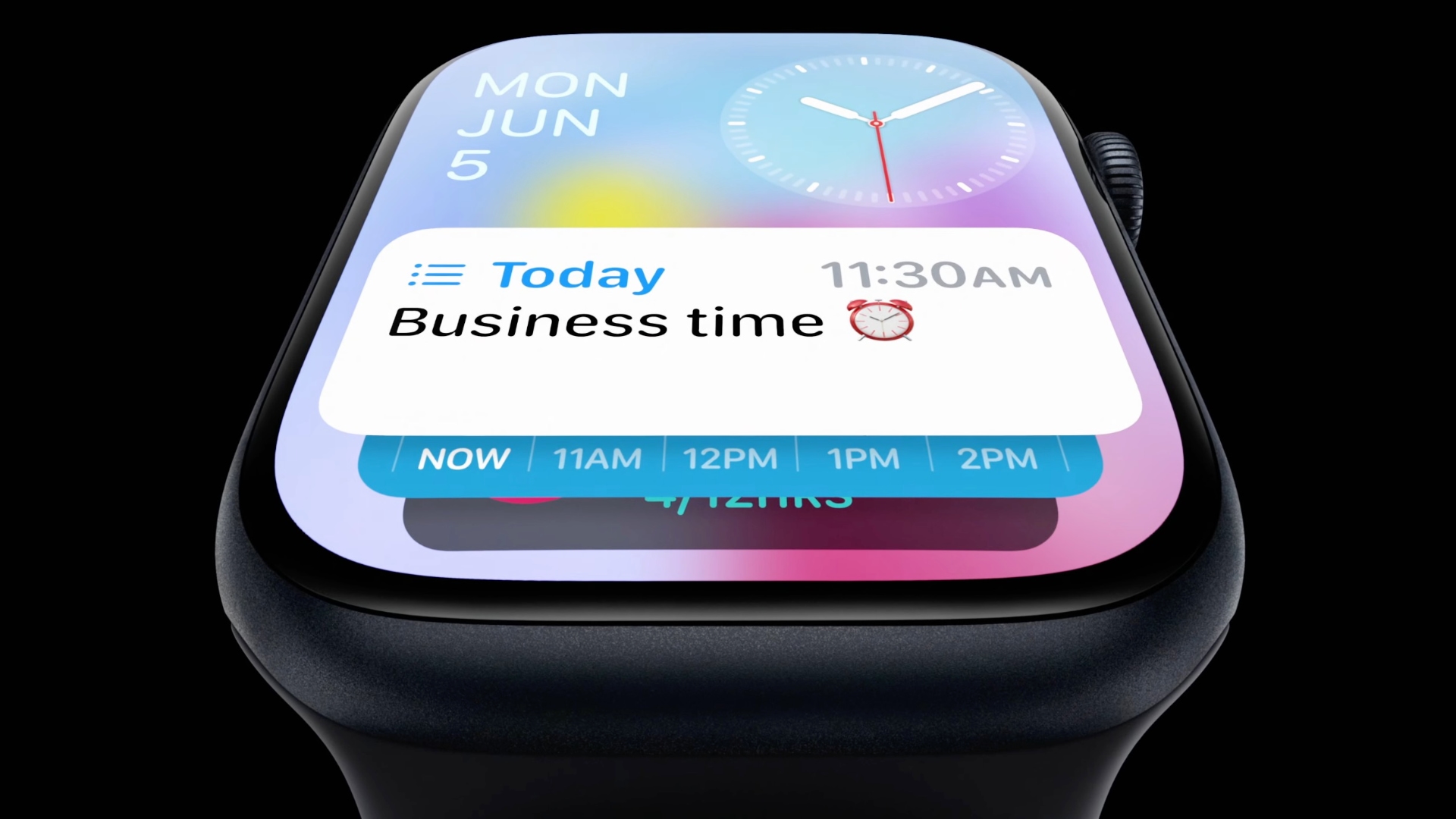
Widgets offer a new way to quickly bring up app-related information from any watch face on your Apple Watch, without having to open the corresponding app or rely exclusively on complications. In other words, if you choose simple faces without complications, you can still access the information you want, and if you like complication-rich faces, now you can get even more info at a glance.

In watchOS 10, an upward turn of the Digital Crown or a swipe up from the bottom of the watch face using your finger (Control Center is now accessed via the Side button) reveals a dynamic Smart Stack of widgets below the time and date that takes up half of the screen. You can scroll through these widgets with the Digital Crown or your finger, and tap a widget to open its corresponding app.
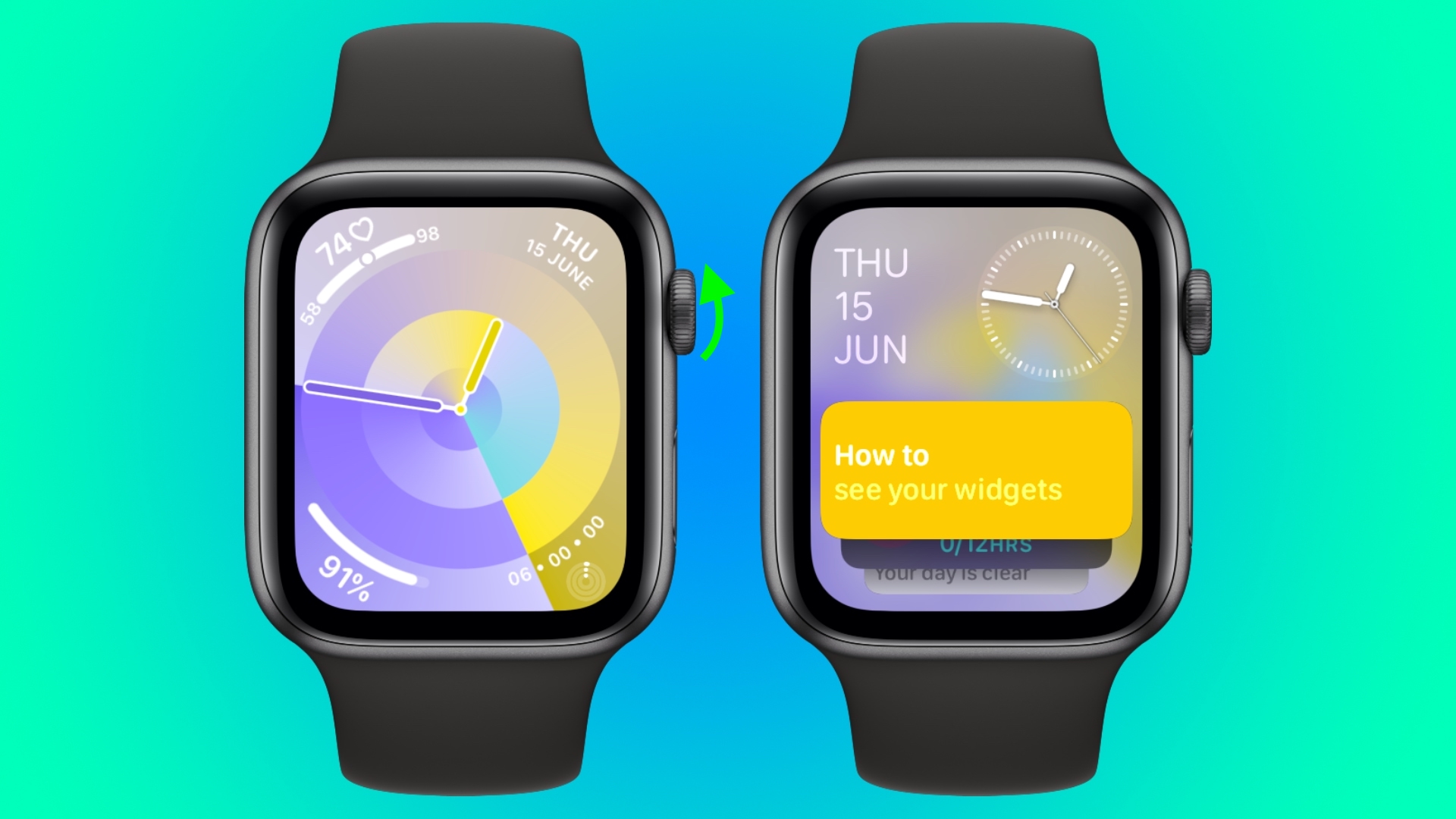


By using machine learning, the order of widgets can change based on your needs at any given time of day.

For example, if you have upcoming events in your calendar, a boarding pass for an upcoming flight, or tasks you need to complete, these will be displayed in order of priority. Or if you start a timer, it will appear at the top of the widget stack so you can easily see how long is left.

In addition to relevance-based ordering, Smart Stack also includes the ability to manually organize widgets, so the Smart Stack can be as dynamic or as fixed as you want.

There are actually two types of widget in watchOS 10: Dedicated app widgets that provide information from a single app, and a user-configurable complications widget that shows up to three watch face-style complications.
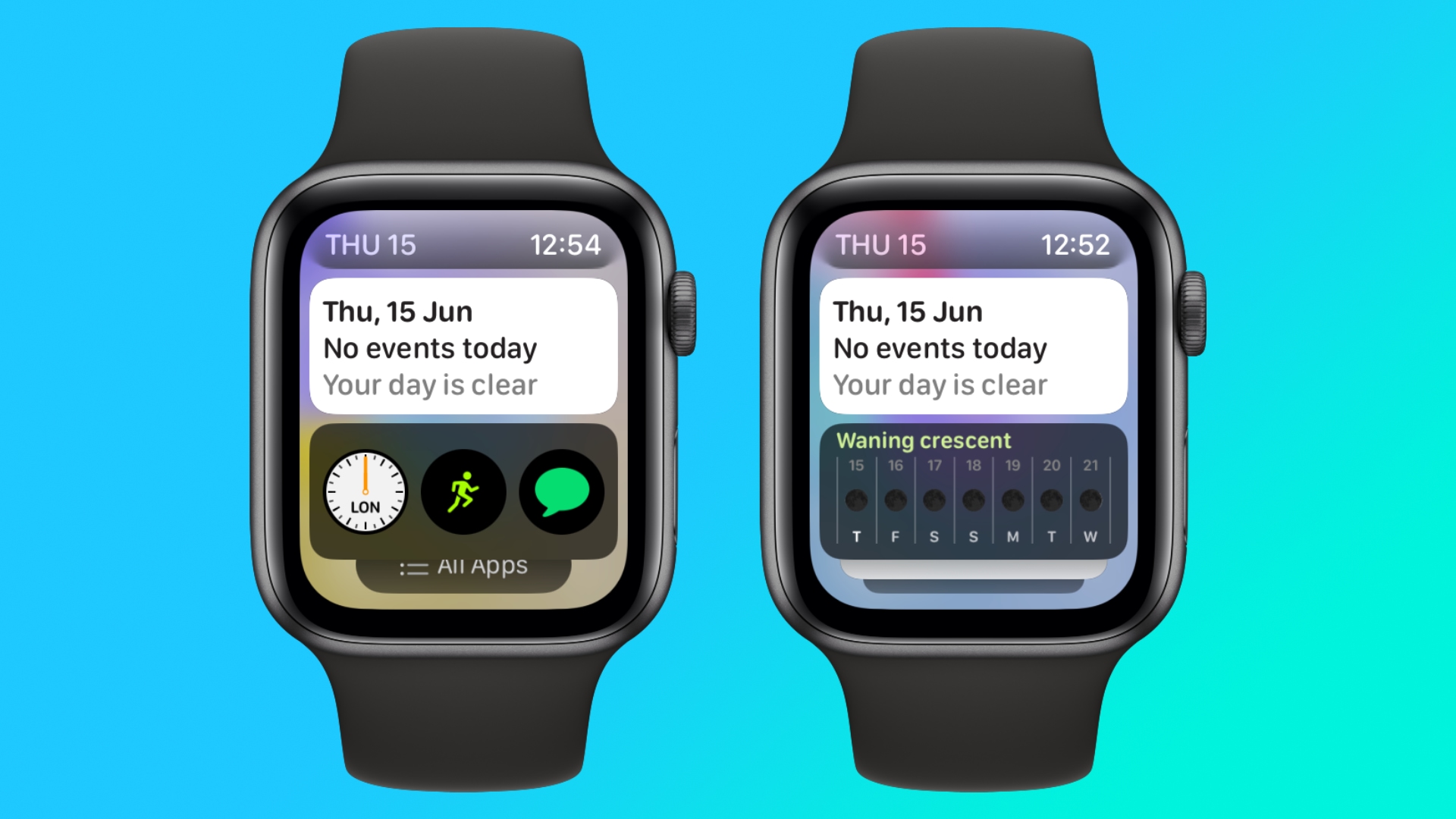


At the very bottom of the widget stack is a button that takes you to the traditional app menu to access all your Apple Watch apps.

Choosing the Widgets You Want to See

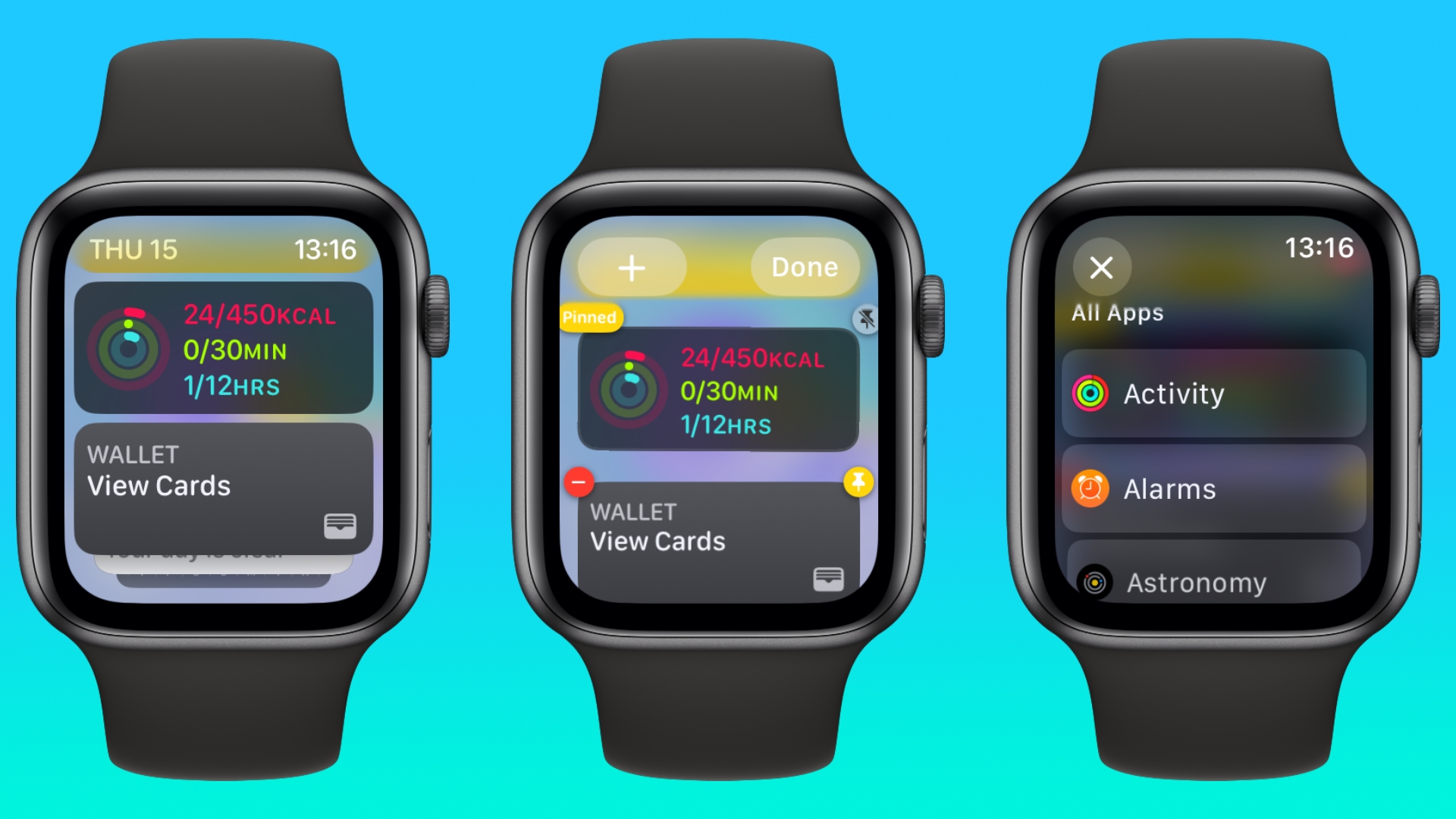
Like iPhone Home Screen widgets in iOS 16, Apple Watch widgets in watchOS 10 can work as a Smart Stack that changes based on the context or time of day, or you can manually choose the ones you want to include and also pin widgets to the top of the stack. The following steps show you how to edit widgets from any watch face.

  1. On an Apple Watch running watchOS 10, scroll up using the Digital Crown, or swipe up from the bottom of the screen using your finger.
  2. Long press any widget to enter the stack’s jiggle mode. (Note that you can’t edit the date and time display at the top of the stack.)
  3. Tap the red minus button on a widget to remove it from the stack, or tap the large plus button above the stack to add one.
  4. To pin a widget so that it remains at the top of the stack, tap its yellow pin icon.
  5. To edit the complications widget, scroll to the bottom and tap the minus icon next to a complication, then tap the plus symbol to replace it with another available complication. (Note: You can also pin the complications widget.)
Summing Up

Apple is pitching widgets as a way of enjoying simple watch faces like Portrait, without being far from the sort of onscreen information that complications typically provide. By using the Digital Crown, real-time data from your favorite apps is just a dial turn away. What do you think of widgets? Let us know in the comments.

watchOS 10 will be released to the public this fall and is compatible with the Apple Watch Series 4 and later. In addition, you’ll also need an iPhone capable of running iOS 17. This includes the iPhone XS or later and iPhone XR or later. For a full list of iPhones compatible with iOS 17, check out our quick guide.

Related Roundups: watchOS 10, watchOS 9

This article, "Here's How Apple Watch Widgets Work in watchOS 10" first appeared on MacRumors.com

Discuss this article in our forums


You may also be interested in this

Can’t wait for Prime Day?…

Macworld Looking for a more convenient way to charge your Apple Watch? Then check out this Apple Watch wireless charger keychain. It’s small and lightweight so you can pack it

Freitag Hazzard review: E…

The Freitag Hazzard bag lets you carry your MacBook in an eco-friendly fusion of recycled materials and modern art — if you can stand the smell.Review: The Freitag Hazzard laptop

Leica Announces $329 R…

Leica today introduced the Leica LUX Grip, a MagSafe-compatible iPhone camera grip designed to provide photographers with a more tactile and precise shooting experience, incorporating physical controls and modes inspired

What new technology trend…

What New Tech Trends Could Bite the Apple in the Next 5 Years? Apple, the tech giant known for its sleek design and innovative products, constantly pushes the boundaries of

Apple reveals macOS Sonom…

Apple's macOS 14 Sonoma has debuted at WWDC, boasting widgets, new screensavers, improvements to messages, Game Mode, and more.As unveiled at WWDC 2023, the updated new macOS 14 Sonoma resembles

Tribunal quashes UK antit…

The UK’s antitrust regulator was on Wednesday refused permission to appeal against a ruling that it had no power to open an investigation into Apple’s Safari mobile browser and potential

Apple Announces Multibill…

Apple today announced a multibillion-dollar deal with American technology company Broadcom to make several key components for its devices in the United States. The multi-year agreement with Broadcom will see

Apple Vision Diary: After…

From one extreme to the other! I recently got the chance to try a $6,500 enterprise mixed-reality headset, and I’ve also been experimenting with the $300 , to see whether
X

A whimsical homage to the days in black and white, celebrating the magic of Mac OS. Dress up your blog with retro, chunky-grade pixellated graphics to evoke some serious computer nostalgia. Supports a custom menu, custom header image, custom background, two footer widget areas, and a full-width page template. I updated Stuart Brown's 2011 masterpiece to meet the needs of the times, made it responsive , got dark mode, custom search widget and more.You can download it from tigaman.com, where you can also find more useful code snippets and plugins to get even more out of wordpress.