
It's worth noting from the off that widgets can still be parked in Notification Center, but now they can also be dragged out onto the desktop. The first widget can be placed anywhere, then Apple provides placement guidance for subsequent widgets by displaying a widget-shaped outline, indicating where they can be snapped into position in relation to the others.


Alternatively, if you right-click on an empty space on the desktop, the menu that appears includes a new "Edit Widgets..." option. Selecting this brings up a widget gallery, which – thanks to a new Continuity feature between Apple devices – also includes widgets from your iPhone in all available sizes. So even if you don't have the corresponding Mac app, you can still use the iOS widget right on your desktop. Simply drag it from the gallery into an available space.


If you're running the macOS Sonoma beta, trying out iPhone widgets is a good way to get used to their interactivity until third-party developers have a chance to bake this into their Mac widgets. As it stands, only Apple's own widgets offer (sometimes buggy) interactions.

In the Home app widget, for example, you can control specific accessories by clicking the individual buttons to turn them on and off.


If you right-click a widget, any available customization options appear in the contextual menu. Widgets are available in Small, Medium, and Large sizes, and all include an option to "Remove Widget" if you want to get rid of it.


Lastly, when not in use, widgets fade into the background by taking on the color of your wallpaper, so you can concentrate on the active app or window.

Widgets have evolved in macOS Sonoma. By bringing them in from the dark and out into the open workspace of your desktop, users are actively encouraged to work alongside them. What are your thoughts on Apple's new take on Mac widgets? Are you more likely to use them in their new guise? Let us know in the comments.
Related Roundup: macOS Sonoma
Related Forum: macOS Sonoma

This article, "Here's How Interactive Widgets Work in macOS Sonoma" first appeared on MacRumors.com

Discuss this article in our forums

It's worth noting from the off that widgets can still be parked in Notification Center, but now they can also be dragged out onto the desktop. The first widget can be placed anywhere, then Apple provides placement guidance for subsequent widgets by displaying a widget-shaped outline, indicating where they can be snapped into position in relation to the others.


Alternatively, if you right-click on an empty space on the desktop, the menu that appears includes a new "Edit Widgets..." option. Selecting this brings up a widget gallery, which – thanks to a new Continuity feature between Apple devices – also includes widgets from your iPhone in all available sizes. So even if you don't have the corresponding Mac app, you can still use the iOS widget right on your desktop. Simply drag it from the gallery into an available space.


If you're running the macOS Sonoma beta, trying out iPhone widgets is a good way to get used to their interactivity until third-party developers have a chance to bake this into their Mac widgets. As it stands, only Apple's own widgets offer (sometimes buggy) interactions.

In the Home app widget, for example, you can control specific accessories by clicking the individual buttons to turn them on and off.


If you right-click a widget, any available customization options appear in the contextual menu. Widgets are available in Small, Medium, and Large sizes, and all include an option to "Remove Widget" if you want to get rid of it.


Lastly, when not in use, widgets fade into the background by taking on the color of your wallpaper, so you can concentrate on the active app or window.

Widgets have evolved in macOS Sonoma. By bringing them in from the dark and out into the open workspace of your desktop, users are actively encouraged to work alongside them. What are your thoughts on Apple's new take on Mac widgets? Are you more likely to use them in their new guise? Let us know in the comments.
Related Roundup: macOS Sonoma
Related Forum: macOS Sonoma

This article, "Here's How Interactive Widgets Work in macOS Sonoma" first appeared on MacRumors.com

Discuss this article in our forums

It's worth noting from the off that widgets can still be parked in Notification Center, but now they can also be dragged out onto the desktop. The first widget can be placed anywhere, then Apple provides placement guidance for subsequent widgets by displaying a widget-shaped outline, indicating where they can be snapped into position in relation to the others.


Alternatively, if you right-click on an empty space on the desktop, the menu that appears includes a new "Edit Widgets..." option. Selecting this brings up a widget gallery, which – thanks to a new Continuity feature between Apple devices – also includes widgets from your iPhone in all available sizes. So even if you don't have the corresponding Mac app, you can still use the iOS widget right on your desktop. Simply drag it from the gallery into an available space.


If you're running the macOS Sonoma beta, trying out iPhone widgets is a good way to get used to their interactivity until third-party developers have a chance to bake this into their Mac widgets. As it stands, only Apple's own widgets offer (sometimes buggy) interactions.

In the Home app widget, for example, you can control specific accessories by clicking the individual buttons to turn them on and off.


If you right-click a widget, any available customization options appear in the contextual menu. Widgets are available in Small, Medium, and Large sizes, and all include an option to "Remove Widget" if you want to get rid of it.


Lastly, when not in use, widgets fade into the background by taking on the color of your wallpaper, so you can concentrate on the active app or window.

Widgets have evolved in macOS Sonoma. By bringing them in from the dark and out into the open workspace of your desktop, users are actively encouraged to work alongside them. What are your thoughts on Apple's new take on Mac widgets? Are you more likely to use them in their new guise? Let us know in the comments.
Related Roundup: macOS Sonoma
Related Forum: macOS Sonoma

This article, "Here's How Interactive Widgets Work in macOS Sonoma" first appeared on MacRumors.com

Discuss this article in our forums

It's worth noting from the off that widgets can still be parked in Notification Center, but now they can also be dragged out onto the desktop. The first widget can be placed anywhere, then Apple provides placement guidance for subsequent widgets by displaying a widget-shaped outline, indicating where they can be snapped into position in relation to the others.


Alternatively, if you right-click on an empty space on the desktop, the menu that appears includes a new "Edit Widgets..." option. Selecting this brings up a widget gallery, which – thanks to a new Continuity feature between Apple devices – also includes widgets from your iPhone in all available sizes. So even if you don't have the corresponding Mac app, you can still use the iOS widget right on your desktop. Simply drag it from the gallery into an available space.


If you're running the macOS Sonoma beta, trying out iPhone widgets is a good way to get used to their interactivity until third-party developers have a chance to bake this into their Mac widgets. As it stands, only Apple's own widgets offer (sometimes buggy) interactions.

In the Home app widget, for example, you can control specific accessories by clicking the individual buttons to turn them on and off.


If you right-click a widget, any available customization options appear in the contextual menu. Widgets are available in Small, Medium, and Large sizes, and all include an option to "Remove Widget" if you want to get rid of it.


Lastly, when not in use, widgets fade into the background by taking on the color of your wallpaper, so you can concentrate on the active app or window.

Widgets have evolved in macOS Sonoma. By bringing them in from the dark and out into the open workspace of your desktop, users are actively encouraged to work alongside them. What are your thoughts on Apple's new take on Mac widgets? Are you more likely to use them in their new guise? Let us know in the comments.
Related Roundup: macOS Sonoma
Related Forum: macOS Sonoma

This article, "Here's How Interactive Widgets Work in macOS Sonoma" first appeared on MacRumors.com

Discuss this article in our forums
In macOS Sonoma, Apple has changed the widgets landscape. No longer do widgets have to be hidden offscreen and largely forgotten in the Notifications Center panel. Now they live right

In macOS Sonoma, Apple has changed the widgets landscape. No longer do widgets have to be hidden offscreen and largely forgotten in the Notifications Center panel. Now they live right on your desktop – and they’re interactive, too.


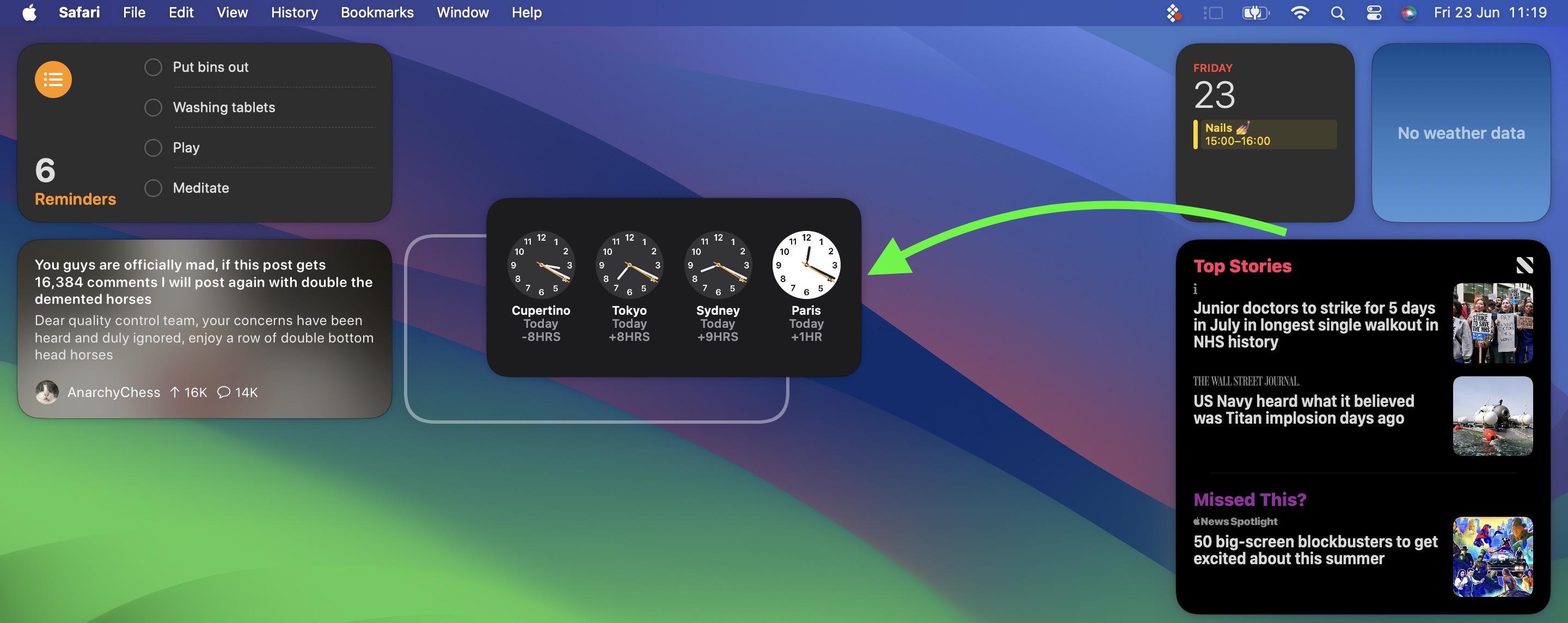
It’s worth noting from the off that widgets can still be parked in Notification Center, but now they can also be dragged out onto the desktop. The first widget can be placed anywhere, then Apple provides placement guidance for subsequent widgets by displaying a widget-shaped outline, indicating where they can be snapped into position in relation to the others.


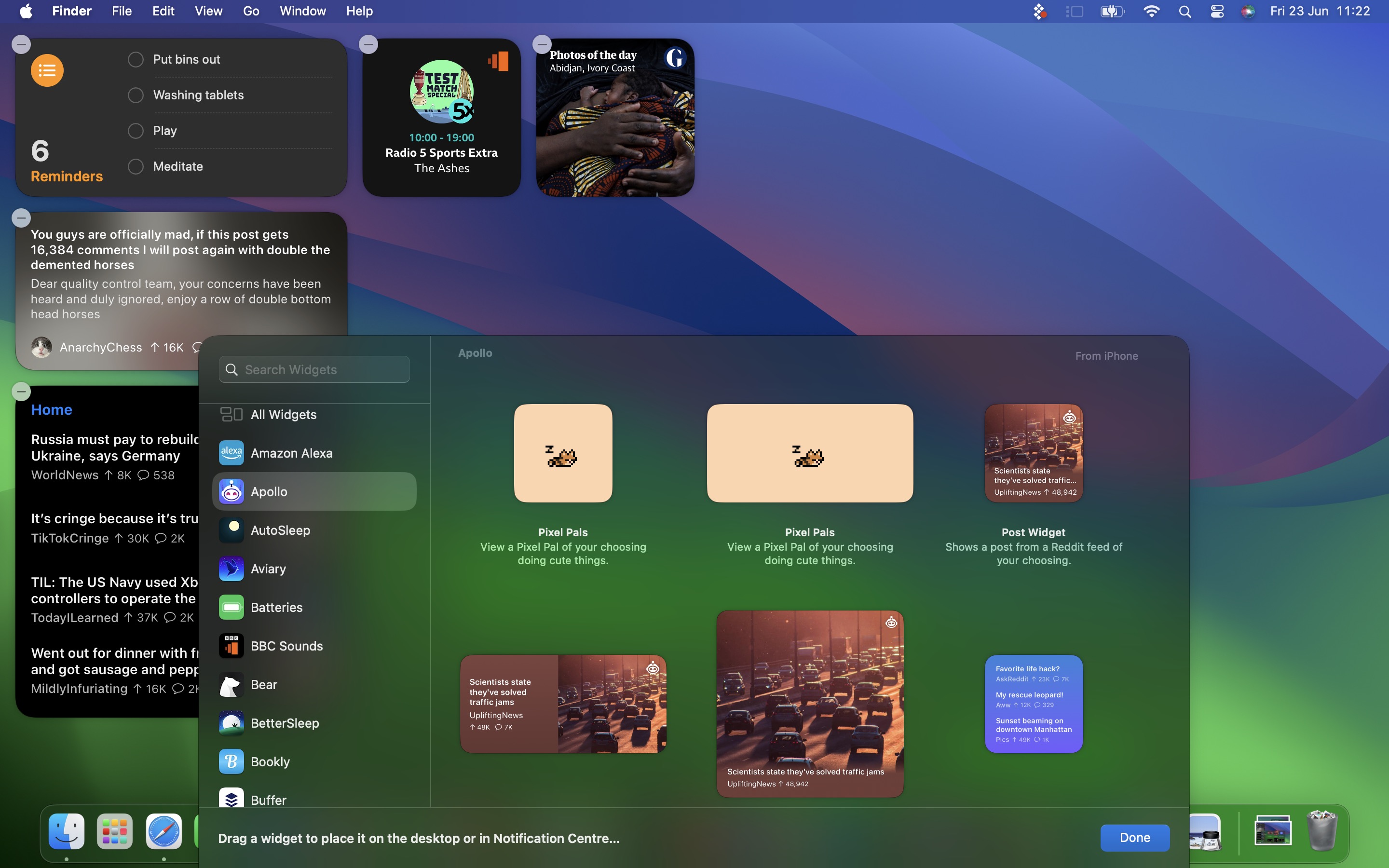
Alternatively, if you right-click on an empty space on the desktop, the menu that appears includes a new “Edit Widgets…” option. Selecting this brings up a widget gallery, which – thanks to a new Continuity feature between Apple devices – also includes widgets from your iPhone in all available sizes. So even if you don’t have the corresponding Mac app, you can still use the iOS widget right on your desktop. Simply drag it from the gallery into an available space.


If you’re running the macOS Sonoma beta, trying out iPhone widgets is a good way to get used to their interactivity until third-party developers have a chance to bake this into their Mac widgets. As it stands, only Apple’s own widgets offer (sometimes buggy) interactions.

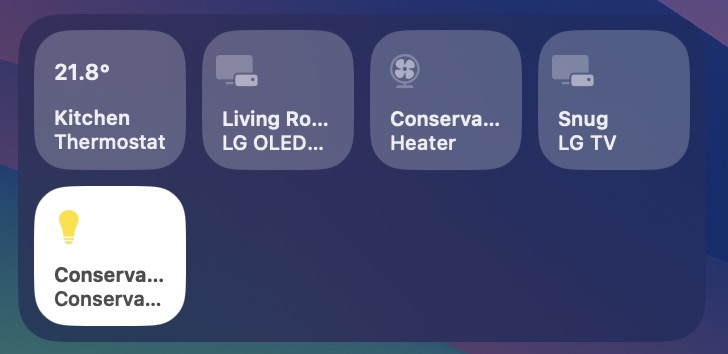
In the Home app widget, for example, you can control specific accessories by clicking the individual buttons to turn them on and off.


If you right-click a widget, any available customization options appear in the contextual menu. Widgets are available in Small, Medium, and Large sizes, and all include an option to “Remove Widget” if you want to get rid of it.
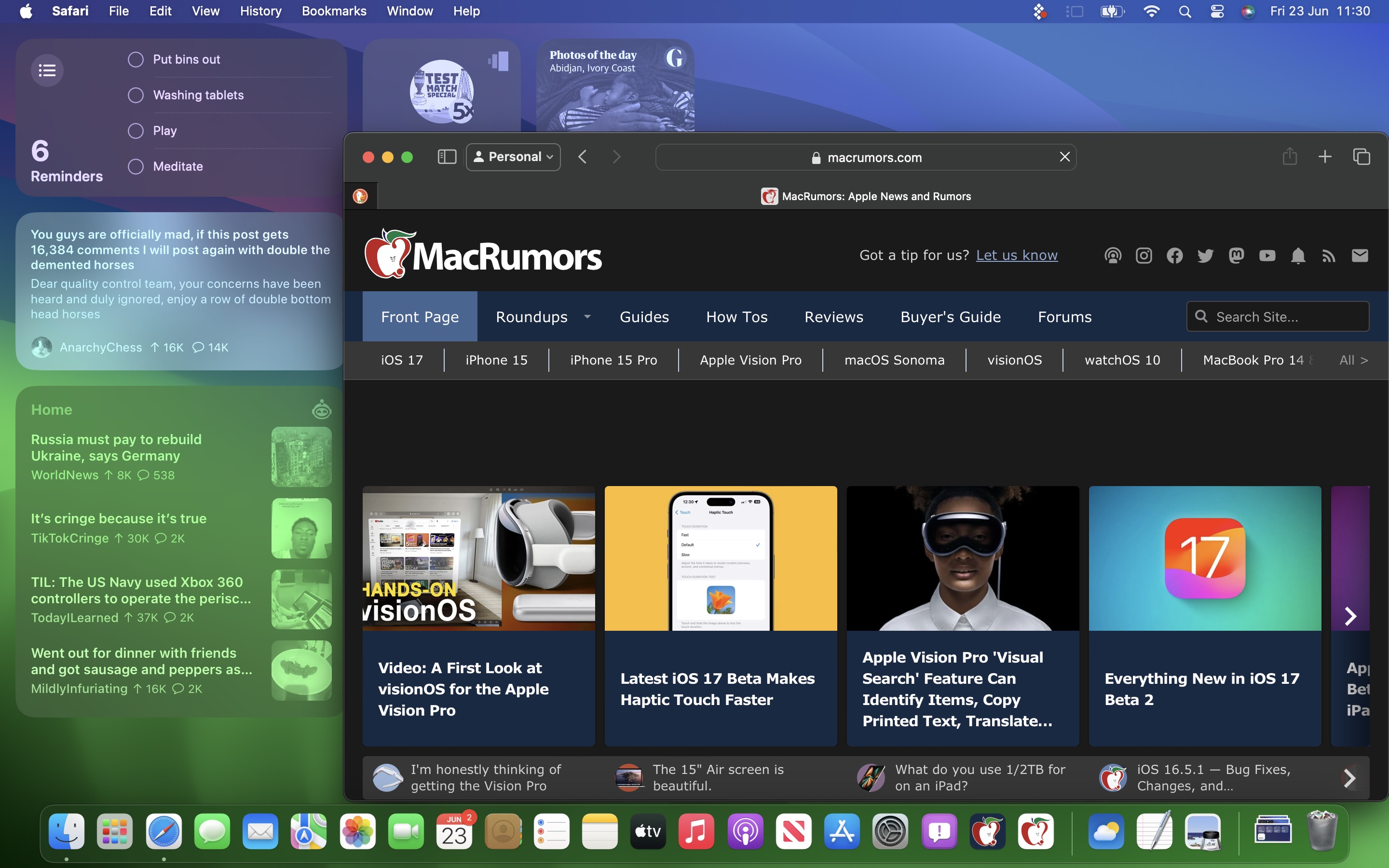


Lastly, when not in use, widgets fade into the background by taking on the color of your wallpaper, so you can concentrate on the active app or window.

Widgets have evolved in macOS Sonoma. By bringing them in from the dark and out into the open workspace of your desktop, users are actively encouraged to work alongside them. What are your thoughts on Apple’s new take on Mac widgets? Are you more likely to use them in their new guise? Let us know in the comments.

Related Roundup: macOS Sonoma
Related Forum: macOS Sonoma

This article, "Here's How Interactive Widgets Work in macOS Sonoma" first appeared on MacRumors.com

Discuss this article in our forums


You may also be interested in this

Monduo 16-inch Pro Duo Di…

The Monduo 16-inch Pro Duo Display can turn your single-screen 16-inch MacBook Pro into a triple-screen productivity powerhouse, and it works well — but Apple users have some more flexible

The History of the Apple …

The late 1990s and early 2000s marked a transformative period for Apple Inc., as it ventured beyond personal computers to redefine digital music and communication. This era witnessed the birth

The MacRumors Show: Apple…

On this week's episode of The MacRumors Show, we discuss Apple's plan to turn Siri into a chatbot with iOS 27, alongside plans for new hardware such as an AI

WSJ: Goldman Sachs wants …

Apple has developed a deep relationship with Goldman Sachs through Apple Card, but apparently, it’s an unhappy marriage. According to the Wall Street Journal, Goldman Sachs is in talks with

iPhone 15 Pro Max to Feat…

Apple is set to rearrange the layout of the rear triple-lens camera system on the iPhone 15 Pro Max to accommodate the new periscope camera technology that will be exclusive

TSMC thinking about movin…

Chip manufacturers, including Apple supplier TSMC, have begun considering moving a portion of their manufacturing to Japan as US/China tensions continue to escalate.Credit: Taiwan Semiconductor Manufacturing Co.Seven chipmakers have met

Apple Releases watchOS 26…

Apple today released watchOS 26.0.2, visionOS 26.0.1, and tvOS 26.0.1, the first updates to the watchOS 26, visionOS 26, and tvOS 26 updates that came out earlier in September. The

The 30+ Best Black Friday…

We're only one day away from Black Friday, which will take place on Friday, November 28 in 2025. As always, this will be the best time of the year to
X

A whimsical homage to the days in black and white, celebrating the magic of Mac OS. Dress up your blog with retro, chunky-grade pixellated graphics to evoke some serious computer nostalgia. Supports a custom menu, custom header image, custom background, two footer widget areas, and a full-width page template. I updated Stuart Brown's 2011 masterpiece to meet the needs of the times, made it responsive , got dark mode, custom search widget and more.You can download it from tigaman.com, where you can also find more useful code snippets and plugins to get even more out of wordpress.