
Apple’s Advanced Data Protection for iCloud feature uses end-to-end encryption to provide the highest level of cloud data security that Apple offers. Here’s everything you need to know about enabling it on your devices.
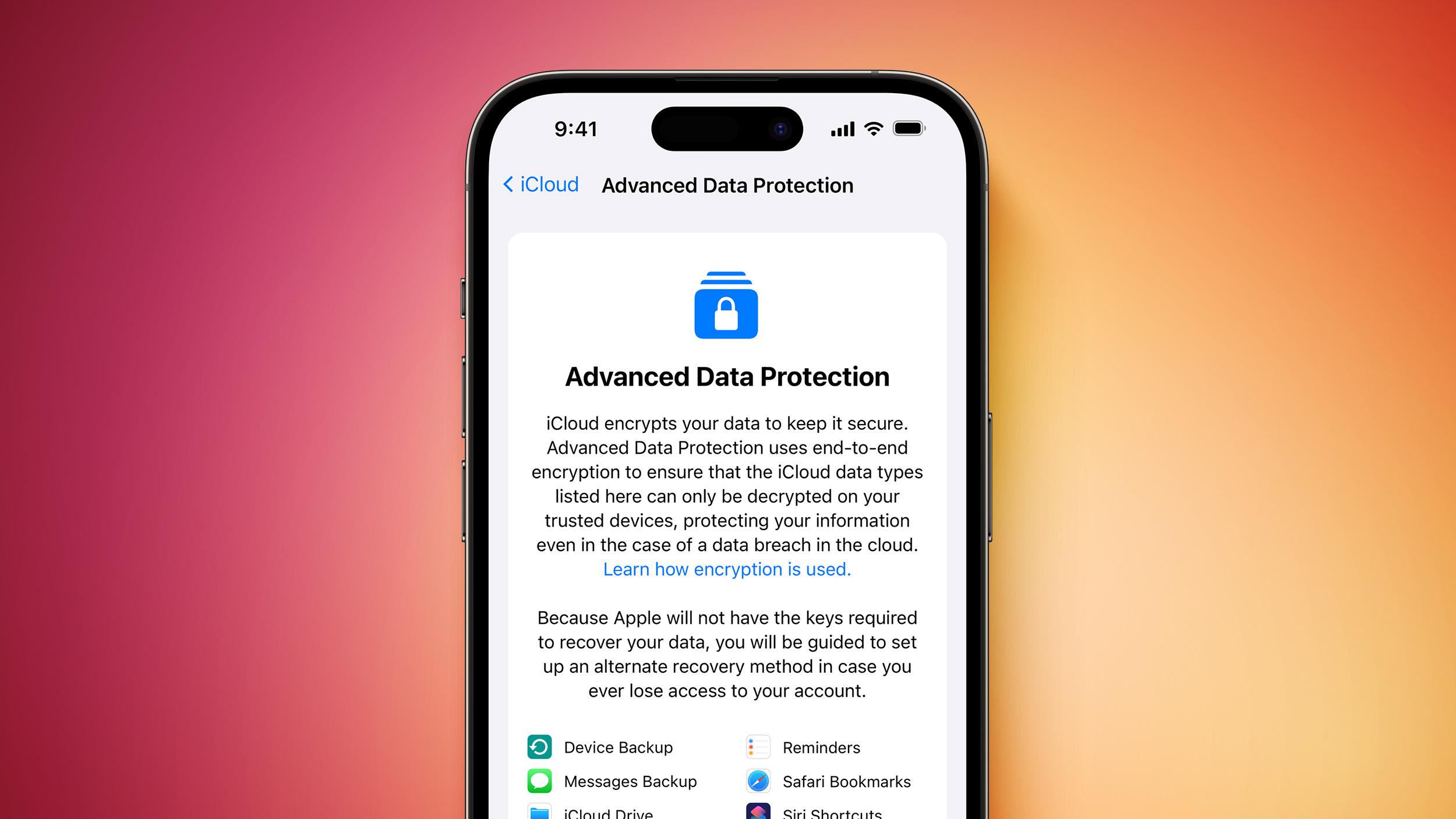
The encrypted security feature gives you the choice to further protect your important iCloud data, including iCloud Backup, Photos, Notes, and more.
Apple’s use of end-to-end encryption means the vast majority of your most sensitive iCloud data can only be decrypted on your trusted Apple devices where you’re signed in with your Apple ID account, ensuring that the data remains secure even in the case of a data breach in the cloud. In other words, no-one – not even Apple – can access your data except you.
iCloud already protects 14 sensitive data categories using end-to-end encryption by default, including passwords in iCloud Keychain and Health data. For users who enable Advanced Data Protection, the total number of data categories protected using end-to-end encryption rises to 23, including iCloud Backup, Notes, and Photos.
Advanced Data Protection provides end-to-end encryption for the following additional iCloud categories:
- Device Backups and Messages Backups
- iCloud Drive
- Notes
- Photos
- Reminders
- Voice Memos
- Safari Bookmarks
- Siri Shortcuts
- Wallet Passes
The only major iCloud data categories that are not covered are iCloud Mail, Contacts, and Calendar because of the need to interoperate with the global email, contacts, and calendar systems.
Crucially, Advanced Data Protection for iCloud is an opt-in feature, so you must enable it yourself using the steps below. Note that if you lose access to your account, you can only recover your data using your device passcode or password, a recovery contact, or a recovery key. (You will be guided to set up at least one recovery contact or recovery key before Advanced Data Protection is enabled.)
It’s also worth bearing in mind that when Advanced Data Protection is enabled, access to your data via iCloud.com is disabled by default, although you will have the option to turn on data access on iCloud.com, which allows the web browser and Apple to have temporary access to data-specific encryption keys.
Before you enable Advanced Data Protection, you’ll first have to update all your devices to the latest software versions, otherwise you’ll have to remove these devices from your account as they won’t support end-to-end encryption. Advanced Data Protection is available globally on the iPhone, iPad, and Mac, running iOS 16.3 or later, iPadOS 16.3 or later, and macOS 13.2 or later, respectively.
How to Enable Account Recovery on iPhone, iPad, and Mac
Before turning on Advanced Data Protection, you’ll need to set up Account Recovery. This ensures you can recover your data if you forget your password.
- Open Settings on your iPhone or iPad (or System Settings on Mac), and then select your Apple Account banner at the top of the menu.
- Select iCloud.
- Select Advanced Data Protection.
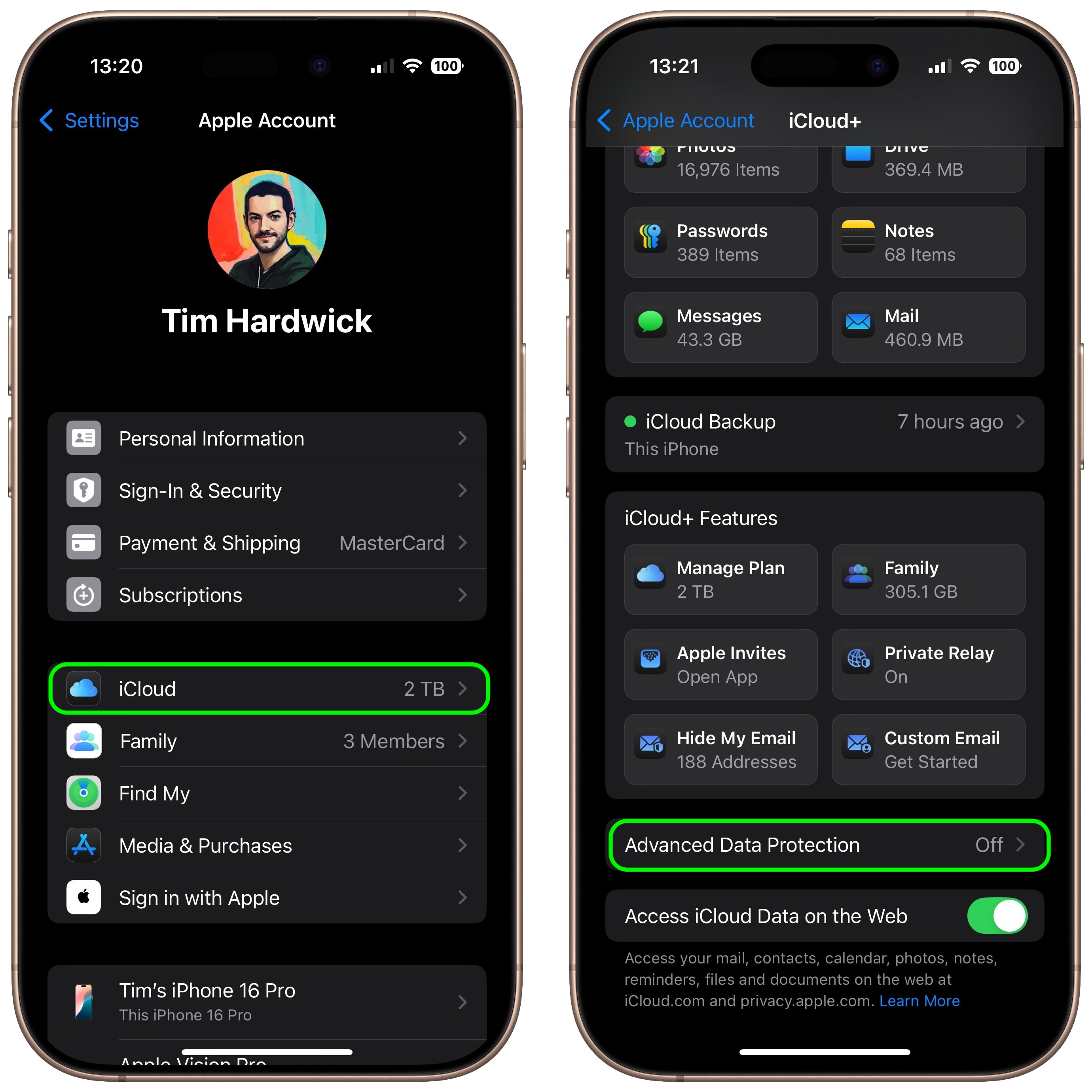
- Select Account Recovery.
- Add a Recovery Contact, and set a Recovery Key if desired.
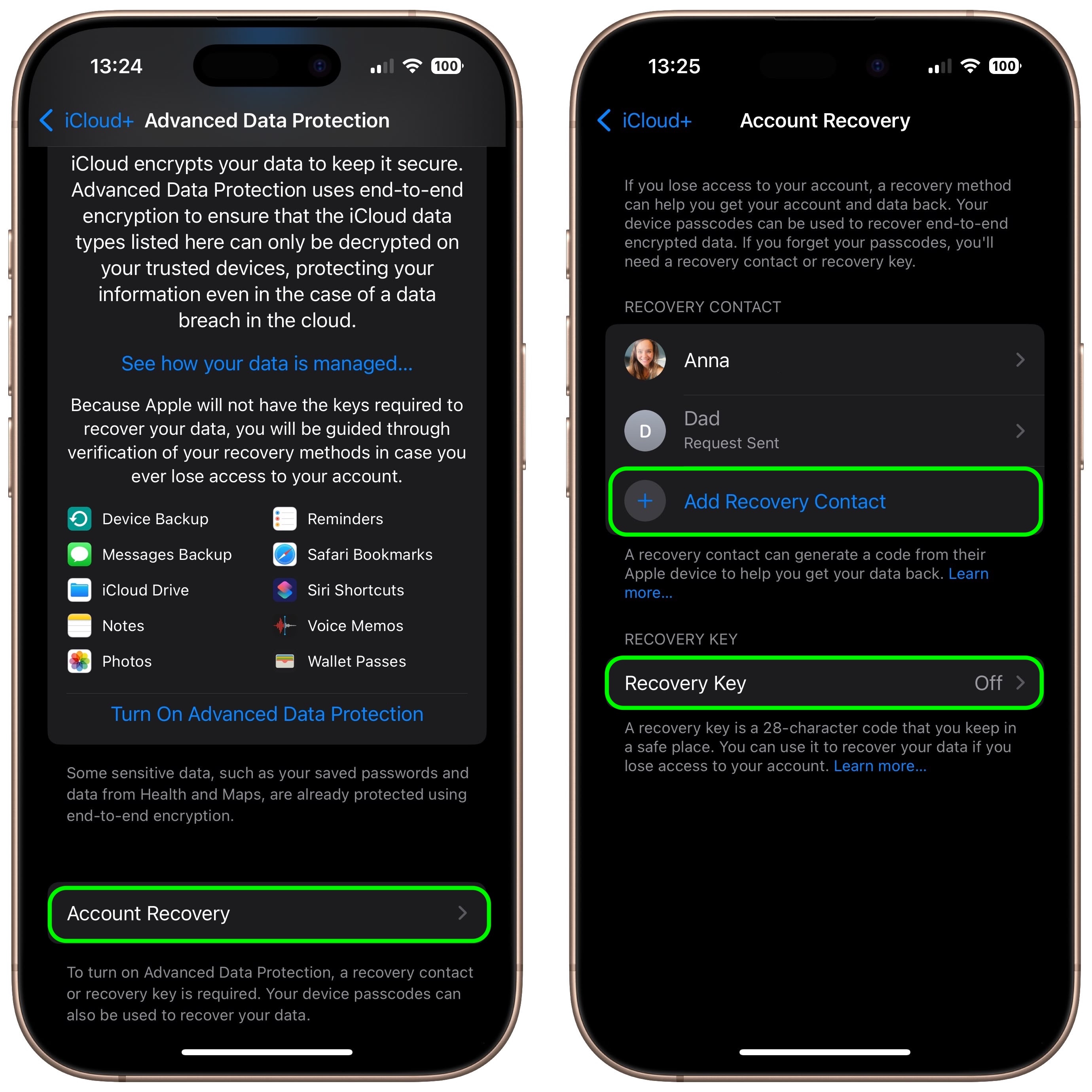
A recovery contact should be a trusted person such as a family member or friend who also owns an Apple device. They will receive recovery codes if you ever forget your password. If you opt to set a 28-character recovery key, you’ll need to print it out and keep it somewhere safe, or store it in a password manager.
How to Enable Advanced Data Protection on iPhone, iPad, and Mac
Once Account Recovery is set up, you can enable Advanced Data Protection for iCloud Backups.
- Open Settings on iPhone or iPad (System Settings on Mac) and then select your Apple Account banner at the top of the menu.
- Select iCloud.
- Select Advanced Data Protection.
- Toggle on the switch for Advanced Data Protection to turn it on.
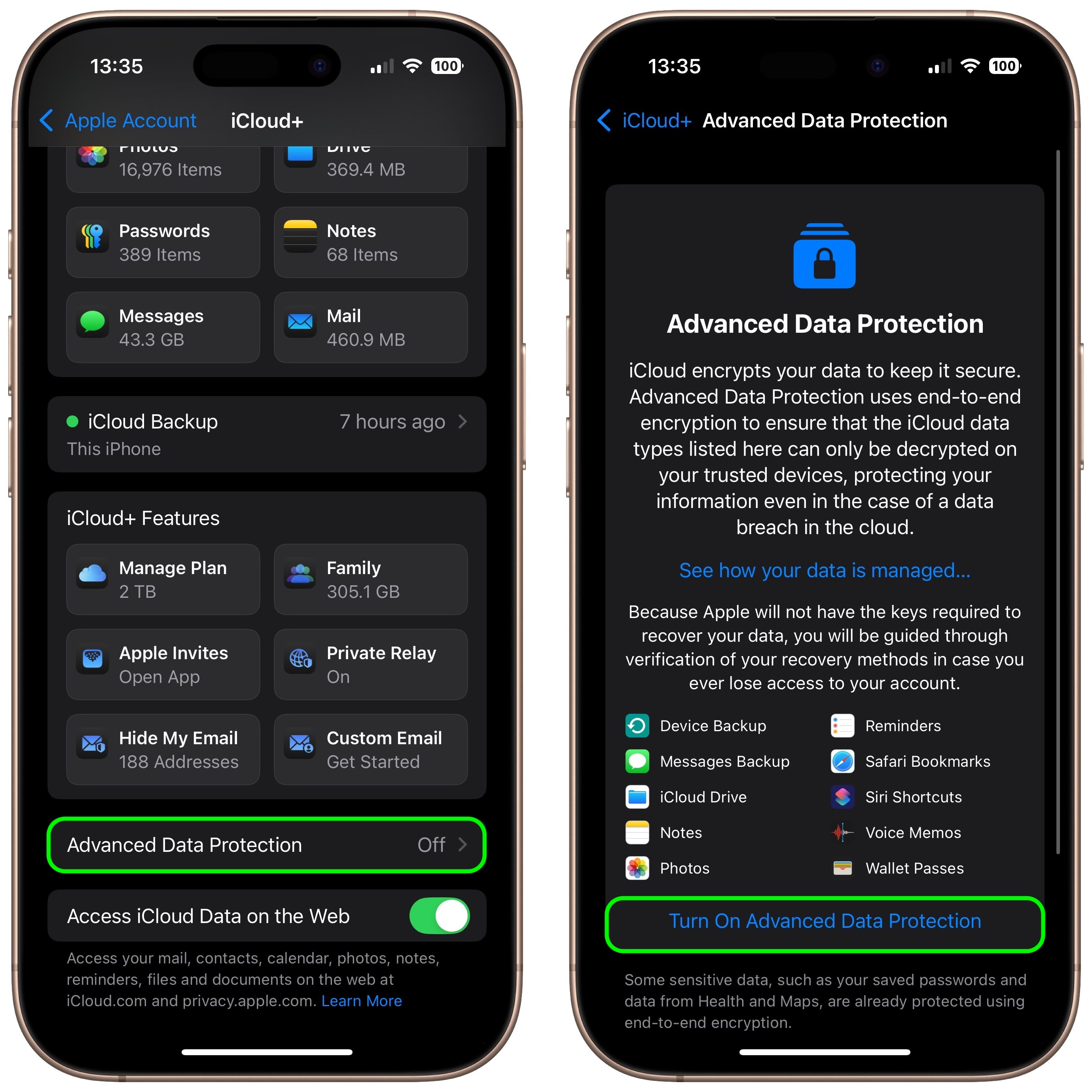
That’s it. Your iCloud backups are now protected with end-to-end encryption.
You can turn off Advanced Data Protection at any time. Upon doing so, your device will securely upload the required encryption keys to Apple servers, and your account will revert to a standard level of protection.
This article, "Enable End-to-End Encryption for Your iCloud Backups" first appeared on MacRumors.com
Discuss this article in our forums