
In iOS and iPadOS, Apple includes a built-in screenshot feature that also provides you with the ability to capture an entire webpage on your iPhone or iPad that you can

In iOS and iPadOS, Apple includes a built-in screenshot feature that also provides you with the ability to capture an entire webpage on your iPhone or iPad that you can then save or share with someone as a PDF document.


By converting full‑page screenshots into PDFs directly within Safari, you can preserve the exact layout and content of lengthy articles, receipts, or social media threads in a single, shareable file. Using the feature also eliminates the need to stitch together multiple images or rely on third‑party apps, plus the text remains searchable and any images stay crisp.

Here’s how the feature works.

  1. Launch Safari and navigate to the webpage that you wish to capture.
  2. If your device lacks a Home button, press the power button located at the top of the device and the volume up button located on the right of the device at the same time to take a screenshot. Otherwise, press the Home button and the Sleep/Wake button simultaneously to capture a screenshot.
  3. A preview of the screenshot will pop up in the lower left of the display. Tap it to open up the Instant Markup interface. You’ll have about five seconds before it disappears.
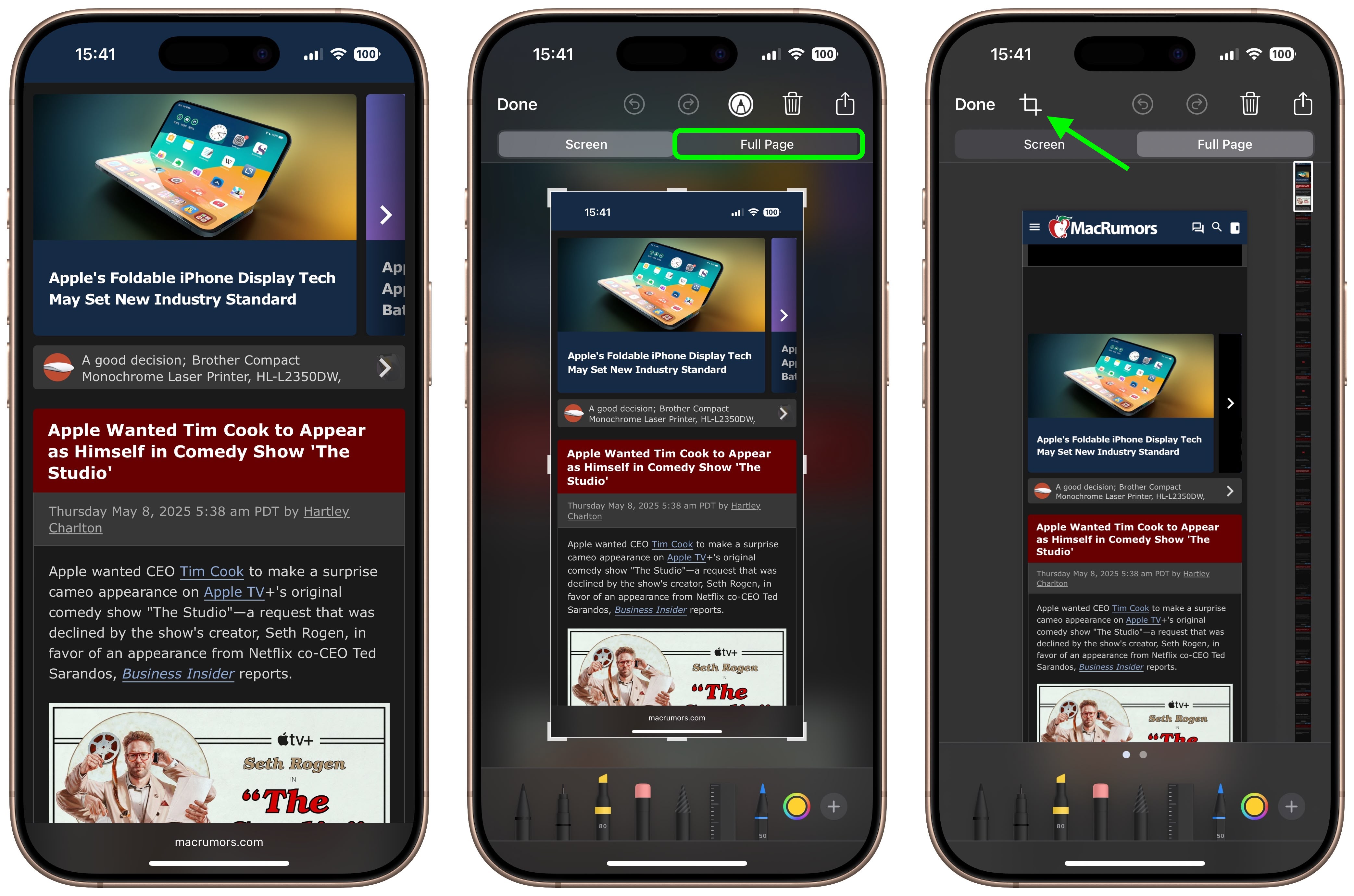
  4. Tap the Full Page tab in the upper right corner of the Markup interface, then tap the Crop icon at the top.
    safari

  5. Use the frame around the webpage to select what to capture by dragging the corners with your finger, then tap Done.
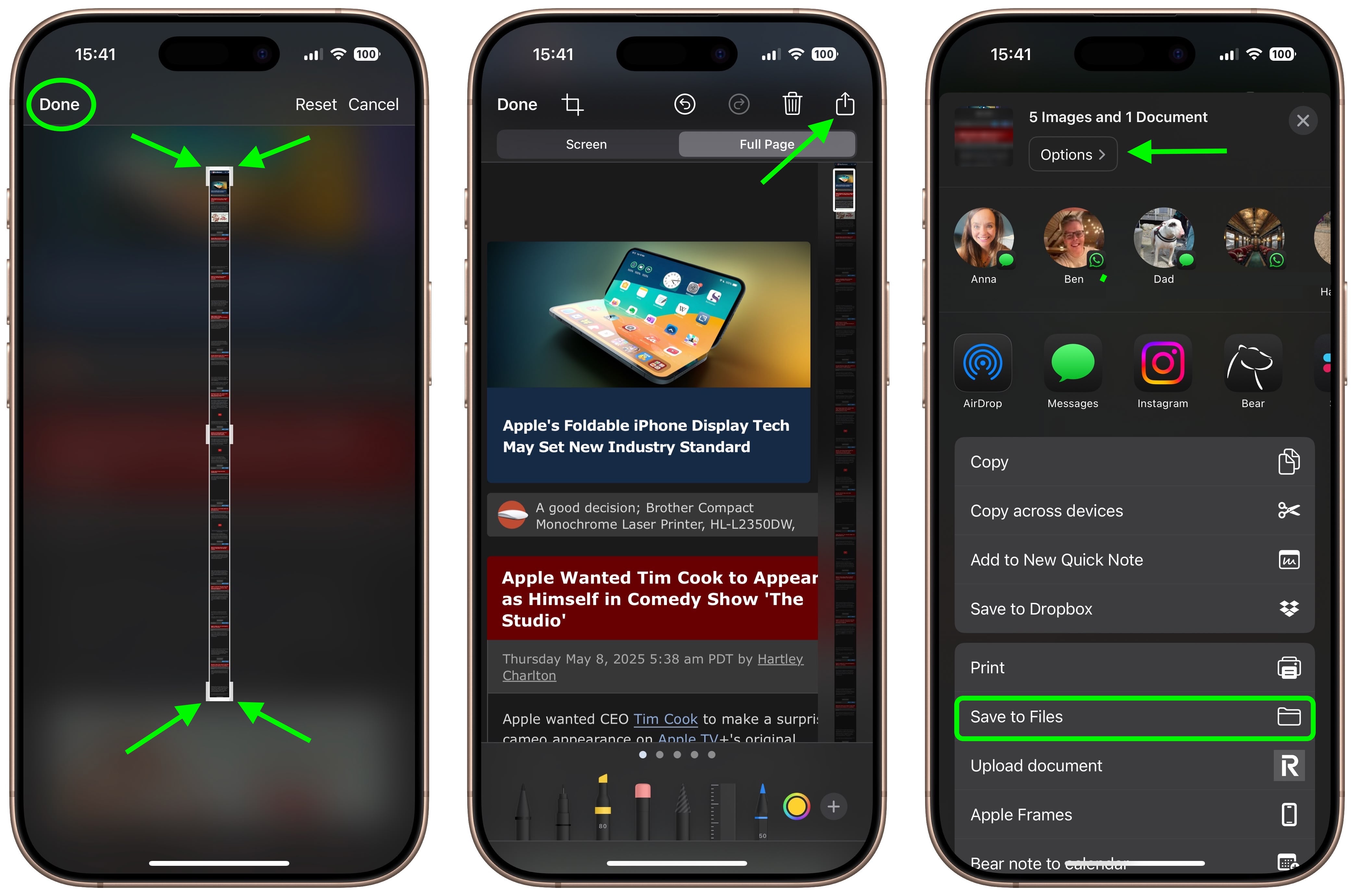
  6. Tap the Share sheet icon (the square with an arrow pointing out) to bring up a panel of share options and actions.
  7. From here, you can either share the captured webpage as a PDF document using the top two rows of icons, or save it somewhere (Save to Files, for example) using the Action menu options below. You can also use the Options button to name the file.
    safari

Note that you can always use the Markup tools to edit your PDF before saving or sharing it.

Tag: Safari

This article, "Turn a Long Webpage into a PDF with a Single iPhone Screenshot" first appeared on MacRumors.com

Discuss this article in our forums


You may also be interested in this

How to use Safari Profile…

Apple has added a new Profiles feature to Safari in macOS Sonoma, which is meant to be a quick way to separate work and home browsing, and to help with

Arc browser brings MySpac…

Web browsers that aren’t Safari have long offered the ability to customize their look with themes. For example, the frame and buttons from Chrome and Firefox can look different with

iOS 17: Nine New Features…

With every update to the iOS operating system, Apple adds new features to the built-in apps like Safari. In iOS 17, Safari gains new privacy functionality, improvements to search, updated

Once again, you’ll have t…

Macworld Welcome to our weekly Apple Breakfast column, which includes all the Apple news you missed last week in a handy bite-sized roundup. We call it Apple Breakfast because we

How to use Live Text and …

Macworld Live Text was introduced as a new feature in macOS Monterey, and it allows you to use the text in an image. It’s a feature that’s quite helpful—for example,

Apple explores acquiring …

Apple executives have internally considered acquiring Perplexity AI to offer an AI-powered search engine in Safari on its devices. (via Cult of Mac - Your source for the latest Apple

macOS: Share a Link That …

Sometimes when you share a webpage link with someone, you just want to bring their attention to a specific passage or sentence to make your point, rather than have them

macOS versions: Every ver…

Macworld Wondering what the name of the latest macOS version is? Want to know what the next version of macOS will be? Curious about the versions of Mac OS X
X

A whimsical homage to the days in black and white, celebrating the magic of Mac OS. Dress up your blog with retro, chunky-grade pixellated graphics to evoke some serious computer nostalgia. Supports a custom menu, custom header image, custom background, two footer widget areas, and a full-width page template. I updated Stuart Brown's 2011 masterpiece to meet the needs of the times, made it responsive , got dark mode, custom search widget and more.You can download it from tigaman.com, where you can also find more useful code snippets and plugins to get even more out of wordpress.