
In iOS and iPadOS, Apple includes a built-in screenshot feature that also provides you with the ability to capture an entire webpage on your iPhone or iPad that you can

In iOS and iPadOS, Apple includes a built-in screenshot feature that also provides you with the ability to capture an entire webpage on your iPhone or iPad that you can then save or share with someone as a PDF document.


By converting full‑page screenshots into PDFs directly within Safari, you can preserve the exact layout and content of lengthy articles, receipts, or social media threads in a single, shareable file. Using the feature also eliminates the need to stitch together multiple images or rely on third‑party apps, plus the text remains searchable and any images stay crisp.

Here’s how the feature works.

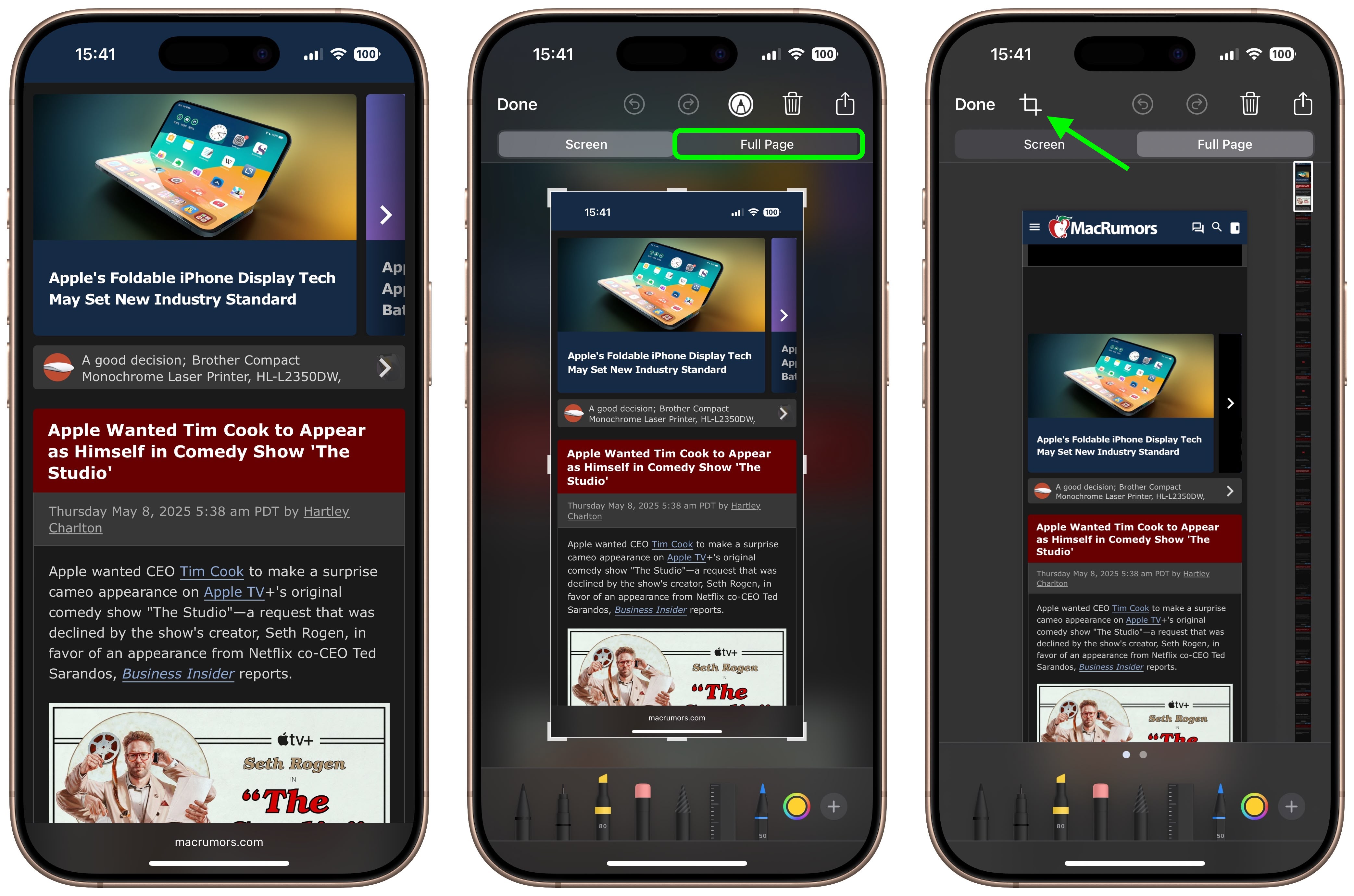
  1. Launch Safari and navigate to the webpage that you wish to capture.
  2. If your device lacks a Home button, press the power button located at the top of the device and the volume up button located on the right of the device at the same time to take a screenshot. Otherwise, press the Home button and the Sleep/Wake button simultaneously to capture a screenshot.
  3. A preview of the screenshot will pop up in the lower left of the display. Tap it to open up the Instant Markup interface. You’ll have about five seconds before it disappears.
  4. Tap the Full Page tab in the upper right corner of the Markup interface, then tap the Crop icon at the top.
    safari

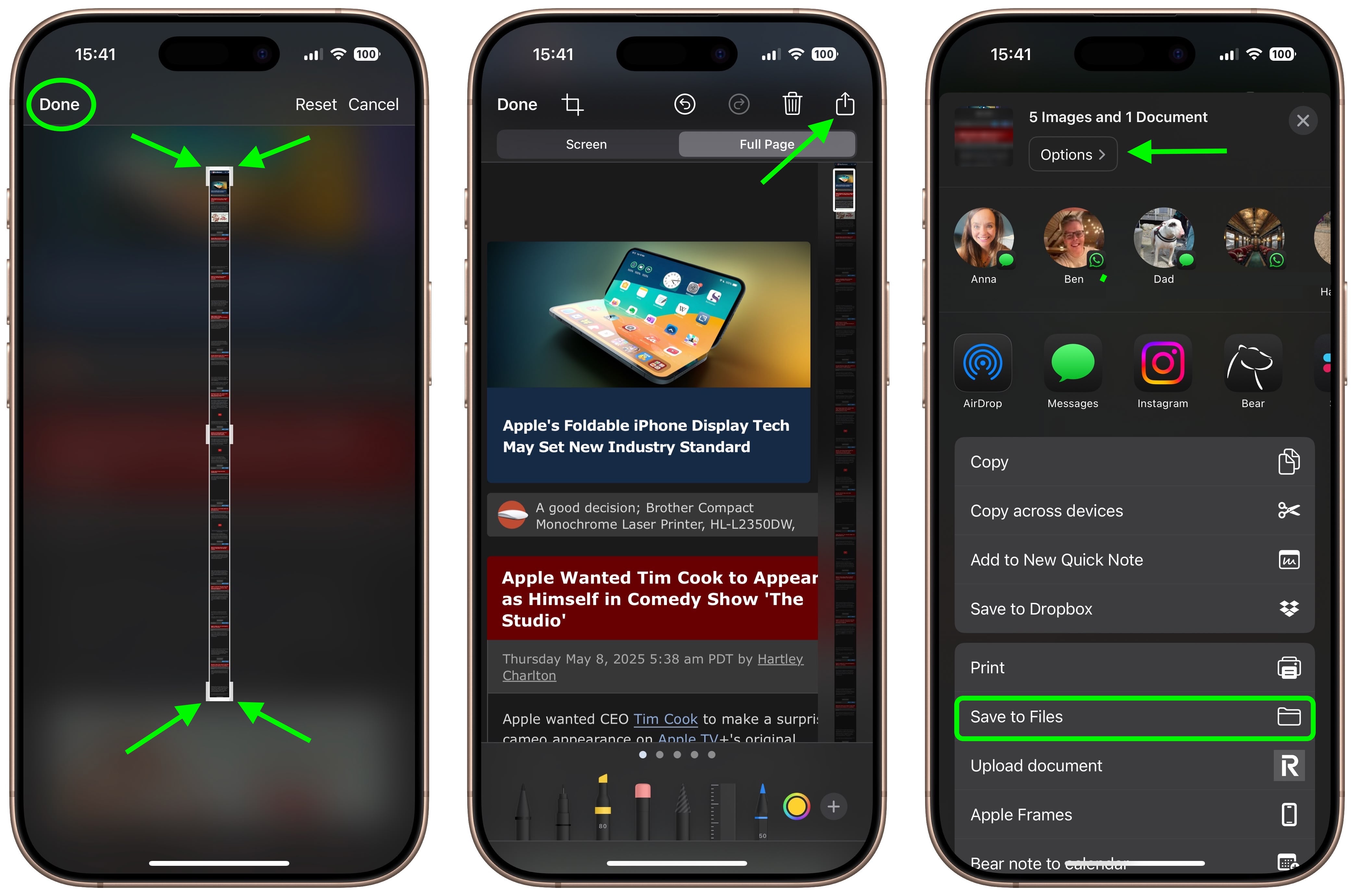
  5. Use the frame around the webpage to select what to capture by dragging the corners with your finger, then tap Done.
  6. Tap the Share sheet icon (the square with an arrow pointing out) to bring up a panel of share options and actions.
  7. From here, you can either share the captured webpage as a PDF document using the top two rows of icons, or save it somewhere (Save to Files, for example) using the Action menu options below. You can also use the Options button to name the file.
    safari

Note that you can always use the Markup tools to edit your PDF before saving or sharing it.

Tag: Safari

This article, "Turn a Long Webpage into a PDF with a Single iPhone Screenshot" first appeared on MacRumors.com

Discuss this article in our forums


You may also be interested in this

Today in Apple history: S…

June 11, 2007: At WWDC, Apple CEO Steve Jobs unveils Safari 3 for Windows, bringing the company’s web browser to PCs for the first time. Apple pitches Safari as the

Apple Releases First Beta…

Apple today seeded the first beta of the newly announced macOS 14 Sonoma update to developers for testing purposes. While the beta is limited to developers at this time, Apple

Video: A First Look at vi…

Apple yesterday released the first ever beta of visionOS and the SDK that will allow developers to create apps for the Apple Vision Pro headset. visionOS can only be explored

Apple unveils new Mac Pro…

Today Apple announced the new Mac Studio and Mac Pro, the two most powerful Macs ever made. Apple today introduced the new Mac Studio and Mac Pro, the two most

Use Safari Quick Website …

There are several ways to search the web in Apple's Safari browser. In this article, we're going to highlight a way of searching specific websites using a lesser-known Safari feature

Bookmark Multiple Tabs in…

In Safari on iPhone, it's not unusual for the number of tabs you have open to quickly get out of hand. Here's how to temporarily clean things up without losing

Google should be very afr…

Apple’s upcoming Vision Pro headset will feature a new augmented reality (AR) version of the Visual Lookup feature found in iPhones and iPads. This feature, dubbed “Visual Search,” will allow

How to use ‘Add to Dock’ …

This week, Apple gave everyone new reasons to never need to open Chrome again. One of those is a new feature for turning any web app into an app on
X

A whimsical homage to the days in black and white, celebrating the magic of Mac OS. Dress up your blog with retro, chunky-grade pixellated graphics to evoke some serious computer nostalgia. Supports a custom menu, custom header image, custom background, two footer widget areas, and a full-width page template. I updated Stuart Brown's 2011 masterpiece to meet the needs of the times, made it responsive , got dark mode, custom search widget and more.You can download it from tigaman.com, where you can also find more useful code snippets and plugins to get even more out of wordpress.